Using Better Auth with the Bryntum React Gantt
We strive to keep posts updated, but code samples may sometimes be outdated. Humans, see the Bryntum documentation; agents, https://mcp.bryntum.com for the latest info.
Project management tools live and die by trust. When you build a Gantt chart to coordinate your team’s work, you need to be sure that only the right people can access it, whether that’s your entire company, a specific team, or a handful of external collaborators. Authentication is what makes that possible, but bolting it onto an existing app is rarely a straightforward task.
The Bryntum React Gantt is a performant and fully customizable JavaScript component that takes the hardest part of building a project management interface off your plate. Drag-and-drop task management, dependency tracking, critical path calculation, resource allocation, and Microsoft Project import/export: these are months of engineering work that Bryntum handles out of the box. But once you have a powerful project view up and running, protecting it with the right authentication strategy is the next critical step.
For JavaScript apps, we use Better Auth, a free and open-source TypeScript authentication framework that keeps user data in your own database rather than a third-party service. It integrates across the stack you’re most likely already using:
- Frameworks: Next.js, Nuxt, SvelteKit, TanStack Start, Hono, Fastify, NestJS, React Native
- Databases: PostgreSQL, MySQL, MS SQL, and SQLite directly; Drizzle, Prisma, and MongoDB via adapters
- Auth methods: Email/password, email OTP, social sign-in (Google, GitHub, Apple, and more), passkeys, magic links, two-factor authentication, SSO, and JWT
In this guide, we’ll show you some of Better Auth’s authentication features by building three small demo apps, each of which protects a Bryntum React Gantt chart in a different way:
| Demo app | Use case | Method |
|---|---|---|
| 1 | General user access | Email and password login |
| 2 | Internal company charts | Signup restricted to one email domain |
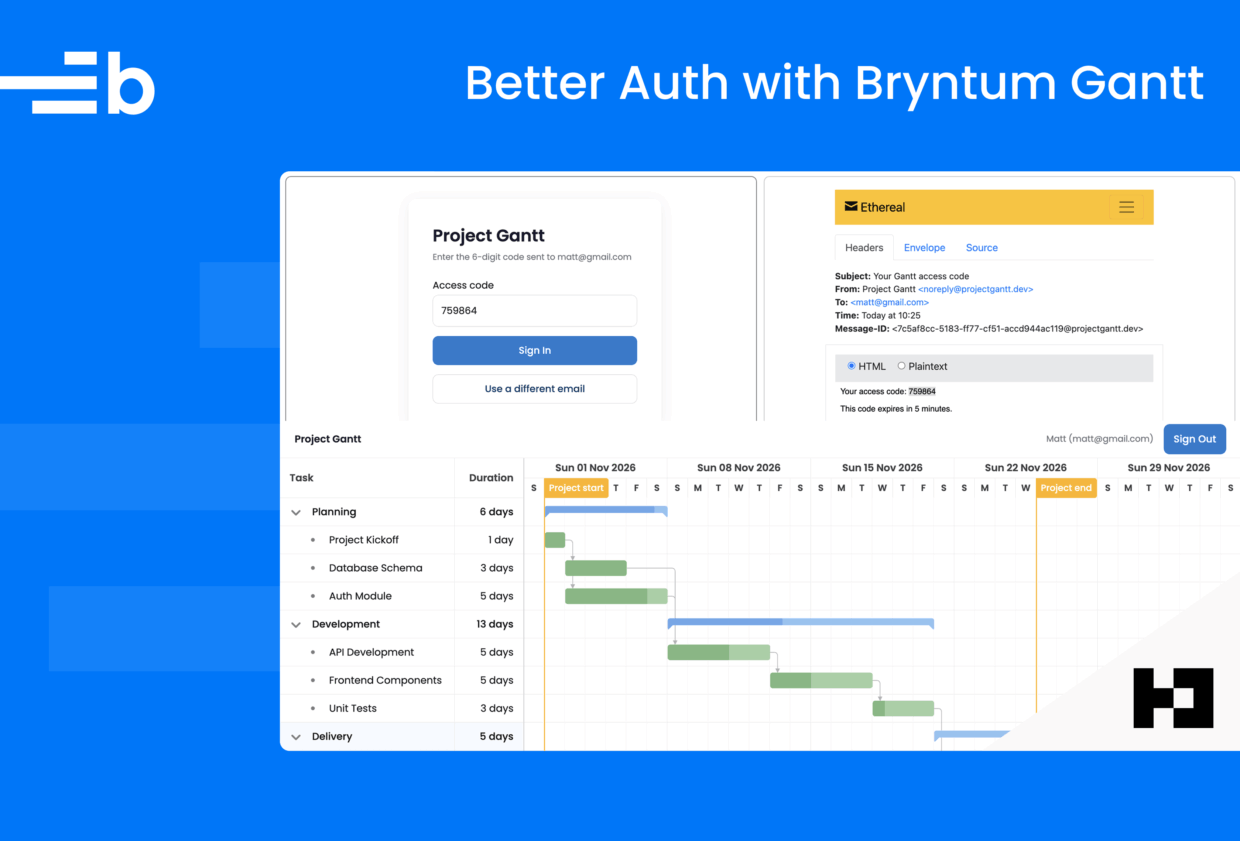
| 3 | External collaborators | Invite-only access via one-time email code |
All three apps use the same stack, which we kept simple: a React frontend built with Vite, an Express backend, and SQLite for storage.
By the end, you’ll understand how to gate a Bryntum Gantt chart behind a session check, restrict signups by email domain, and implement a passwordless invite flow using one-time codes. Each demo builds on the last, so you can read straight through or jump to the app that fits your situation.
Note: Better Auth runs in a JavaScript or TypeScript backend. If your existing backend uses another language, you can run a small Node.js auth server between your frontend and backend that handles only authentication.
You can find the code for the three demos in our GitHub repository, with each demo app in its own folder:
demo-1-email-password: Bryntum Gantt protected by Better Auth email and passworddemo-2-domain-restriction: Bryntum Gantt with signups restricted to one email domaindemo-3-email-otp: Bryntum Gantt shared with an email OTP invite list
Prerequisites
What you’ll need before starting:
- Node.js 20.19 or later installed
- Basic familiarity with React, TypeScript, and Express
- A Bryntum Gantt license or free trial access
Demo App 1: Creating a Bryntum Gantt chart behind an email and password login
The first demo is the most basic: users register with an email and password, and only signed-in users can load the Gantt chart. It establishes the core pattern that the other two demos build on, so it’s worth understanding each piece before moving forward.
Setting up the Express backend
The backend needs the auth framework, a SQLite driver, and a few Express utilities, plus TypeScript tooling to run the files directly.
Create a project folder, add a backend folder inside it, initialize a Node.js project, and install the dependencies:
mkdir gantt-better-auth
cd gantt-better-auth
mkdir backend
cd backend
npm init -y
npm install better-auth better-sqlite3 cors dotenv express
npm install --save-dev @types/better-sqlite3 @types/cors @types/express tsx typescript
Set "type": "module" and add dev and migrate scripts in the generated package.json:
{
  "name": "demo-1-backend",
  "version": "1.0.0",
  "type": "module",
  "scripts": {
    "dev": "tsx watch src/index.ts",
    "migrate": "tsx src/migrate.ts"
  }
}
Next, TypeScript needs to know how to interpret the backend’s .ts files.
Create a tsconfig.json configured for modern Node ESM (note this pairs with the "type": "module" you set above):
{
  "compilerOptions": {
    "target": "ES2022",
    "module": "ESNext",
    "moduleResolution": "bundler",
    "strict": true,
    "esModuleInterop": true,
    "skipLibCheck": true,
    "rootDir": "./src",
    "outDir": "./dist"
  },
  "include": ["src"]
}
Configuring Better Auth
Better Auth is configured in a server file that creates the auth object: we hand it a database connection and switch on the features we need. This config is where the three demos differ most.
Create a src folder with an auth.ts file inside. Add the following code to it:
import { betterAuth } from 'better-auth';
import Database from 'better-sqlite3';

export const auth = betterAuth({
    database         : new Database('./auth.db'),
    emailAndPassword : {
        enabled : true
    },
    trustedOrigins : ['http://localhost:5173']
});
This is the entire auth configuration for the first demo:
databaseaccepts a better-sqlite3 connection directly. Better Auth also supports Postgres, MySQL, and ORMs like Drizzle and Prisma through adapters.emailAndPassword: { enabled: true }turns on the register, sign-in, and sign-out endpoints, with secure password hashing (scrypt) included.trustedOriginsis CSRF protection: Better Auth rejects state-changing requests whoseOriginheader is not on this list. The frontend Vite dev server will run on port 5173.
Better Auth reads its secret key from an environment variable. Create a .env file with the following variables:
BETTER_AUTH_SECRET=demo1-secret-replace-with-openssl-rand-base64-32-in-production
BETTER_AUTH_URL=http://localhost:5173
The secret signs and encrypts cookies and tokens. In production, generate one with openssl rand -base64 32.
Creating the auth database tables
Better Auth has its own database schema, which means we don’t design the user or session tables ourselves. Create a migrate.ts file in backend/src and add the following code to it:
import 'dotenv/config';
import { getMigrations } from 'better-auth/db/migration';
import { auth } from './auth.js';

const { toBeCreated, toBeAdded, runMigrations } = await getMigrations(auth.options);

if (toBeCreated.length === 0 && toBeAdded.length === 0) {
    console.log('Database is already up to date.');
    process.exit(0);
}

if (toBeCreated.length > 0) {
    console.log('Tables to create:', toBeCreated.map((t) => t.table).join(', '));
}
if (toBeAdded.length > 0) {
    console.log('Columns to add:', toBeAdded.map((t) => t.table).join(', '));
}

await runMigrations();
console.log('Migration complete.');
This inspects the auth configuration, works out which tables are missing, and creates them.
Run the migration using the following command:
npm run migrateThe script creates an auth.db SQLite file with four tables: user, session, account, and verification. When you later enable more Better Auth features that need extra columns or tables, running the same script updates the schema.
Serving Gantt data behind a session check
Create an index.ts file in backend/src and add the following Express server code to it:
import 'dotenv/config';
import express from 'express';
import cors from 'cors';
import { toNodeHandler, fromNodeHeaders } from 'better-auth/node';
import { auth } from './auth.js';

const app = express();
const PORT = 3001;

app.use(
    cors({
        origin      : 'http://localhost:5173',
        credentials : true
    })
);

// Better Auth handler — must be mounted before express.json()
app.all('/api/auth/*splat', toNodeHandler(auth));

app.use(express.json());
This code mounts every Better Auth endpoint behind a single catch-all route: sign-up, sign-in, sign-out, get-session, and any Better Auth plugin endpoints, so we never write auth endpoints ourselves.
The handler must be mounted before express.json(). Better Auth parses its own request bodies, and if Express consumes the body first, auth requests hang. The *splat route parameter is the Express 5 wildcard syntax. Express 4 uses a bare * instead, which crashes on startup in Express 5.
Next, add the Gantt data and the protected endpoint at the bottom of the file:
const tasks = [
    // Parent tasks
    { id : 1,  name : 'Planning',     expanded : true },
    { id : 5,  name : 'Development',  expanded : true },
    { id : 9,  name : 'Delivery',     expanded : true },
    // Planning children
    { id : 2,  parentId : 1, name : 'Project Kickoff',     startDate : '2026-11-02', duration : 1, percentDone : 100, assignedTo : 'alice@example.com' },
    { id : 3,  parentId : 1, name : 'Database Schema',     startDate : '2026-11-03', duration : 3, percentDone : 100, assignedTo : 'bob@example.com'   },
    { id : 4,  parentId : 1, name : 'Auth Module',         startDate : '2026-11-03', duration : 5, percentDone : 80,  assignedTo : 'alice@example.com' },
    // Development children
    { id : 6,  parentId : 5, name : 'API Development',     startDate : '2026-11-10', duration : 5, percentDone : 60,  assignedTo : 'bob@example.com'   },
    { id : 7,  parentId : 5, name : 'Frontend Components', startDate : '2026-11-10', duration : 5, percentDone : 40,  assignedTo : 'carol@example.com' },
    { id : 8,  parentId : 5, name : 'Unit Tests',          startDate : '2026-11-17', duration : 3, percentDone : 20,  assignedTo : 'bob@example.com'   },
    // Delivery children
    { id : 10, parentId : 9, name : 'Integration Testing', startDate : '2026-11-20', duration : 3, percentDone : 0,   assignedTo : 'carol@example.com' },
    { id : 11, parentId : 9, name : 'Deployment',          startDate : '2026-11-24', duration : 2, percentDone : 0,   assignedTo : 'alice@example.com' }
];

const dependencies = [
    { id : 1, fromTask : 2,  toTask : 3  },
    { id : 2, fromTask : 2,  toTask : 4  },
    { id : 3, fromTask : 3,  toTask : 6  },
    { id : 4, fromTask : 4,  toTask : 6  },
    { id : 5, fromTask : 6,  toTask : 7  },
    { id : 6, fromTask : 7,  toTask : 8  },
    { id : 7, fromTask : 8,  toTask : 10 },
    { id : 8, fromTask : 10, toTask : 11 }
];

app.get('/api/tasks', async(req, res) => {
    const session = await auth.api.getSession({
        headers : fromNodeHeaders(req.headers)
    });

    if (!session) {
        return res.status(401).json({ error : 'Unauthorized' });
    }

    return res.json({ tasks, dependencies });
});

app.listen(PORT, () => {
    console.log(`Backend running at http://localhost:${PORT}`);
    console.log(`Auth endpoints at http://localhost:${PORT}/api/auth`);
});
This /api/tasks handler is the pattern the whole guide builds on: a protected endpoint validates the session and returns 401 if there isn’t one, otherwise it returns the data. The two later demos reuse this endpoint unchanged and only alter who can obtain a valid session.
Better Auth sessions are cookie-based: when a user signs in, the server sets an HttpOnly better-auth.session_token cookie and stores the session in SQLite, then the browser sends the cookie automatically with each request, with no tokens stored in JavaScript. The auth.api.getSession() method validates the cookie on the incoming request. If the cookie is missing, expired, or invalid, the endpoint returns 401 and the task data never leaves the server.
Now start the backend server:
npm run devCreating the React frontend
In the project root, scaffold a Vite project with the React and TypeScript template:
npm create vite@latest frontend -- --template react-ts
cd frontend
npm install
Install the Better Auth client library:
npm install better-authInstalling the Bryntum Gantt component
If you’re using the free trial, install the public Bryntum Gantt trial package and the React wrapper:
npm install @bryntum/gantt@npm:@bryntum/gantt-trial @bryntum/gantt-reactIf you have a Bryntum license, refer to our npm Repository Guide and install the licensed packages:
npm install @bryntum/gantt @bryntum/gantt-reactConfiguring the Vite proxy and app entry
Replace the contents of vite.config.ts with the following:
import { defineConfig } from 'vite';
import react from '@vitejs/plugin-react';

export default defineConfig({
    plugins : [react()],
    server  : {
        proxy : {
            '/api' : {
                target       : 'http://localhost:3001',
                changeOrigin : true
            }
        }
    }
});
This proxies every /api request from the Vite dev server to the Express backend, so the frontend and backend share an origin during development and the session cookie works without extra configuration.
Vite’s entry file needs to point at our own App component instead of its demo.
Replace the contents of frontend/src/main.tsx with the following code:
import { StrictMode } from 'react';
import ReactDOM from 'react-dom/client';
import App from './App';
import './index.css';

ReactDOM.createRoot(document.getElementById('root')!).render(
    <StrictMode>
        <App />
    </StrictMode>
);
You can also delete the src/App.css and src/assets files that the Vite template generates, as our app won’t use them.
Connecting the Better Auth client
Create an auth-client.ts file in frontend/src with the following lines of code:
import { createAuthClient } from 'better-auth/react';

export const authClient = createAuthClient({
    // By default the session is refetched on window focus
    sessionOptions : { refetchOnWindowFocus : false }
});
The Better Auth client gives us typed functions for each auth endpoint, plus a useSession() React hook. Calling authClient.signIn.email() sends a request to POST /api/auth/sign-in/email, one of the endpoints the backend handler exposes.
Gating the app on session state
Replace the contents of frontend/src/App.tsx with the following:
import { authClient } from './auth-client';
import Login from './pages/Login';
import GanttPage from './pages/GanttPage';

export default function App() {
    const { data: session, isPending } = authClient.useSession();

    if (isPending) {
        return (
            <div style={{ display : 'flex', alignItems : 'center', justifyContent : 'center', height : '100%' }}>
                <p>Loading…</p>
            </div>
        );
    }

    if (!session) return <Login />;

    return <GanttPage session={session} />;
}
The useSession() hook returns the current session, or null if the user is signed out, plus an isPending loading flag. If there is no session, a Login page is displayed.
Building the login form with Bryntum widgets
The login page handles both registration and sign-in using the Bryntum TabPanel widget that ships with Bryntum Gantt: a Sign In tab and a Register tab, each containing Bryntum TextField and Button widget configs. Create a pages folder in frontend/src and add a Login.tsx file to it with the following lines of code:
import { useRef, useState, type CSSProperties, type SubmitEvent } from 'react';
import { BryntumTabPanel, type BryntumTabPanelProps } from '@bryntum/gantt-react';
import type { Button, TextField } from '@bryntum/gantt';
import { authClient } from '../auth-client';

function formatError(msg: string): string {
    return msg.replace(/\[body\.(\w+)\]/g, (_, f) => f.charAt(0).toUpperCase() + f.slice(1) + ':');
}

export default function Login() {
    const [error, setError] = useState('');

    const formRef     = useRef<HTMLFormElement>(null);
    const tabPanelRef = useRef<BryntumTabPanel>(null);

    // Created once so the widget keeps the same config reference across
    // StrictMode's double mount in development
    const [tabPanelConfig] = useState<BryntumTabPanelProps>(() => {
        const submit = () => formRef.current?.requestSubmit();

        return {
            animateTabChange : false,
            items            : {
                signInTab : {
                    title    : 'Sign In',
                    style    : 'padding-top: 1.5rem',
                    defaults : { labelPosition : 'above', width : '100%' },
                    items    : {
                        loginEmail : {
                            type        : 'textfield',
                            label       : 'Email',
                            placeholder : 'jane@example.com'
                        },
                        loginPassword : {
                            type        : 'textfield',
                            label       : 'Password',
                            inputType   : 'password',
                            placeholder : 'At least 8 characters'
                        },
                        loginButton : {
                            type         : 'button',
                            text         : 'Sign In',
                            rendition    : 'filled',
                            behaviorType : 'submit',
                            onClick      : submit
                        }
                    }
                },
                registerTab : {
                    title    : 'Register',
                    style    : 'padding-top: 1.5rem',
                    defaults : { labelPosition : 'above', width : '100%' },
                    items    : {
                        registerName : {
                            type        : 'textfield',
                            label       : 'Name',
                            placeholder : 'Jane Smith'
                        },
                        registerEmail : {
                            type        : 'textfield',
                            label       : 'Email',
                            placeholder : 'jane@example.com'
                        },
                        registerPassword : {
                            type        : 'textfield',
                            label       : 'Password',
                            inputType   : 'password',
                            placeholder : 'At least 8 characters'
                        },
                        registerButton : {
                            type         : 'button',
                            text         : 'Create Account',
                            rendition    : 'filled',
                            behaviorType : 'submit',
                            onClick      : submit
                        }
                    }
                }
            }
        };
    });

    function field(name: string) {
        return tabPanelRef.current?.instance.widgetMap[name] as TextField | undefined;
    }

    async function handleSubmit(e: SubmitEvent<HTMLFormElement>) {
        e.preventDefault();

        const tabPanel = tabPanelRef.current?.instance;
        if (!tabPanel) return;

        const mode     = tabPanel.activeIndex === 0 ? 'login' : 'register';
        const name     = ((field('registerName')?.value as string) ?? '').trim();
        const email    = field(mode === 'login' ? 'loginEmail' : 'registerEmail');
        const password = field(mode === 'login' ? 'loginPassword' : 'registerPassword');

        // Clear previous field errors
        ['registerName', 'loginEmail', 'registerEmail', 'loginPassword', 'registerPassword']
            .forEach(n => field(n)?.clearError());

        let valid = true;

        if (mode === 'register' && !name) {
            field('registerName')?.setError('Name is required');
            valid = false;
        }
        if (!email?.value) {
            email?.setError('Email is required');
            valid = false;
        }
        else if (!/^[^\s@]+@[^\s@]+\.[^\s@]+$/.test(email.value as string)) {
            email.setError('Invalid email address');
            valid = false;
        }
        if (!password?.value) {
            password?.setError('Password is required');
            valid = false;
        }
        else if ((password.value as string).length < 8) {
            password.setError('At least 8 characters required');
            valid = false;
        }
        if (!valid || !email || !password) return;

        setError('');

        const button     = tabPanel.widgetMap[mode === 'login' ? 'loginButton' : 'registerButton'] as Button;
        const buttonText = button.text;
        button.disabled  = true;
        button.text      = 'Please wait…';

        if (mode === 'register') {
            const { error } = await authClient.signUp.email({
                name,
                email    : email.value as string,
                password : password.value as string
            });
            if (error) setError(formatError(error.message ?? 'Registration failed.'));
        }
        else {
            const { error } = await authClient.signIn.email({
                email    : email.value as string,
                password : password.value as string
            });
            if (error) setError(formatError(error.message ?? 'Sign in failed.'));
        }

        button.disabled = false;
        button.text     = buttonText;
    }

    return (
        <div style={styles.page}>
            <div style={styles.card}>
                <h1 style={styles.title}>Project Gantt</h1>
                <p style={styles.subtitle}>Sign in to view your project timeline</p>

                <form ref={formRef} onSubmit={handleSubmit}>
                    <BryntumTabPanel
                        ref={tabPanelRef}
                        {...tabPanelConfig}
                        onTabChange={() => setError('')}
                    />
                    {error && <p style={styles.error}>{error}</p>}
                </form>
            </div>
        </div>
    );
}

const styles: Record<string, CSSProperties> = {
    page : {
        minHeight      : '100%',
        display        : 'flex',
        alignItems     : 'center',
        justifyContent : 'center',
        padding        : '2rem'
    },
    card : {
        background   : '#fff',
        borderRadius : '12px',
        boxShadow    : '0 4px 24px rgba(0,0,0,0.08)',
        padding      : '2.5rem',
        width        : '100%',
        maxWidth     : '420px'
    },
    title : {
        fontSize     : '1.75rem',
        fontWeight   : 600,
        marginBottom : '0.25rem',
        color        : '#1a1a2e'
    },
    subtitle : {
        fontSize     : '0.875rem',
        color        : '#6b7280',
        marginBottom : '1.75rem'
    },
    error : {
        marginTop    : '1rem',
        fontSize     : '0.85rem',
        color        : '#dc2626',
        background   : '#fef2f2',
        border       : '1px solid #fecaca',
        borderRadius : '6px',
        padding      : '0.5rem 0.75rem'
    }
};
The TabPanel config defines the two tabs in items, each tab a container of Bryntum widget configs. The config is created once with a useState initializer, so the widget keeps the same reference across React’s StrictMode double mount in development. The panel’s widgetMap property looks up any widget by its config key: that’s how handleSubmit reads the field values and marks invalid fields with setError(), and the panel’s activeIndex tells it whether to call authClient.signIn.email() or authClient.signUp.email(). Both return { data, error } rather than throwing, so error handling is a property check. Better Auth tags a validation error with the field that caused it, as a [body.field] prefix (for example [body.password]); the small formatError helper at the top of the file rewrites that prefix into a readable label like Password: before the message is shown. On success, the response sets the session cookie and the useSession() hook in App switches to the Gantt page.
The password fields set inputType : 'password'. The buttons set behaviorType : 'submit', which renders them as native submit buttons, so pressing Enter in any field submits the form. The Bryntum button handles its own clicks internally, so its onClick calls requestSubmit() to submit the form when the button is clicked.
Displaying the protected Gantt chart
Create a GanttPage.tsx file in frontend/src/pages and add the following code:
import { useEffect, useRef, useState } from 'react';
import { BryntumButton, BryntumGantt, type BryntumGanttProps } from '@bryntum/gantt-react';
import type { TaskModelConfig, DependencyModelConfig } from '@bryntum/gantt';
import { authClient } from '../auth-client';
import './GanttPage.css';

interface Session {
  user: { name: string; email: string };
}

interface GanttData {
  tasks: TaskModelConfig[];
  dependencies: DependencyModelConfig[];
}

const ganttConfig: BryntumGanttProps = {
    startDate : '2026-11-02',
    endDate   : '2026-12-04',
    taskStore : { transformFlatData : true },
    columns   : [
        { type : 'name', text : 'Task', width : 280 },
        { type : 'duration', text : 'Duration', width : 110 }
    ]
};

export default function GanttPage({ session }: { session: Session }) {
    const ganttRef = useRef<BryntumGantt>(null);
    const [ganttData, setGanttData] = useState<GanttData | null>(null);
    const [error, setError] = useState('');

    useEffect(() => {
        fetch('/api/tasks')
            .then((res) => {
                if (!res.ok) throw new Error('Failed to load tasks');
                return res.json();
            })
            .then(setGanttData)
            .catch((err) => setError(err.message));
    }, []);

    async function handleLogout() {
        await authClient.signOut();
    }

    if (error) {
        return (
            <div className="gantt-page">
                <p style={{ color : '#dc2626' }}>Error: {error}</p>
            </div>
        );
    }

    return (
        <div className="gantt-page">
            <header className="gantt-header">
                <span className="gantt-header-title">Project Gantt</span>
                <div className="gantt-header-right">
                    <span className="gantt-user-info">{session.user.name} ({session.user.email})</span>
                    <BryntumButton rendition="filled" text="Sign Out" onClick={handleLogout} />
                </div>
            </header>

            <div className="gantt-container">
                {ganttData ? (
                    <BryntumGantt
                        ref={ganttRef}
                        {...ganttConfig}
                        tasks={ganttData.tasks}
                        dependencies={ganttData.dependencies}
                    />
                ) : (
                    <div className="gantt-loading">Loading project data…</div>
                )}
            </div>
        </div>
    );
}
This fetches data from the protected /api/tasks endpoint and passes the result to the Gantt as inline tasks and dependencies props. The browser includes the session cookie with the fetch automatically. Setting transformFlatData: true on the taskStore builds the task tree from the flat parentId data the backend returns.
The header shows who is signed in, and the sign-out button calls the authClient.signOut() method. Signing out clears the session cookie and the login page is displayed again.
Styling the app
Create a GanttPage.css file in the same folder with the following styles:
.gantt-page {
  display: flex;
  flex-direction: column;
  height: 100%;
}

.gantt-header {
  display: flex;
  align-items: center;
  justify-content: space-between;
  padding: 0 1.5rem;
  height: 60px;
  background: #fff;
  border-bottom: 1px solid #e5e7eb;
  flex-shrink: 0;
}

.gantt-header-title {
  font-weight: 600;
  font-size: 1rem;
  color: #1a1a2e;
}

.gantt-header-right {
  display: flex;
  align-items: center;
  gap: 1rem;
}

.gantt-user-info {
  font-size: 0.875rem;
  color: #6b7280;
}

.gantt-container {
  flex: 1;
  overflow: hidden;
}

.gantt-loading {
  display: flex;
  align-items: center;
  justify-content: center;
  height: 100%;
  color: #6b7280;
  font-size: 0.9rem;
}
Replace the contents of frontend/src/index.css with the following CSS:
@import url("https://fonts.googleapis.com/css2?family=Poppins:wght@300;400;500;600&display=swap");

@import "@bryntum/gantt/fontawesome/css/fontawesome.css";
@import "@bryntum/gantt/fontawesome/css/solid.css";
@import "@bryntum/gantt/gantt.css";
@import "@bryntum/gantt/svalbard-light.css";

*,
*::before,
*::after {
  box-sizing: border-box;
  margin: 0;
  padding: 0;
}

html,
body,
#root {
  height: 100%;
}

body {
  font-family: "Poppins", sans-serif;
}

.b-widget {
  font-family: "Poppins", sans-serif;
}
This imports the Bryntum Gantt structural CSS, Font Awesome icons, and the Svalbard light theme. The Bryntum Gantt has several themes with light and dark variants.
Trying out the login gate
Running the backend and frontend in separate terminals works, but starting both with one command is more convenient. Stop the running backend and create a package.json file in the project root with the following configuration:
{
  "name": "demo-1-email-password",
  "private": true,
  "scripts": {
    "dev": "concurrently -n \"backend,frontend\" -c \"blue,green\" \"npm run dev --prefix backend\" \"npm run dev --prefix frontend\"",
    "migrate": "npm run migrate --prefix backend",
    "setup": "npm install && npm install --prefix backend && npm install --prefix frontend"
  },
  "devDependencies": {
    "concurrently": "^10.0.3"
  }
}
The dev script uses concurrently to run the backend and the Vite dev server together. The setup and migrate scripts wrap the install and migration commands.
From the project root, install concurrently and start both servers:
npm install
npm run dev
Open http://localhost:5173. The login page loads first. Register an account, and the Gantt chart appears with your name in the header:
Demo App 2: Restricting Gantt chart signups to one email domain
A login gate keeps anonymous visitors out, but anyone can register. For an internal company Gantt chart, we want to reject signups from outside the company. The second demo accepts only @gmail.com addresses as a stand-in for a company domain.
This demo is the first demo plus one configuration block, so start from a copy of the first demo’s project, but don’t copy the node_modules folders. Delete backend/auth.db, update the name fields in the root, backend, and frontend package.json files, then run npm run setup and npm run migrate in the copy.
Deleting the database matters here: the domain restriction only guards new signups, so accounts registered in the first demo could still sign in.
The login gate will use Better Auth’s database hooks, which run custom logic before or after Better Auth writes to its own tables.
Replace backend/src/auth.ts with the following code:
import { betterAuth } from 'better-auth';
import { APIError } from 'better-auth/api';
import Database from 'better-sqlite3';

export const auth = betterAuth({
    database         : new Database('./auth.db'),
    emailAndPassword : {
        enabled : true
    },
    trustedOrigins : ['http://localhost:5173'],
    databaseHooks  : {
        user : {
            create : {
                before : async(user) => {
                    const allowedDomain = '@gmail.com';
                    if (!user.email.endsWith(allowedDomain)) {
                        throw new APIError('BAD_REQUEST', {
                            message : `Only ${allowedDomain} email addresses are allowed to sign up.`
                        });
                    }
                    return { data : user };
                }
            }
        }
    }
});
The databaseHooks.user.create.before hook runs just before Better Auth inserts a new row into the user table during sign up. If the user’s email ends with the allowed domain, signup can proceed. The hook can also modify the user object here, for example to normalize the email address.
To keep the demo data consistent with the restriction, change the two email placeholders in the frontend/src/pages/Login.tsx file (one on each tab) to jane@gmail.com and the seed assignedTo addresses in backend/src/index.ts to @gmail.com addresses.
To let users know the restriction up front, add a note at the top of the Register tab. In frontend/src/pages/Login.tsx, insert the following as the first entry in the registerTab items:
domainNote : {
    type  : 'widget',
    html  : '<span>Only <strong>@gmail.com</strong> addresses can register.</span>',
    style : 'font-size: 0.8rem; border: 1px solid #e5e7eb; border-radius: 6px; padding: 0.5rem 0.75rem;'
},
The note only renders on the Register tab. Run the app locally. You’ll only be able to register with a Gmail email address:
Demo App 3: Sharing a private Gantt chart with an email invite list
The third demo answers a different question: how do you share a private Gantt chart with a specific group of people, like ten email addresses, without making anyone manage a password? Invitees enter their email address, receive a six-digit one-time code, and type it in to view the Bryntum React Gantt.
Start from a copy of the first demo’s project again. This time, skip the node_modules folders, update the name fields in the root, backend, and frontend package.json files, and run npm run setup in the copy.
Two things need to change here: use the emailOTP plugin instead of email and password authentication, and add an invite list table that controls who receives codes.
Configuring the email OTP plugin
Plugins are how Better Auth adds authentication methods. Each plugin has a server half and a client half. On the server, the emailOTP plugin generates the codes, stores them in the verification table, expires them after five minutes, and allows at most three attempts per code. The only part we implement is delivery: a sendVerificationOTP() function that emails the code.
We’ll send emails using Nodemailer. Install it in the backend folder:
npm install nodemailer
npm install --save-dev @types/nodemailer
Because both the auth config and the invite list endpoints query the database, the demo moves the SQLite connection into its own module. Create a db.ts file in backend/src and add the following lines to it:
import Database from 'better-sqlite3';

const db = new Database('./auth.db');
export default db;
Replace the code in backend/src/auth.ts with the following:
import 'dotenv/config';
import { betterAuth } from 'better-auth';
import { emailOTP } from 'better-auth/plugins';
import nodemailer from 'nodemailer';
import db from './db.js';

let cachedTransporter: nodemailer.Transporter | null = null;

async function getTransporter(): Promise<nodemailer.Transporter> {
    if (cachedTransporter) return cachedTransporter;

    if (process.env.SMTP_HOST) {
        cachedTransporter = nodemailer.createTransport({
            host   : process.env.SMTP_HOST,
            port   : parseInt(process.env.SMTP_PORT ?? '587'),
            secure : process.env.SMTP_SECURE === 'true',
            auth   : {
                user : process.env.SMTP_USER,
                pass : process.env.SMTP_PASS
            }
        });
        console.log('Using SMTP:', process.env.SMTP_HOST);
    }
    else {
        const testAccount = await nodemailer.createTestAccount();
        cachedTransporter = nodemailer.createTransport({
            host   : 'smtp.ethereal.email',
            port   : 587,
            secure : false,
            auth   : { user : testAccount.user, pass : testAccount.pass }
        });
        console.log('Using Ethereal test account:', testAccount.user);
        console.log('View sent emails at: https://ethereal.email/login');
        console.log('  User:', testAccount.user, 'Pass:', testAccount.pass);
    }

    return cachedTransporter;
}

export const auth = betterAuth({
    database       : db,
    trustedOrigins : ['http://localhost:5173'],
    plugins        : [
        emailOTP({
            disableSignUp : false,
            async sendVerificationOTP({ email, otp, type }) {
                if (type !== 'sign-in') return;

                // Secondary guard — primary check happens in /api/check-approved
                const approved = db.prepare('SELECT 1 FROM approved_emails WHERE email = ?').get(email);
                if (!approved) return;

                const t = await getTransporter();
                const info = await t.sendMail({
                    from    : '"Project Gantt" <noreply@projectgantt.dev>',
                    to      : email,
                    subject : 'Your Gantt access code',
                    text    : `Your access code: ${otp}\n\nThis code expires in 5 minutes.`
                });

                console.log(`\n--- OTP for ${email} ---`);
                console.log(`Code: ${otp}`);
                const previewUrl = nodemailer.getTestMessageUrl(info);
                if (previewUrl) {
                    console.log(`Email preview: ${previewUrl}`);
                }
                console.log(`------------------------\n`);
            }
        })
    ]
});
The sendVerificationOTP() method checks the approved_emails table before sending an email. The getTransporter() function selects an email transport. With SMTP credentials in .env, it sends real email. Without them, it creates a free Ethereal test account and prints a preview URL for every message to the backend console, which is all we need for development. The disableSignUp property is set to false, which means a user record is created automatically the first time an invitee enters a correct code. There is no registration step.
Storing the invite list
The invite list is not a Better Auth concept. It’s an application-specific table that lives in the same SQLite file, next to the tables Better Auth manages. Better Auth owns identity, sessions, and codes, while authorization rules like “who is invited” are plain application code querying your own tables.
The migration script from the first demo exits early when the Better Auth tables already exist, which would skip any code after it. Replace backend/src/migrate.ts with a version that always creates the invite list table:
import 'dotenv/config';
import { getMigrations } from 'better-auth/db/migration';
import { auth } from './auth.js';
import db from './db.js';

const { toBeCreated, toBeAdded, runMigrations } = await getMigrations(auth.options);

if (toBeCreated.length > 0 || toBeAdded.length > 0) {
    if (toBeCreated.length > 0) {
        console.log('Tables to create:', toBeCreated.map((t) => t.table).join(', '));
    }
    if (toBeAdded.length > 0) {
        console.log('Columns to add:', toBeAdded.map((t) => t.table).join(', '));
    }
    await runMigrations();
    console.log('Better Auth migration complete.');
}
else {
    console.log('Better Auth tables already up to date.');
}

db.exec(`
  CREATE TABLE IF NOT EXISTS approved_emails (
    email    TEXT PRIMARY KEY,
    added_at TEXT DEFAULT (datetime('now'))
  )
`);
console.log('approved_emails table ready.');
Run it to create the table:
npm run migrateNext, the invite list needs API endpoints. In backend/src/index.ts, import the shared database connection alongside the other imports:
import db from './db.js';Then add CRUD endpoints for the list below the express.json() line:
app.get('/api/check-approved', (req, res) => {
    const email = req.query.email as string;
    if (!email) return res.status(400).json({ approved : false, message : 'Email required.' });

    const row = db.prepare('SELECT 1 FROM approved_emails WHERE email = ?').get(email);
    if (row) {
        return res.json({ approved : true });
    }
    return res.json({ approved : false, message : 'This email is not on the invite list.' });
});

app.get('/api/approved-emails', (_req, res) => {
    const rows = db.prepare('SELECT email, added_at FROM approved_emails ORDER BY added_at DESC').all();
    return res.json(rows);
});

app.post('/api/approved-emails', (req, res) => {
    const { email } = req.body as { email?: string };
    if (!email || !email.includes('@')) {
        return res.status(400).json({ error : 'A valid email is required.' });
    }
    try {
        db.prepare('INSERT INTO approved_emails (email) VALUES (?)').run(email.toLowerCase().trim());
        return res.status(201).json({ email });
    }
    catch {
        return res.status(409).json({ error : 'Email is already on the list.' });
    }
});

app.delete('/api/approved-emails/:email', (req, res) => {
    const email = decodeURIComponent(req.params.email);
    const result = db.prepare('DELETE FROM approved_emails WHERE email = ?').run(email);
    if (result.changes === 0) {
        return res.status(404).json({ error : 'Email not found.' });
    }
    return res.json({ deleted : email });
});
These endpoints check if an email is on the approved list, list approved emails, and remove an email from the approved list.
Building the admin page for the invite list
Create an AdminPage.tsx file in frontend/src/pages and add the following AdminPage component to it:
import { useEffect, useRef, useState, type CSSProperties, type SubmitEvent } from 'react';
import { BryntumButton, BryntumTextField } from '@bryntum/gantt-react';

interface ApprovedEmail {
  email: string;
  added_at: string;
}

export default function AdminPage() {
    const [emails, setEmails] = useState<ApprovedEmail[]>([]);
    const [newEmail, setNewEmail] = useState('');
    const [error, setError] = useState('');
    const [loading, setLoading] = useState(false);

    const formRef = useRef<HTMLFormElement>(null);

    function loadEmails() {
        return fetch('/api/approved-emails')
            .then((res) => res.json() as Promise<ApprovedEmail[]>)
            .then(setEmails);
    }

    useEffect(() => {
        loadEmails();
    }, []);

    async function handleAdd(e: SubmitEvent<HTMLFormElement>) {
        e.preventDefault();
        setError('');
        setLoading(true);

        const res = await fetch('/api/approved-emails', {
            method  : 'POST',
            headers : { 'Content-Type' : 'application/json' },
            body    : JSON.stringify({ email : newEmail })
        });

        if (!res.ok) {
            const data = await res.json() as { error: string };
            setError(data.error ?? 'Failed to add email.');
        }
        else {
            setNewEmail('');
            await loadEmails();
        }

        setLoading(false);
    }

    async function handleDelete(email: string) {
        await fetch(`/api/approved-emails/${encodeURIComponent(email)}`, {
            method : 'DELETE'
        });
        await loadEmails();
    }

    return (
        <div style={styles.page}>
            <div style={styles.container}>
                <div>
                    <h1 style={styles.title}>Invite Management</h1>
                    <p style={styles.subtitle}>
                        Only email addresses on this list can access the Gantt.
                    </p>
                </div>

                <div style={styles.card}>
                    <h2 style={styles.sectionTitle}>Add email</h2>
                    <form ref={formRef} onSubmit={handleAdd} style={styles.addForm}>
                        <div style={{ flex : 1 }}>
                            <BryntumTextField
                                value={newEmail}
                                placeholder="colleague@example.com"
                                width="100%"
                                onChange={({ value } : { value : string }) => setNewEmail(value)}
                            />
                        </div>
                        <BryntumButton
                            behaviorType="submit"
                            rendition="filled"
                            text={loading ? 'Adding…' : 'Add'}
                            disabled={loading}
                            onClick={() => formRef.current?.requestSubmit()}
                        />
                    </form>
                    {error && <p style={styles.error}>{error}</p>}
                </div>

                <div style={styles.card}>
                    <h2 style={styles.sectionTitle}>Approved emails ({emails.length})</h2>
                    {emails.length === 0 ? (
                        <p style={styles.empty}>No emails approved yet. Add one above.</p>
                    ) : (
                        <ul style={styles.list}>
                            {emails.map((row) => (
                                <li key={row.email} style={styles.listItem}>
                                    <span style={styles.emailText}>{row.email}</span>
                                    <BryntumButton
                                        rendition="outlined"
                                        text="Remove"
                                        onClick={() => handleDelete(row.email)}
                                    />
                                </li>
                            ))}
                        </ul>
                    )}
                </div>

                <p style={styles.hint}>
          Users sign in at <a href="/" style={styles.link}>the main page</a>.
                </p>
            </div>
        </div>
    );
}

const styles: Record<string, CSSProperties> = {
    page : {
        minHeight : '100%',
        padding   : '2rem'
    },
    container : {
        maxWidth      : '600px',
        margin        : '0 auto',
        display       : 'flex',
        flexDirection : 'column',
        gap           : '1.5rem'
    },
    title  : {
        fontSize     : '1.75rem',
        fontWeight   : 600,
        color        : '#1a1a2e',
        marginBottom : '0.25rem'
    },
    subtitle : {
        fontSize : '0.875rem',
        color    : '#6b7280'
    },
    card : {
        background   : '#fff',
        borderRadius : '12px',
        boxShadow    : '0 2px 12px rgba(0,0,0,0.06)',
        padding      : '1.5rem'
    },
    sectionTitle : {
        fontSize     : '1rem',
        fontWeight   : 600,
        color        : '#1a1a2e',
        marginBottom : '1rem'
    },
    addForm : {
        display    : 'flex',
        gap        : '0.75rem',
        alignItems : 'flex-end'
    },
    error : {
        marginTop    : '0.75rem',
        fontSize     : '0.85rem',
        color        : '#dc2626',
        background   : '#fef2f2',
        border       : '1px solid #fecaca',
        borderRadius : '6px',
        padding      : '0.5rem 0.75rem'
    },
    empty : {
        fontSize : '0.875rem',
        color    : '#9ca3af'
    },
    list : {
        listStyle     : 'none',
        display       : 'flex',
        flexDirection : 'column',
        gap           : '0.5rem'
    },
    listItem : {
        display        : 'flex',
        alignItems     : 'center',
        justifyContent : 'space-between',
        padding        : '0.625rem 0.75rem',
        background     : '#f9fafb',
        borderRadius   : '8px',
        border         : '1px solid #e5e7eb'
    },
    emailText : {
        fontSize : '0.9rem',
        color    : '#1a1a2e'
    },
    hint : {
        fontSize  : '0.8rem',
        color     : '#9ca3af',
        textAlign : 'center'
    },
    link : {
        color : '#4f46e5'
    }
};
This is an admin CRUD page: it loads the list on mount, can add new email addresses, and delete existing ones, using the BryntumTextField and BryntumButton widgets.
The /api/approved-emails endpoints and the /admin page are deliberately left unauthenticated to keep the demo small, so anyone who can reach the app can edit the invite list. In a production app, guard them the same way as /api/tasks: validate the session with auth.api.getSession(), then check that the signed-in user is an admin. Better Auth’s admin plugin provides the role field and role checks for that.
Adding the OTP client plugin
The client needs the matching plugin half to get the OTP methods. Replace frontend/src/auth-client.ts with the following code:
import { createAuthClient } from 'better-auth/react';
import { emailOTPClient } from 'better-auth/client/plugins';

export const authClient = createAuthClient({
    plugins        : [emailOTPClient()],
    sessionOptions : { refetchOnWindowFocus : false }
});
This adds authClient.emailOtp.* and authClient.signIn.emailOtp() methods, typed to match the server plugin.
Disabling the focus refetch is used in this demo because the OTP flow expects the user to switch tabs to read the code from their inbox. Without the sessionOptions line, switching back remounts the login component and takes the user back to the email step, with the code field gone.
Building the two-step OTP login
Delete frontend/src/pages/Login.tsx, then create an OtpLogin.tsx file in frontend/src/pages and add the following code to it:
import { useRef, useState, type CSSProperties, type RefObject, type SubmitEvent } from 'react';
import { BryntumButton, BryntumTextField } from '@bryntum/gantt-react';
import { authClient } from '../auth-client';

type Step = 'email' | 'otp';

export default function OtpLogin() {
    const [step, setStep] = useState<Step>('email');
    const [email, setEmail] = useState('');
    const [otp, setOtp] = useState('');
    const [error, setError] = useState('');
    const [loading, setLoading] = useState(false);

    const formRef  = useRef<HTMLFormElement>(null);
    const emailRef = useRef<BryntumTextField>(null);
    const otpRef   = useRef<BryntumTextField>(null);

    function fieldInstance(ref: RefObject<BryntumTextField | null>) {
        return ref.current?.instance;
    }

    async function handleEmailSubmit(e: SubmitEvent<HTMLFormElement>) {
        e.preventDefault();
        fieldInstance(emailRef)?.clearError();

        if (!email) {
            fieldInstance(emailRef)?.setError('Email is required');
            return;
        }
        if (!/^[^\s@]+@[^\s@]+\.[^\s@]+$/.test(email)) {
            fieldInstance(emailRef)?.setError('Invalid email address');
            return;
        }

        setError('');
        setLoading(true);

        // Check if this email is on the invite list before sending OTP
        const res = await fetch(`/api/check-approved?email=${encodeURIComponent(email)}`);
        const data = await res.json() as { approved: boolean; message?: string };

        if (!data.approved) {
            setError(data.message ?? 'This email is not on the invite list.');
            setLoading(false);
            return;
        }

        const { error } = await authClient.emailOtp.sendVerificationOtp({
            email,
            type : 'sign-in'
        });

        if (error) {
            setError(error.message ?? 'Failed to send code. Please try again.');
            setLoading(false);
            return;
        }

        setStep('otp');
        setLoading(false);
    }

    async function handleOtpSubmit(e: SubmitEvent<HTMLFormElement>) {
        e.preventDefault();
        fieldInstance(otpRef)?.clearError();

        if (otp.length !== 6) {
            fieldInstance(otpRef)?.setError('Enter the 6-digit code');
            return;
        }

        setError('');
        setLoading(true);

        const { error } = await authClient.signIn.emailOtp({ email, otp });

        if (error) {
            setError(error.message ?? 'Invalid code. Please try again.');
        }

        setLoading(false);
    }

    return (
        <div style={styles.page}>
            <div style={styles.card}>
                <h1 style={styles.title}>Project Gantt</h1>
                <p style={styles.subtitle}>
                    {step === 'email'
                        ? 'Enter your email to receive an access code'
                        : `Enter the 6-digit code sent to ${email}`}
                </p>

                {step === 'email' ? (
                    <form ref={formRef} onSubmit={handleEmailSubmit} style={styles.form}>
                        <BryntumTextField
                            ref={emailRef}
                            label="Email address"
                            labelPosition="above"
                            value={email}
                            placeholder="you@example.com"
                            width="100%"
                            onChange={({ value } : { value : string }) => setEmail(value)}
                        />

                        {error && <p style={styles.error}>{error}</p>}

                        <BryntumButton
                            behaviorType="submit"
                            rendition="filled"
                            text={loading ? 'Checking…' : 'Send Access Code'}
                            disabled={loading}
                            width="100%"
                            onClick={() => formRef.current?.requestSubmit()}
                        />
                    </form>
                ) : (
                    <form ref={formRef} onSubmit={handleOtpSubmit} style={styles.form}>
                        <BryntumTextField
                            ref={otpRef}
                            label="Access code"
                            labelPosition="above"
                            value={otp}
                            placeholder="123456"
                            width="100%"
                            onChange={({ value } : { value : string }) => setOtp(value.replace(/\D/g, '').slice(0, 6))}
                        />

                        {error && <p style={styles.error}>{error}</p>}

                        <BryntumButton
                            behaviorType="submit"
                            rendition="filled"
                            text={loading ? 'Verifying…' : 'Sign In'}
                            disabled={loading}
                            width="100%"
                            onClick={() => formRef.current?.requestSubmit()}
                        />

                        <BryntumButton
                            rendition="outlined"
                            text="Use a different email"
                            width="100%"
                            onClick={() => {
                                setStep('email'); setOtp(''); setError('');
                            }}
                        />
                    </form>
                )}
            </div>
        </div>
    );
}

const styles: Record<string, CSSProperties> = {
    page : {
        minHeight      : '100%',
        display        : 'flex',
        alignItems     : 'center',
        justifyContent : 'center',
        padding        : '2rem'
    },
    card : {
        background   : '#fff',
        borderRadius : '12px',
        boxShadow    : '0 4px 24px rgba(0,0,0,0.08)',
        padding      : '2.5rem',
        width        : '100%',
        maxWidth     : '420px'
    },
    title : {
        fontSize     : '1.75rem',
        fontWeight   : 600,
        marginBottom : '0.25rem',
        color        : '#1a1a2e'
    },
    subtitle : {
        fontSize     : '0.875rem',
        color        : '#6b7280',
        marginBottom : '1.75rem',
        lineHeight   : 1.5
    },
    form : {
        display       : 'flex',
        flexDirection : 'column',
        gap           : '1rem'
    },
    error : {
        fontSize     : '0.85rem',
        color        : '#dc2626',
        background   : '#fef2f2',
        border       : '1px solid #fecaca',
        borderRadius : '6px',
        padding      : '0.5rem 0.75rem'
    }
};
The user first enters an email address, then the code.
The first step calls /api/check-approved before requesting a code. This check is for user experience, giving a clear “not on the invite list” message up front; the enforcement happens server-side in sendVerificationOTP(). The step then calls authClient.emailOtp.sendVerificationOtp() with type: 'sign-in' to email the code.
The second step calls authClient.signIn.emailOtp() with the email and code. A correct code creates the user if they don’t exist yet and sets the same session cookie as a password login, so the protected /api/tasks endpoint and the Gantt page need no changes at all. The code field strips non-digits and caps the input at six characters in its onChange handler, and a “Use a different email” button takes the user back to the first step.
Routing to the OTP login and admin page
The last step ties the new pages together. Replace frontend/src/App.tsx with the following:
import { authClient } from './auth-client';
import OtpLogin from './pages/OtpLogin';
import GanttPage from './pages/GanttPage';
import AdminPage from './pages/AdminPage';

export default function App() {
    const { data: session, isPending } = authClient.useSession();

    if (window.location.pathname === '/admin') {
        return <AdminPage />;
    }

    if (isPending) {
        return (
            <div style={{ display : 'flex', alignItems : 'center', justifyContent : 'center', height : '100%' }}>
                <p>Loading…</p>
            </div>
        );
    }

    if (!session) return <OtpLogin />;

    return <GanttPage session={session} />;
}
This swaps Login for OtpLogin and serves AdminPage on the /admin path. A pathname check stands in for a router, which keeps the demo dependency-free; in a real app, use your router of choice.
One small difference from the first demo: users created through OTP sign-in have an empty name, so trim the Gantt header in GanttPage.tsx to show only session.user.email. In frontend/src/pages/GanttPage.tsx, make the following code replacement:
- <span className="gantt-user-info">{session.user.name} ({session.user.email})</span>
+ <span className="gantt-user-info">{session.user.email}</span>
Testing the invite flow with Ethereal
Start the backend and frontend dev servers and do the following:
- Open
http://localhost:5173/adminand add an email address to the invite list. - Open
http://localhost:5173and enter that email address. - Find the Ethereal preview URL in the backend console output and open it to read the code:
--- OTP for invitee@example.com ---
Code: 588102
Email preview: https://ethereal.email/message/aihwE39U...
------------------------- Enter the six-digit code. The Gantt chart should load.
Entering an address that isn’t on the list stops at step 2 with the invite list message, and no email is sent. Removing an address from the admin page revokes future sign-ins for that address.
OTP sign-in marks the user’s email as verified, since entering the code proves the user controls the inbox. The email and password demos accept any address. To verify addresses there, Better Auth’s email verification works through the same mechanism as this demo’s sendVerificationOTP(): you implement a sendVerificationEmail() function that delivers a verification link (Nodemailer and Ethereal work the same way in development), and Better Auth handles the tokens and the verified flag.
Next steps
The three demos all make one decision: can this user see the Gantt chart or not? Better Auth has plugins that support finer-grained setups:
- The admin plugin, mentioned in the third demo for protecting the invite list, provides administrative functions for user management: administrators can create and delete users, assign roles, ban users, and impersonate them to debug what a specific user sees. You can define custom roles and check them in your endpoints, for example an
editorrole that can change Gantt tasks while a plainuserrole only views the chart. - The organization plugin adds organizations, teams, members, and roles, the building blocks for one Gantt app serving multiple teams.
On the Bryntum side, the session is also available inside the Gantt’s event listeners, which opens up row-level permissions: listen to the beforeCellEditStart event and return false unless the task’s assignee matches the signed-in user’s email. Combining that with the organization plugin’s roles gives you a Gantt chart where project members edit only their own tasks while admins can edit everything.
The Gantt chart is just one component in a broader suite. If you’re building project management tooling, the Bryntum Scheduler handles resource and time-based scheduling, the Task Board gives you a Kanban-style view, and the Calendar component adds a date-focused perspective, all sharing the same data model and consistent API.
The same auth patterns you’ve built in this guide will work with any Bryntum component.
Build it with Bryntum Gantt
Start a free trial, explore live demos, or read the docs.