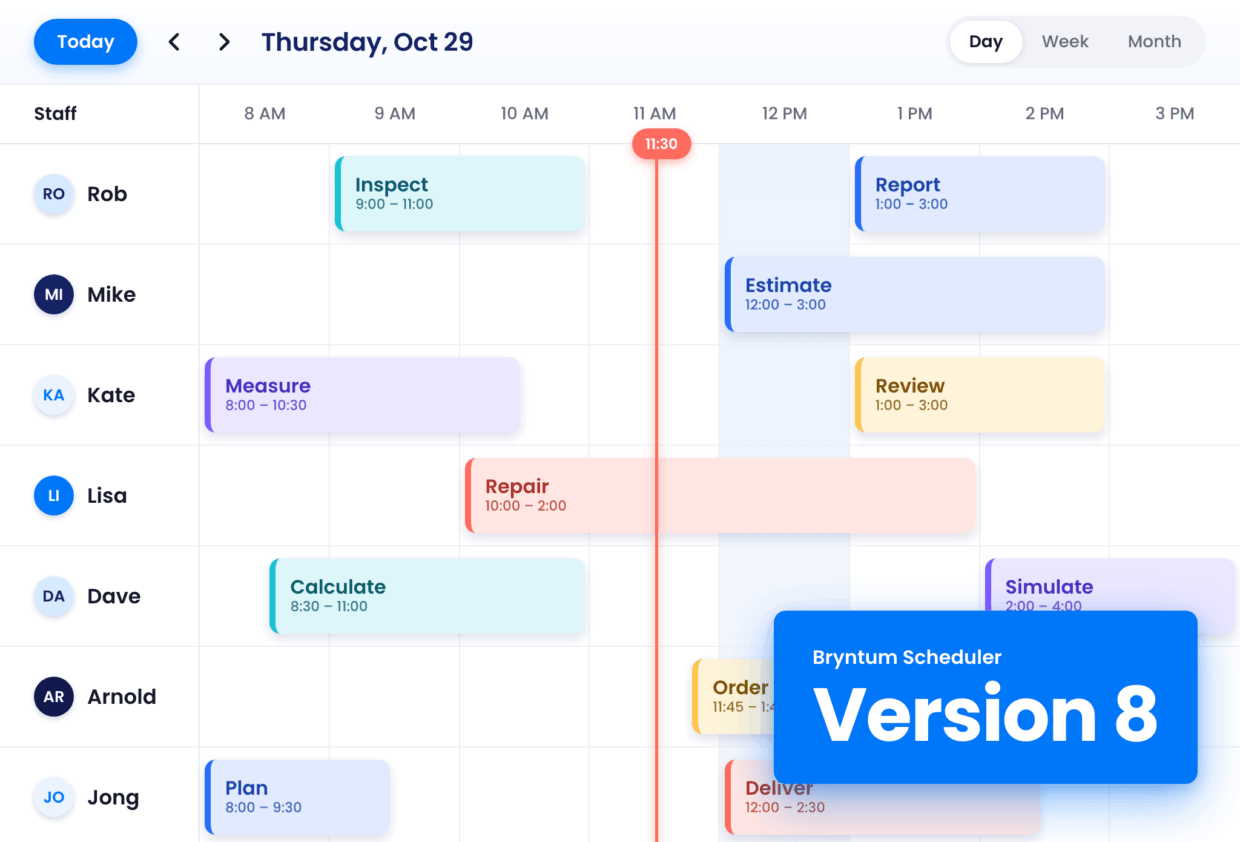
What’s new in v8.0: Community, Business, and Enterprise tiers
We strive to keep posts updated, but code samples may sometimes be outdated. Humans, see the Bryntum documentation; agents, https://mcp.bryntum.com for the latest info.
We’re excited to bring you Bryntum 8, marking the biggest change to what we offer.
Bryntum started in Stockholm in 2009 with a single scheduler. Since then, we’ve rebuilt our products from scratch as native JavaScript, grown to five products, and helped more than 5,000 companies in over 80 countries build planning and scheduling apps. In all that time, you needed a trial or a license before you could build with Bryntum. Bryntum 8 changes that. All five products now have a free, open-source Community edition, and every edition is available directly from public npm.
Other big structural changes in Bryntum version 8 are:
- Scheduler and Scheduler Pro are now one product, Scheduler.
- All packages are on public npm, with one package for each tier.
- Existing customers move to the Enterprise tier.
Try Bryntum now
It’s now easier than ever to try Bryntum. Run any Business or Enterprise package without a license key, and it works in trial mode for 14 days. Whether you’re building by hand or with an AI coding agent, getting started with Bryntum is easy.
Install a product from npm, or give an AI coding agent our setup prompt:
npm install @bryntum/scheduler-enterpriseSwap the package name for the product and tier you need. For example, use @bryntum/gantt-community for the free Community tier of Gantt, which needs no license key and has no time limit. Or copy one below.
For a longer trial, start a free 45-day trial with a trial license key. We email the key to you straight away, and one key works for every Bryntum product.
Building with AI coding agents
To start a new project with an AI coding agent, copy a setup prompt from the install table. The prompt installs the correct package and builds a working component.
To keep your agent from guessing APIs, add the Bryntum MCP server. It lets the agent search the current, version-specific Bryntum docs and examples. In Claude Code, add it with:
claude mcp add --transport http bryntum https://mcp.bryntum.comThe Bryntum skills teach your agent Bryntum patterns for React, Angular, Vue, and plain JavaScript. They also include the bryntum-migrate skill, which upgrades an app from version 7 to version 8. Install them with npx skills add bryntum/skills.
Three tiers for every product
From version 8, Grid, Scheduler (now one product), Calendar, Gantt, and Task Board each come in three tiers:
Community is for learning, prototypes, open source projects, and apps that need only the core features. It’s free and open source under the MIT license, with no license key and no time limit, and gives you the core of each product, such as the Gantt chart with its task grid and timeline.
Business is for apps your users work in every day, such as dispatch, booking, and team planning tools. It adds advanced editing and organizing features, such as copy and paste, filtering, and, in Gantt, resource assignments and the task editor. Exact features differ by product, so check the feature list for yours.
Enterprise is for large planning apps that must report and analyze, such as portfolio or workforce planning. For example, it adds AI features, printing, and reporting tools, such as PDF export and, in Gantt, baselines, critical paths, and Microsoft Project import. Check the feature list for more details.
Each tier includes everything in the tier before it and uses the same class names. To change tiers, change the tier in your package names and imports, for example from @bryntum/gantt-community to @bryntum/gantt-business, and set your license key.

See exactly which features are in each tier:
The Community tier
The Community tier needs no key and no sign-up.
To get started, install the Community package for your product:
npm install @bryntum/grid-communitySwap grid for the product you need: scheduler, calendar, gantt, or taskboard. You can also copy the command for each product from the install table.
Then read the documentation for your product: Grid, Scheduler, Calendar, Gantt, or Task Board.
Gantt Community runs on a lighter scheduling engine, while Gantt Business and Enterprise share the full scheduling engine.
To report a bug or suggest a change, open an issue in the Bryntum repository on GitHub.
Scheduler and Scheduler Pro are now one product
Scheduler Pro is now Scheduler Enterprise. Scheduler Pro features are now part of Scheduler, and most of them are in the Enterprise tier. See the Scheduler features page.
Previously, you chose between Scheduler and Scheduler Pro. Now you choose a tier.
The tier also changes how Scheduler handles dates. Like Scheduler Pro, Scheduler Enterprise uses the scheduling engine, so it calculates event dates from scheduling fields such as constraints, effort, and percent done. Community and Business store event dates as they are.

If you use Scheduler Pro today, follow the upgrade steps below to change your packages, for example from @bryntum/schedulerpro to @bryntum/scheduler-enterprise, which gives you the Enterprise tier. The SchedulerPro class still works in version 8, but it shows a deprecation warning in the console, and version 9 removes it. Replace it with Scheduler:
// Before
const scheduler = new SchedulerPro({ ... });

// After
const scheduler = new Scheduler({ ... });
Public npm packages, one per tier
All Bryntum packages are now on public npm, with a package for each tier. The package name ends with the tier, for example @bryntum/grid-community, @bryntum/grid-business, or @bryntum/grid-enterprise, and the framework wrappers use the same pattern, for example @bryntum/grid-react-business. You do not need a login, a private registry, or an .npmrc file to install them.

The -trial, -thin, and -vue-3 packages no longer exist. For Vue 3, use the Vue wrapper, for example @bryntum/scheduler-vue-enterprise.
License keys
Business and Enterprise packages run in trial mode until you add a license key. Trial mode and licensed mode have the same features. The key only changes how long you can use them.
When you buy a license, you get your license key from the Customer Zone. Add it once, in your application’s entry file:
bryntum.licenseKey = 'your-key';The license key replaces your trial key. Each key is cryptographically signed and identifies the license it belongs to. For other ways to register the key, see the licensing guide.
Licensing and pricing
Business and Enterprise are sold as End User Licenses (EUL) for internal applications. They are licensed per developer: every developer who works with Bryntum code needs their own license. The price depends on the number of developers and applications.
If you build a SaaS or commercial product with Business or Enterprise that you sell to third parties, such as a CRM, ERP, or MES application, you need an OEM license instead. Contact us for an OEM quote.
Community is under the standard MIT license, so you can use it in any project, including a commercial SaaS product, without an OEM license.
The store has the prices for each product and tier:
To change tier later, up or down, contact sales. Then change the tier at the end of each Bryntum package name in package.json and in your imports, for example from @bryntum/grid-business to @bryntum/grid-enterprise, and reinstall your packages.
What this means for existing customers
Nobody loses features in this change. Existing customers move to the Enterprise tier of their product. Both existing Scheduler and Scheduler Pro customers get Scheduler Enterprise.
We will email you the instructions and a license key. To upgrade an application from version 7 to version 8:
- In
package.json, replace each Bryntum package with its version 8 name. For example, replace@bryntum/scheduleror@bryntum/schedulerprowith@bryntum/scheduler-enterprise, and@bryntum/schedulerpro-reactwith@bryntum/scheduler-react-enterprise. The Angular and Vue wrappers change in the same way. - Change the package names in your imports.
- If you use Scheduler Pro, replace the
SchedulerProclass withScheduler. - Remove the private repository configuration that you set up for version 7.
- Delete
node_modulesand your lock file, then reinstall your packages.
Migrating from version 7 to version 8
Each product has an upgrade guide with the full list of changes from version 7 to version 8:
- Grid upgrade guide
- Scheduler upgrade guide
- Gantt upgrade guide
- Calendar upgrade guide
- Task Board upgrade guide
To do the upgrade with an AI coding agent, install the bryntum-migrate skill. It reads the upgrade guides, writes a migration plan for you to approve, and then applies and checks the changes:
npx skills add bryntum/skillsCombining products and tiers
Many applications use more than one Bryntum product, for example a Gantt chart next to a Scheduler or a Grid. This works well when all the products use the same tier. Products of different tiers include different versions of the same JavaScript modules, so if you mix tiers on the same page, you can get unexpected issues.
Gantt Business and Scheduler Business work together, but they cannot share data. To share data between Gantt and Scheduler, for example to show the same project in both, you need the Enterprise tier of both products.

Product changes and feature highlights
Bryntum 8 also brings new features and improvements across the products. Here are some highlights.
A new time zone implementation
Scheduler, Gantt, and Calendar have a new time zone implementation, and it is now the default. It is built on the JavaScript Temporal API, with a built-in polyfill for browsers that don’t support Temporal yet.
With the new implementation:
- Your records keep their original dates. Only the display, parsing, and editing use the configured time zone.
- Daylight saving time changes are handled correctly.
- The view and the project can use different time zones.

To set a time zone, use an IANA time zone name:
const scheduler = new Scheduler({
    timeZone : 'America/Chicago', // view renders, parses and edits in Chicago
    project  : {
        timeZone : 'UTC'          // engine computes in UTC, independent of the view
    }
});
For details, see what’s new in Scheduler, Gantt, and Calendar.
One theme file for light and dark mode
You no longer need a separate stylesheet for each mode. Each theme now also comes as a single file, for example svalbard.css, that renders in light or dark mode based on the color-scheme that your application sets. The -light and -dark files are still available.

To follow the user’s system setting, add one line of CSS:
:root { color-scheme: light dark; }You can also set color-scheme on a single container, so that one part of the page uses a different mode from the rest. The Svalbard, Stockholm, Material3, Visby, Fluent2, and High Contrast themes all work this way. See light and dark themes for more.
Scheduler event clustering
When you zoom out, the new EventClustering feature in Scheduler Enterprise merges narrow events into clusters that show how many events they hold. This keeps busy schedules readable and fast. Click a cluster to zoom in to its events.

To turn it on, add the feature:
const scheduler = new Scheduler({
    features : {
        eventClustering : true
    }
});
The ResourceTimeRangeClustering feature does the same for resource time ranges.
Scheduler group rollups
The new GroupRollups feature in Scheduler Enterprise shows all the events of a collapsed group on its header row, so you can see when the group is busy without expanding it. You can still drag and edit these events.

const scheduler = new Scheduler({
    features : {
        group        : 'role',
        groupRollups : true
    }
});
Calendar’s multi-week view
The new MultiWeek view in Calendar shows a set number of weeks in a month-style grid.
Use the range config to set the number of weeks:
const calendar = new Calendar({
    modes : {
        multiweek : {
            range : '2 w'
        }
    },
    mode : 'multiweek'
});
See what’s new in Calendar 8 for more changes.
Gantt’s basic task editor
The new basic task editor is a lightweight alternative to the full, tabbed task editor.

The basic task editor is on by default in Gantt Community. In Business and Enterprise, turn off the full editor and turn on the basic one:
const gantt = new Gantt({
    features : {
        taskEdit      : false,
        basicTaskEdit : true
    }
});
See basic task editor for more.
Task Board column groups
In Task Board Enterprise, you can now group columns together and stack them vertically or place them side by side.

To group columns, put them in a nested array:
new TaskBoard({
    columns : ['Todo', 'Doing', ['Review', 'QA'], 'Done']
});
See column groups for more.
Deprecations and removals
These features still work in version 8, but they show a warning, and version 9 removes them:
- The
SchedulerProclass: useSchedulerinstead, as described above. - The standalone
CrudManagerclass: configure loading and syncing (transport,autoLoad,autoSync) on the project instead. Enterprise does not support the standalone class, so existing customers who move to Enterprise must make this change now. - Legacy time zone mode: the old implementation shifts record dates to approximate the time zone. If you need more time to move to the new implementation, set
useLegacyTimeZoneMode : trueon the project. - Row height from column renderers: setting
size.heightin a Grid column renderer is deprecated. Use the newgetRowHeightfunction on the grid instead.
These changes are already in version 8, so check them when you upgrade:
- Vue 2 is no longer supported. Version 7.3 is the last version with the Vue 2 wrapper. Upgrade to Vue 3 and use the Vue wrapper for your tier, for example
@bryntum/scheduler-vue-enterprise. - Angular 15 or newer is required. The Angular wrappers no longer support Angular 14 and older, and the
-angular-viewpackage for Angular 11 and older is no longer published. - No prebuilt UMD bundle. If you load Bryntum with a
scripttag or use it as a web component, build the UMD bundle yourself, for example with webpack. - Time zones no longer change record dates. This affects you only if you set
timeZone. Record dates stay the original moment in time, and only the display uses the configured time zone. If your code reads shifted dates back from records, format them with the view’sdateHelperinstead. Numeric UTC offsets, such as-120, no longer work. - Charts use AG Charts. The Chart widget now uses AG Charts instead of Chart.js. Register AG Charts before you create a chart:
bryntum.registerAgCharts(AgCharts). - Grid columns are virtualized. Like rows, Grid now renders only the columns that are in view. To render all columns, set
virtualizeColumns : false.
For the full list of changes, see the upgrade guide for your product.
Learn more
We answer the most common questions about the new tiers, the Community tier, trials, the move for existing customers, and combining products and tiers in the Bryntum tiers FAQ.
For guides and API references for every product, see the Bryntum documentation.
To see the products in action, browse the examples for Grid, Scheduler, Calendar, Gantt, and Task Board.
If you have a question that the FAQ does not answer, or you want help to choose a tier, contact us.
Try Bryntum components
Fast, framework-agnostic UI components for scheduling and project management.