Lessons from agentic AI coding with Bryntum and AG Grid
We strive to keep posts updated, but code samples may sometimes be outdated. Humans, see the Bryntum documentation; agents, https://mcp.bryntum.com for the latest info.
With an AI coding agent, you can scaffold a React dashboard with a single prompt. However, agents still struggle to add and configure sophisticated component libraries, like Bryntum and AG Grid, and may require back-and-forth prompting and manual edits. Recently, we used AI to build a project management dashboard with Bryntum Gantt, AG Grid, and AG Charts. It took us 17 sessions. Along the way, the AI hallucinated imports, broke dark mode, removed React StrictMode, squashed a dashboard into an unusable layout, and deleted a project directory. Eventually we learned how to generate the final dashboard with just one prompt.
In this article, we share the real prompts we used, drawn from the apps we built with Claude Code and Codex. By examining the prompts that failed, the prompts that worked, and the patterns behind both, we can identify principles that apply to any AI coding tool. Whichever agent you use, learning to create better prompts, docs, and verification steps will improve your agentic coding experience.
Give the AI access to current docs, not just its training data
AI coding agents have a training data cutoff. The model’s memory cannot be updated after that date, so any information that changes, such as new APIs, renamed exports, and altered CSS import paths, is excluded from its knowledge base. When the agent encounters something it does not know, it guesses. With component libraries, those guesses often look plausible but fail at runtime.
For example, when integrating Bryntum with Microsoft Dynamics 365, Claude guessed a field name:
Could not find a property named 'msdyn_estimatedduration' on type 'Microsoft.Dynamics.CRM.msdyn_workorder'The field had a different name in the actual Dynamics 365 instance. The agent invented a field name that sounded right, but didn’t exist.
Use MCP servers and skills to fix agent guessing and out-of-date information
The Model Context Protocol (MCP) lets AI agents access external data sources, such as documentation, through MCP servers instead of relying only on training data. The Bryntum MCP server gives the agent access to version-specific Bryntum docs, examples, and API references. AG Grid has an MCP server too.
MCP helps the agent find the right information, but the agent also needs practical guidance for avoiding common mistakes, which is where agent skills come in. Skills are folders of instructions, scripts, and resources that the agent loads dynamically to improve output for specific tasks. The Bryntum skill has practical rules that an agent can miss if it looks just at a specific section of the docs. For example, the following rules come from real failures across many AI agent coding sessions:
- Do not mix
projectconfig with inline data. - Use
DomHelper.setTheme()for dark mode. - Never remove React
StrictModeto fix Bryntum errors.
MCP servers give agents context, and skills give them judgment.
You can explicitly direct an agent to use MCP with a specific version:
Use the Bryntum MCP server to get information about Bryntum Scheduler Pro. Use the latest version (7.2.0)AG Grid’s MCP server has also been useful for finding version-specific docs. For example, when we gave Claude Code the following prompt, it used the AG Grid MCP server and created a to-do list of tasks to work through:
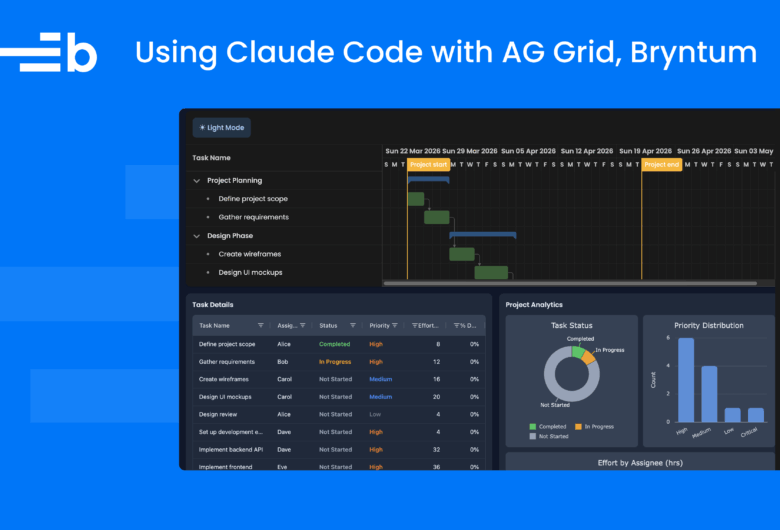
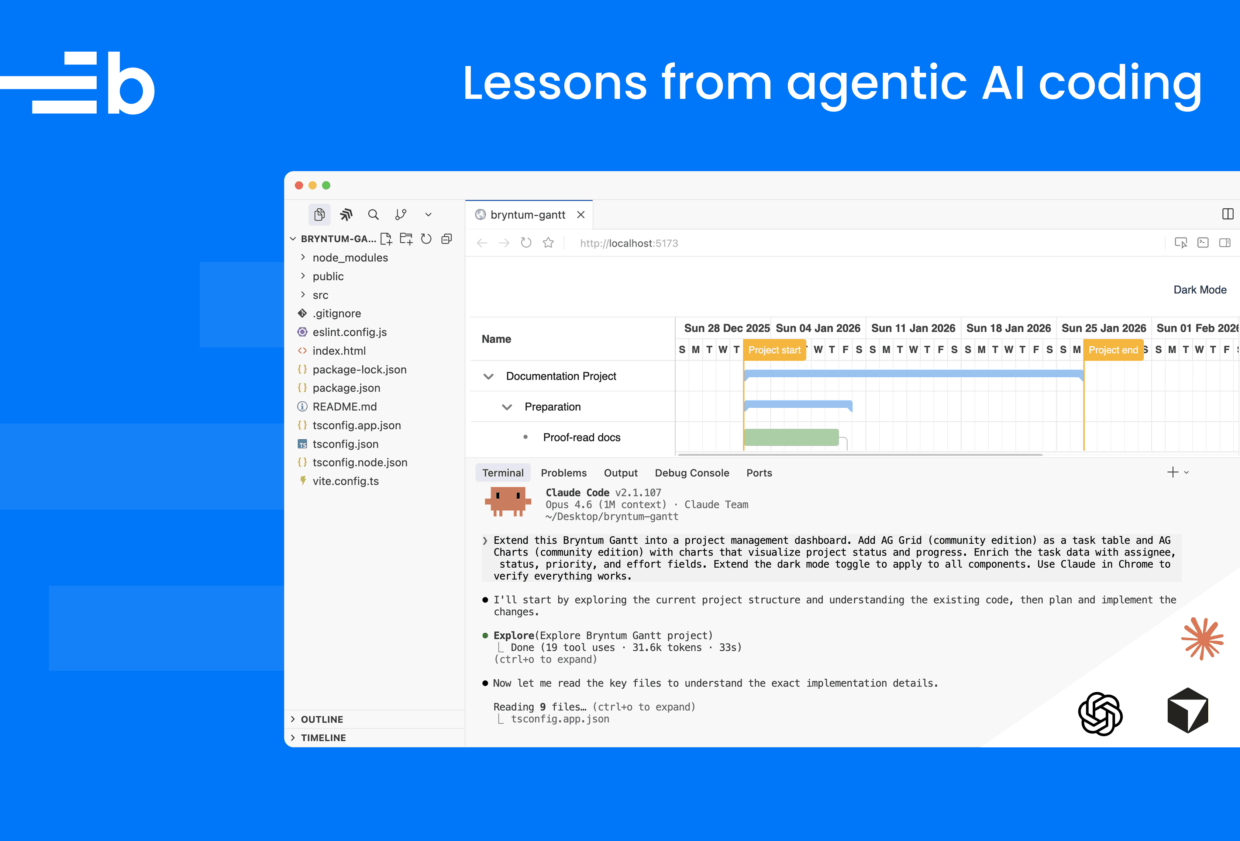
Extend this Bryntum Gantt into a project management dashboard. Add AG Grid (community edition) as a task table and AG Charts (community edition) with charts that visualize project status and progress. Enrich the task data with assignee, status, priority, and effort fields. Extend the dark mode toggle to apply to all components. Use Claude in Chrome to verify everything works.After some debugging and a follow-up prompt, Claude Code added the AG Grid table and AG Charts to the dashboard.
The AG Grid MCP server also has a tool for detecting which AG Grid version a project is using.
Prompt quality isn’t just about UI requirements. It also includes telling the agent where to get trustworthy context. If there isn’t a pre-existing MCP server for your library, tell the agent to inspect the installed package before coding:
Inspect the installed version and available exports first, then add the feature using APIs that exist in this project.Use CLAUDE.md and AGENTS.md
Coding agents know nothing about your codebase at the start of each session. Claude Code’s CLAUDE.md and Codex’s AGENTS.md address this issue. When you add one of these markdown files to your project, the agent automatically reads it at the start of every conversation. They are the only persistent context the agent gets by default.
A good CLAUDE.md or AGENTS.md covers three things:
- What the project is (tech stack, structure)
- Why the project exists (purpose, constraints)
- How the agent should work in the project (build commands, test commands, verification steps)
For a Bryntum and AG Grid project, you might include which Bryntum product is in use, clarify that the project uses React with StrictMode, and instruct the agent on how to run the dev server.
Keep CLAUDE.md and AGENTS.md concise. Research from July 2025 found that frontier models can follow roughly 150-200 instructions consistently, and Claude Code’s own system prompt already uses about 50 of those. Every line you add to CLAUDE.md competes for that budget. For each line you add, ask: Would removing this cause the agent to make a mistake? If not, remove it.
For domain-specific knowledge that’s only sometimes relevant, use skills instead of putting all the information in CLAUDE.md. The Bryntum skill file is a good example: It covers Bryntum-specific pitfalls and loads on demand, rather than bloating every session where Bryntum is irrelevant.
Based on our experience, we came up with the following practical guidelines.
- Include things the agent cannot figure out by reading the code, such as build commands, testing instructions, architectural decisions, and common gotchas specific to your project.
- Exclude things the agent can infer, such as standard conventions, detailed API docs (link to them instead), and anything that changes frequently.
- If the agent keeps ignoring a rule, the file is probably too long and the rule is getting lost. Try adding emphasis (“IMPORTANT”) or moving less critical rules into separate files that
CLAUDE.mdpoints to. - Don’t autogenerate
CLAUDE.mdwith/initand leave it as is. Craft it carefully. A bad line inCLAUDE.mdmultiplies into bad plans and bad code across every session.
Explore, plan, then code
Both the Claude Code best practices and Codex best practices recommend the same workflow: Explore first, then plan, then code. Letting the agent jump straight to coding may produce code that solves the wrong problem.
Explore
The exploration phase is about reading, not writing. Enter Plan mode (in Claude Code and Codex, toggle this on with /plan) and have the agent read files and answer questions without making changes. For a Bryntum and AG Grid project, your prompt might look like this:
Read the Bryntum Gantt config and the AG Grid setup. How is task data
structured? What data flow is used between the components? What theme and
styling approach is in place?
The goal is to understand the codebase before touching it, or if you’re starting from scratch, to clarify what you want to build. The agent identifies how things are wired together, which patterns are in use, and where potential conflicts might be.
You can also explore by running small, concrete prompts that produce isolated pieces of working code. A narrow prompt like this produced good results on the first try:
Only show name column and add a dark mode toggle button in a toolbar at the topWith the Bryntum skill loaded, Claude used Bryntum’s own toolbar and button widgets and called DomHelper.setTheme() for the theme switch. It chose the right Bryntum-native approach, because the prompt was small enough that there was little room to go wrong.
We saw the same pattern in Codex sessions. The following narrow starter prompts all worked reliably:
Create an Angular Bryntum SchedulerCreate a Bryntum Grid React appCreate a Bryntum Gantt with undo/redo functionalityWhen we jumped to broader prompts too early, the results were predictably worse. The agent mixed Bryntum’s project data config with inline data props, reached for legacy CSS imports, and squeezed the entire dashboard into a single 100vh panel.
Whether you explore by reading in Plan mode or by running narrow prompts, the purpose is the same: Discover the real constraints before committing to a larger implementation.
Plan
Once you understand the codebase, stay in Plan mode, and ask the agent to create an implementation plan:
I want to extend this Bryntum Gantt into a full dashboard with AG Grid and
AG Charts. What files need to change? What is the data flow? Create a plan.
As the agent outlines its approach, review and adjust it before the agent writes a line of code. For the Bryntum and AG Grid dashboard, we skipped this step and paid for it with 17 sessions of trial and error. A planning step would have surfaced the key constraints early:
- Bryntum’s
projectconfig and inline data are mutually exclusive. - Dark mode needs
DomHelper.setTheme()with specific<link>tags. - The React
StrictModeshould not be removed as a fix.
Another useful approach is to have the agent interview you about the feature before implementing it. Ask it to question your assumptions, clarify edge cases, and identify potential conflicts. The grill-me skill formalizes this: It interrogates you about your plan until every branch of the decision tree is resolved. Once the spec is solid, start a fresh session to execute it. This ensures the implementation session has clean, focused context instead of accumulated exploration.
Codex also supports PLANS.md templates for recurring multi-step workflows. If you find yourself describing the same planning structure across tasks, codify it in a template.
Code
For simple, well-scoped tasks, jumping straight to code is fine. For a large feature, spending 20 or more minutes in Plan mode can save hours of debugging and rework later. Our 17-session dashboard project is a case in point: We spent far more time fixing mistakes from unplanned prompts than we would have spent completing the planning phase upfront.
What makes a good prompt: Real examples with Bryntum and AG Grid
Across our sessions, four things kept showing up in prompts that worked:
- Name the exact product: Saying “Create a React Bryntum Gantt,” worked better than “Create a React Gantt.” Product names anchor the agent to the right docs and APIs.
- State constraints and non-negotiables: Specify requirements like “Do not remove React
StrictMode,” and “Use Bryntum toolbar and button widgets, not generic React controls.” We learned each of these from a real failure. - Describe the desired behavior, not the implementation: Describing behavior outcomes, like “Edits in Gantt or Grid must update everywhere,” pushed the agent toward a shared data source. Alternate approaches (such as “Add an event listener on the Gantt store that propagates changes to…”) micromanaged the implementation and often led the agent down the wrong path.This is similar to how React is declarative compared to vanilla JavaScript (JS): In React, you describe what the UI should look like and the framework figures out the DOM updates, but in vanilla JS, you manually write every
createElement,appendChild, and event listener. The declarative approach is less error-prone, because you aren’t guessing the implementation details.The same applies to prompts: State the desired outcome and let the agent figure out the implementation. - Include a verification step: The prompt, “Verify behavior in the browser and fix console errors before finishing,” caught more bugs than any other single instruction. You can also automate verification with Claude Code hooks, which run scripts (like linters or test suites) at specific points in the workflow, or enable Claude in Chrome for verifying changes visually.
Codex calls this framework Goal, Context, Constraints, and Done-when. The labels differ across tools, but the idea is the same.
Here are some of the weaker and stronger prompts from our sessions:
| Goal | Weak prompt | Stronger prompt | Why it’s better |
|---|---|---|---|
| Create a Bryntum app | Create a React Gantt | Create a React Bryntum Gantt. Use the current installed Bryntum package and run the app in the browser to verify that it works. | Names the exact library and adds verification. |
| Add dark mode | Add dark mode | Add a dark mode toggle using Bryntum toolbar and button widgets. It must actually switch the Bryntum theme and keep text readable in both modes. Verify it in the browser. | Pushes toward Bryntum-native controls and real theme switching. |
| Extend to dashboard | Add AG Grid and charts | Extend this Bryntum Gantt into a project management dashboard. Add AG Grid Community as a task table and AG Charts Community charts for project status and progress. Extend dark mode to all components. | Names the exact products and the role each plays. |
| Fix shared state | Fix the table | If I change data in Gantt, the Charts and table do not update. I also want the table to be editable and for changes in one place to update everywhere. | Describes broken behavior and the desired result. |
| Avoid hallucinations | Add the Bryntum AI feature | Inspect the installed Bryntum version and available exports first, then add the Bryntum AI feature using APIs that exist in this project. | Forces the agent to check what exists before coding. |
| Avoid stale styling | Style Bryntum to match the app | Use the current installed Bryntum styling approach only. Do not use legacy Bryntum CSS import patterns. Verify that theme files and structural CSS load correctly. | Prevents the agent from reaching for outdated patterns. |
| Keep React safe | Fix the Bryntum error | Fix the Bryntum React integration issue without removing React StrictMode. | States a non-negotiable so the agent does not "solve" the problem by weakening the app. |
| Keep layout usable | Make the layout better | Avoid forcing the dashboard into a single 100vh panel. Keep the Gantt, table, and charts all usable with sensible spacing and natural sizing. | Converts a vague request into concrete layout constraints. |
| Add charts reliably | Add some charts | Add AG Charts Community charts for project status and progress, and verify that they render with no console errors. | Makes correctness part of the task. AG Charts config is easy to get structurally wrong. |
Rather than being wrong, our weaker prompts were underspecified. The stronger ones were more concrete, but not necessarily longer.
Real mistakes AI makes with component libraries
Claude Code and Codex typically got 70-90% of the way to a working app. The last 10-30% came down to sharper prompting and verification. Here are the common patterns we saw:
Hallucinated or outdated imports and APIs
In one Codex session, it reached for @bryntum/core-thin/core.material.css, a legacy import path that no longer works. We addressed this mistake with follow-up prompts:
Check what Bryntum React wrapper components are actually exported in the
installed package version.
A simple prompt like the following also helps:
Run the app and fix any import errors before continuing.Symptom suppression
Claude hit this error in React StrictMode:
Uncaught Error: Id b-gantt-1-lockedSubgrid already in useAs we’ve mentioned, it attempted a fix by removing StrictMode. The error went away, but the app lost React’s development-time safety checks. The agent treated StrictMode as the problem, rather than fixing the component lifecycle issue that caused the duplicate mount.
We learned to state non-negotiables explicitly:
Do not remove React StrictMode. Fix lifecycle cleanup or rendering order instead.The agent tends to take the path of least resistance unless you block it.
Guessing incorrect data architecture
Bryntum Gantt supports two mutually exclusive approaches to data: using a project config that manages task data internally, or using inline data props. Claude mixed both.
Providing both project and inline data is not supportedIt also produced an AG Charts config that threw this error:
Uncaught Error: AG Charts - Unknown chart type; Check options are correctly
structured and series types are specified
In both cases, the agent guessed the architecture from surface-level patterns. We fixed this by stating the data model explicitly:
Use the Bryntum Gantt project as the single source of truth. Do not mix
`project` config with separate inline task data props.
Generic patterns where product-specific ones are needed
When we asked for dark mode, Claude added a generic CSS toggle, but didn’t actually switch the Bryntum theme. We had to correct it:
Dark mode toggle IS NOT working for Bryntum. Also, why are you not using
Bryntum toolbar and button widgets?
It applied a generic “dark mode” pattern instead of using Bryntum’s DomHelper.setTheme() and toggleLightDarkTheme() methods.
When you know the right API, name it. When you do not, tell the agent to check the library’s docs first. The Bryntum and AG Grid MCP servers help a lot here.
Layout and CSS cascading failures
Claude squeezed an entire dashboard into a single 100vh panel. In our Handsontable to Bryntum Grid migration blog post, a CSS fix for a scrollbar issue broke the entire render:
nothing renders nowThe agent made isolated CSS changes without understanding the full layout cascade. We learned to state layout constraints explicitly and always verify changes visually.
Destructive shortcuts
Claude deleted an entire project directory to rescaffold it with Vite:
why did you rm -rf bryntum-gantt-ag-grid-dashboard? I had my .mcp.json and .claude file in thereBy optimizing for the fastest path to a clean scaffold, Claude had destroyed the .mcp.json and .claude skill configs we’d set up.
We now configure permission settings before giving the agent write access and explicitly state what the agent shouldn’t change:
Do not delete existing config files.Verify the output
Adding a verification step was the single most effective change we made to our prompts. Without it, the agent produced code that compiled but had broken dark mode, misaligned layouts, or silent data sync failures.
Claude Code with Chrome
Claude Code can control a Chrome browser via the Claude in Chrome feature, which allows it to interact with the UI via clicks, form inputs, and navigation. The agent opens the app, inspects the result, reads console errors, and fixes problems in a loop.
In our dashboard blog post, we found it easier to add this explicit verification prompt than to write Playwright UI tests:
Verify each step using Claude Code in Chrome.This made Claude open the app after each change, visually check the UI, interact with the app like a user would, read console messages, and fix any issues before moving on. It fixed the dark mode toggle that did not actually switch the Bryntum theme, the AG Charts config that threw a runtime error, and the layout that squashed everything into 100vh.
For targeted verification, be specific about what to check:
Run the app in the browser, open DevTools, and confirm there are no
console errors. Verify that editing a task in the AG Grid table updates the
Bryntum Gantt and the AG Charts.
Automated tests
For CI pipelines or more complex projects, you can have the agent write and run tests as part of the task. Playwright and Cypress both work well for end-to-end verification of component library integrations:
Write a Playwright test that creates a new task in the Bryntum Gantt, verifies it appears in the AG Grid table, and checks that the AG Charts status chart updates.You can also include testing instructions in your CLAUDE.md or AGENTS.md, so the agent runs tests by default.
Why verification matters more with component libraries
A successful build can still produce broken behavior, such as themes that don’t switch, data that doesn’t sync, and structurally wrong configs that don’t throw build errors. The Best Practices for Claude Code say the agent performs “dramatically better” when it can verify its own work. Without verification, you are the only feedback loop.
The iteration loop: How 17 sessions became one working prompt
We used 17 Claude Code sessions for the Bryntum and AG Grid dashboard project.
Sessions 1-4
We started with four separate narrow prompts, instructing the agent to create the Gantt, style it, add AG Grid and AG Charts, and fix the app’s data sync. Each prompt worked reasonably well.
Session 5
We asked Claude to combine our initial four prompts into a single mega-prompt. The first attempt hit this constraint:
Providing both project and inline data is not supportedHowever, Claude then removed StrictMode and squashed the layout into 100vh.
Sessions 6-12
We added more constraints one at a time, each from a specific failure:
Make sure that the components are well laid out.Make sure that text is clearly visible in light mode and dark mode.We taught Claude the correct Bryntum APIs when it kept using generic approaches:
for light and dark mode toggle, use toggleLightDarkTheme() method of DomHelperalso use DomHelper.setTheme()Sessions 13-16
We created a Bryntum skill file that encoded universal rules:
- Do not remove `StrictMode`.
- Use Bryntum-native widgets.
- Inspect package before coding.
- Verify in browser.
By handling the recurring constraints with this skill, we could simplify the mega-prompt.
Session 17
Finally, we had a single prompt that worked:
Create a React Bryntum Gantt project management dashboard:

1. Create a Bryntum Gantt showing only the name column. Task data includes
assignee, status, priority, and effort.
2. Add a toolbar to the top of the Bryntum Gantt and add a dark mode toggle
button to it. Text must be readable in both modes.
3. Add AG Grid (community) as an editable task table. Bryntum Gantt data is
the single source of truth — edits in either sync everywhere.
4. Add AG Charts (community) for visualizing project status and progress.
4. Make sure that the dashboard layout has good spacing and that components
are sized well.
6. Dark mode applies to all components.

Verify each step using Claude Code with Chrome.
This prompt looks simple, but it encodes 16 sessions of learning. We earned each constraint from a failed attempt.
Follow-up prompts
You steer an agent’s development using follow-up prompts. The best prompts describe the broken behavior and the desired result:
If I change data in Gantt, the Charts and table do not update. I also want the table to be editable and for changes in one place to update everywhere.If you correct the agent more than twice on the same issue, try starting a fresh session with a better prompt. A clean session with a focused prompt is better than a long session with accumulated corrections. Both Claude Code and Codex recommend this approach. Keep a running list of the constraints you discover. Then use that list to create a skill file or your next prompt’s constraints section.
The formula for reliable AI output
Through trial and error, we realized there are four keys to producing more reliable AI output:
- Up-to-date docs access via an MCP server
- Concrete constraints in prompts and skill files
- Verification with AI browser tools or tests
- Iteration using follow-up prompts and fresh sessions
In other words:
- If the agent keeps making the same mistake, your prompt is probably missing a constraint.
- If it hallucinates something, it needs access to current docs.
- If it suppresses errors instead of fixing them, it needs explicit rules about what must not change.
- If the output looks right but breaks at runtime, you need a verification step.
These principles work across Claude Code, Codex, Cursor, and any other AI coding tool. Name the products, state the constraints, verify the results, and iterate.
Try Bryntum components
Fast, framework-agnostic UI components for scheduling and project management.