Create a workspace scheduler using Bryntum Scheduler Pro and MongoDB
We strive to keep posts updated, but code samples may sometimes be outdated. Humans, see the Bryntum documentation; agents, https://mcp.bryntum.com for the latest info.
Bryntum Scheduler Pro is a scheduling UI component for the web. With features such as a scheduling engine, constraints, and a resource utilization view, it simplifies managing complex schedules.
In this tutorial, we’ll use Bryntum Scheduler Pro and MongoDB, the popular document database, to build a workspace booking app for meeting rooms, desk banks, and coworking lounges. We’ll use MongoDB Atlas, the fully managed MongoDB cloud service.
We’ll do the following:
- Set up MongoDB Atlas and get the connection string.
- Create an npm workspaces monorepo for the backend and frontend code.
- Seed the MongoDB database.
- Create the backend server and the Bryntum
loadandsyncendpoints. - Create a Vite vanilla TypeScript client.
- Add Bryntum Scheduler Pro to the client.
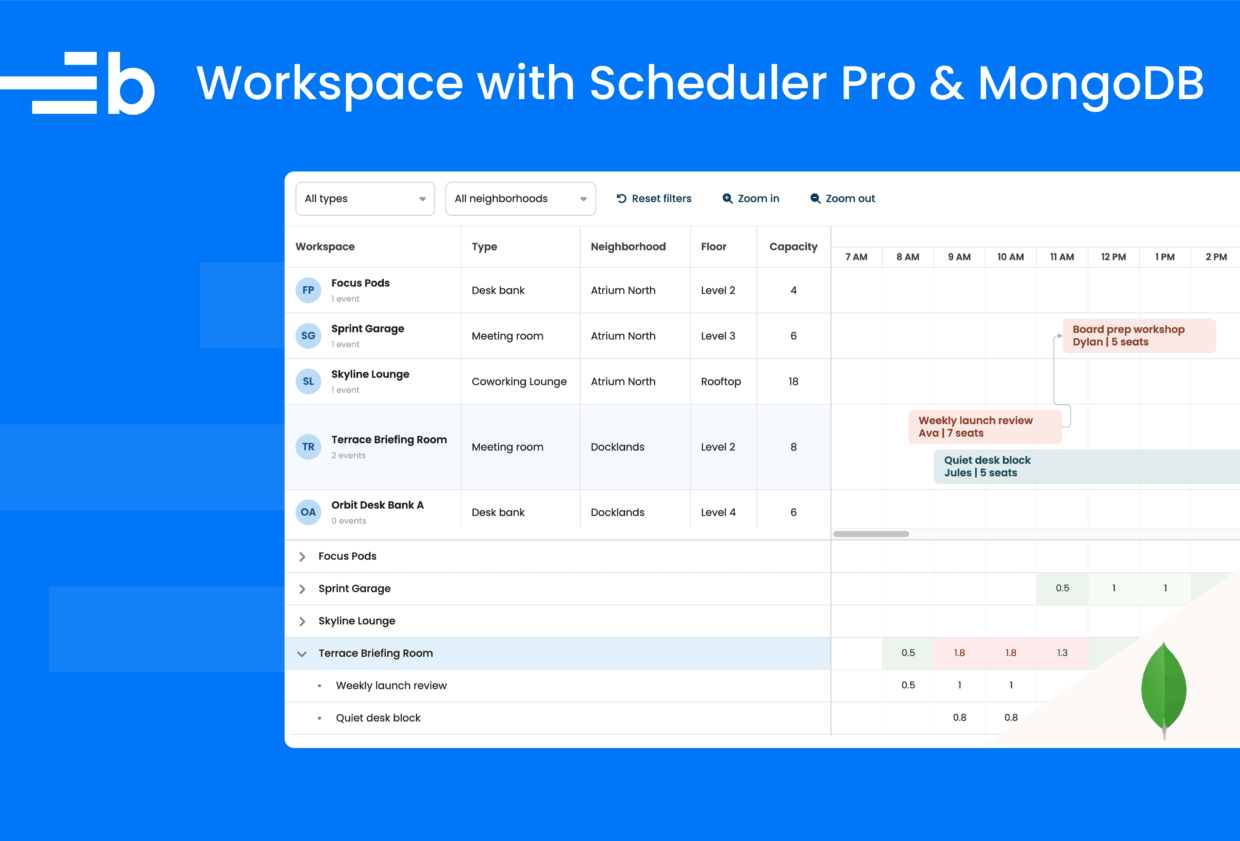
Here’s what we’ll build:
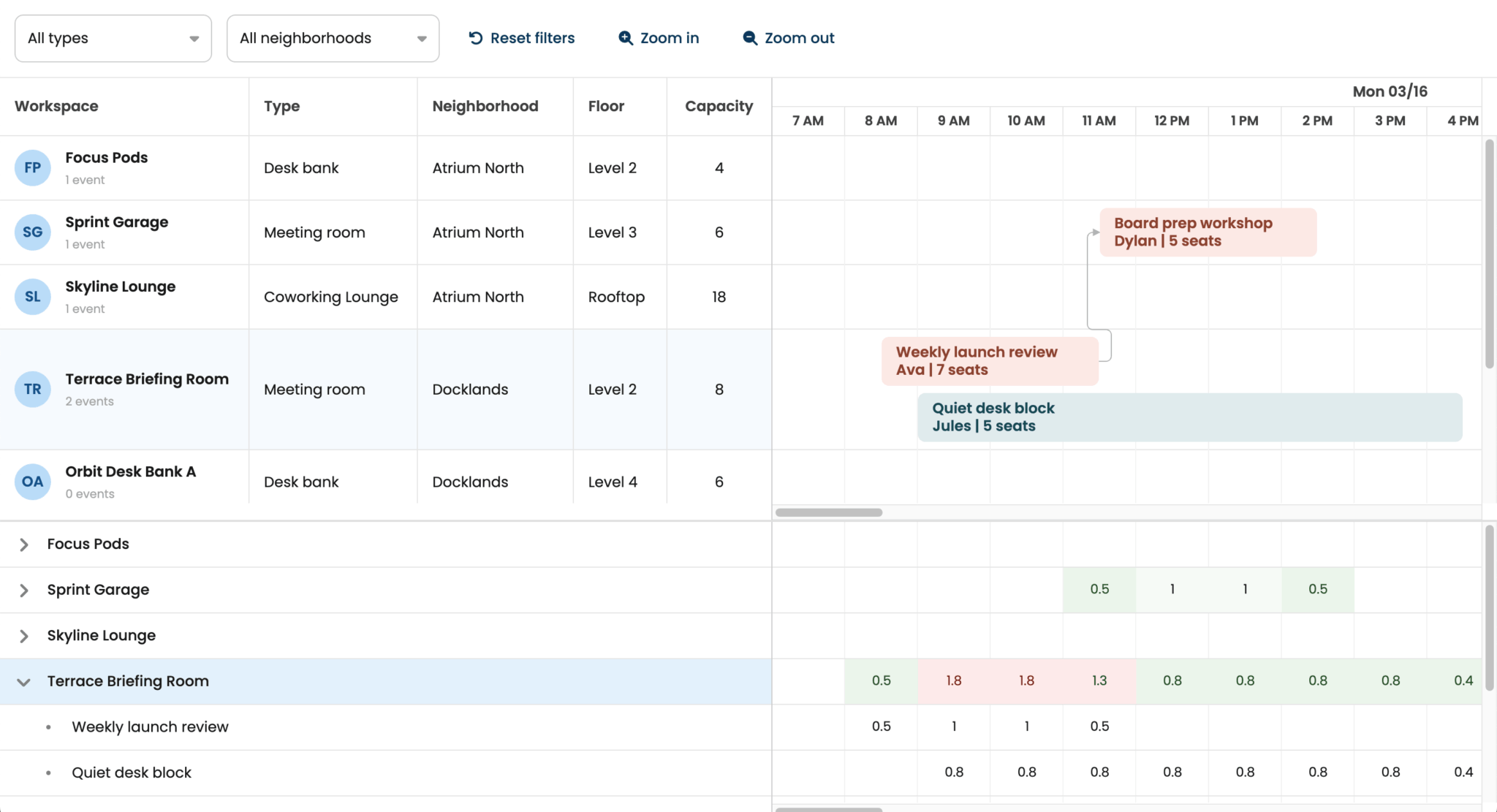
You can find the code for the completed tutorial in our GitHub repository: Workspace scheduler using Bryntum Scheduler Pro and MongoDB.
Prerequisites
To follow along, you need Node.js version 20.19+, installed on your system. You’ll also need a MongoDB Atlas account, you can register for an Atlas account using your GitHub account, your Google account, or your email address.
Setting up MongoDB Atlas
We’ll use the MongoDB Atlas CLI to create the organization, project, and cluster from the terminal. Using the CLI instead of the Atlas Cloud UI also works well if you’re following along with an AI coding agent. It provides a better agent experience.
First, install the MongoDB Atlas CLI. You can install it on macOS or Linux with Homebrew:
brew install mongodb-atlasSign in to Atlas:
atlas auth loginSelect UserAccount when the CLI asks how you want to authenticate.
Create a new Atlas organization for this tutorial:
atlas organizations create bryntum --output jsonCopy the returned organization ID, then create a new Atlas project:
atlas projects create schedulerpro --orgId <orgId> --output jsonCopy the returned project ID, and use it to set the default org_id for Atlas:
atlas config set org_id <orgId>Set the default project_id to your project ID as well:
atlas config set project_id <projectId>Create an Atlas cluster using the following command:
atlas setup --projectId <projectId> --currentIp --connectWith skip --skipSampleDataWhen the CLI asks how you want to set up your Atlas cluster in the CLI, select the default option, which creates a cluster named cluster.
The Atlas setup command creates a free Atlas cluster, creates a database user, and adds your current IP address to the Atlas access list.
Take note of the database username, database password, and connection string.
To find the allowed IP list in your MongoDB Atlas dashboard, go to Security in the left navigation menu and select Database & Network Access. Under Network Access, select IP Access List.
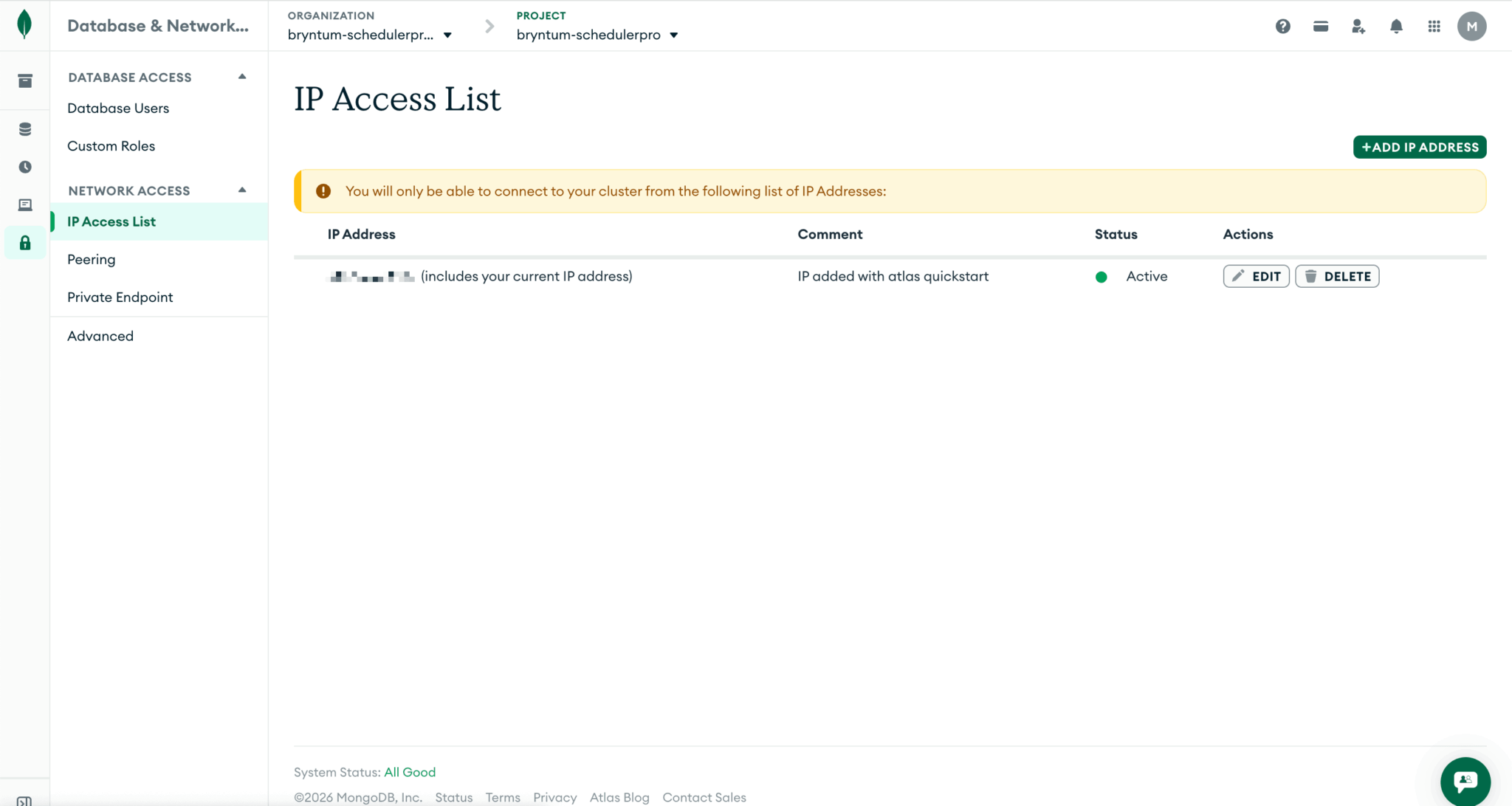
Make sure your IP address is on the allowed list; otherwise, your Express server won’t be able to connect to the database. Click the + Add IP Address button to add your IP address.
Setting up the monorepo
Create an empty project folder:
mkdir bryntumschedulerpro-mongodb
cd bryntumschedulerpro-mongodb
Create a package.json file in the project root folder and add the following JSON object:
{
  "name": "bryntumschedulerpro-mongodb",
  "version": "1.0.0",
  "private": true,
  "workspaces": [
    "client",
    "server"
  ],
  "scripts": {
    "dev": "concurrently 'npm run dev --workspace server' 'npm run dev --workspace client'",
    "build": "npm run build --workspace server && npm run build --workspace client",
    "seed": "npm run seed --workspace server",
    "start": "npm run start --workspace server"
  },
  "devDependencies": {
    "@types/node": "25.5.0",
    "concurrently": "9.2.1",
    "nodemon": "3.1.14",
    "typescript": "6.0.2",
    "vite": "8.0.3"
  }
}
This root package defines an npm workspaces TypeScript monorepo with a server and a client. The dev script starts both the Express server and the Vite client together. We’ll use the seed script to populate the MongoDB database with example scheduler data.
Install the shared root dependencies:
npm installCreate a tsconfig.base.json file in the root folder:
{
  "compilerOptions": {
    "target": "ES2022",
    "strict": true,
    "skipLibCheck": true,
    "esModuleInterop": true,
    "allowSyntheticDefaultImports": true,
    "forceConsistentCasingInFileNames": true,
    "resolveJsonModule": true
  }
}
This base TypeScript config keeps the shared compiler settings in one place, and both workspaces extend it.
Create a .gitignore file in the root folder and add the following lines to it:
# Logs
logs
*.log
npm-debug.log*
yarn-debug.log*
yarn-error.log*
pnpm-debug.log*
lerna-debug.log*

# Dependencies
node_modules
client/node_modules
server/node_modules

# Build output
**/dist
.vite

# Local config
*.local
.env

# Editor directories and files
.vscode/*
!.vscode/extensions.json
.idea
.DS_Store
*.suo
*.ntvs*
*.njsproj
*.sln
*.sw?
Create a .env file in the root folder, add the following environmental variables to it:
PORT=1339
MONGODB_URI=mongodb+srv://<dbUsername>:<dbPassword>@<clusterName>.<uniqueId>.mongodb.net/?appName=devrel-tutorial-javascript-bryntum
MONGODB_DB=bryntum-schedulerpro
Add your MongoDB connection string to the MONGODB_URI and add your database username and password. If you selected the default option when setting up your Atlas cluster in the CLI, you’ll have a cluster named cluster. You can view your clusters using the following command:
atlas clusters listThis lists the name of each of your clusters. Use your cluster name to get the uniqueId for your MongoDB connection string by running the following command:
atlas clusters connectionStrings describe <clusterName>Creating the backend Express server
Create the server folders:
mkdir -p server/src/lib server/src/routes server/src/scriptsCreate a package.json file in the server folder and add the following JSON object to it:
{
  "name": "server",
  "private": true,
  "type": "module",
  "scripts": {
    "dev": "nodemon --watch src --ext ts --exec "npm run serve"",
    "serve": "npm run build && node dist/server.js",
    "build": "tsc -p tsconfig.json",
    "start": "node dist/server.js",
    "seed": "npm run build && node dist/scripts/seed.js"
  }
}
This workspace compiles the TypeScript server to dist and reruns the built server with nodemon during development.
Install the server dependencies:
npm install express@4.21.2 dotenv@16.4.7 mongodb@6.15.0 --workspace=server
npm install --save-dev @types/express@5.0.1 --workspace=server
Create a tsconfig.json file in the server folder and add the following configuration object:
{
  "extends": "../tsconfig.base.json",
  "compilerOptions": {
    "module": "NodeNext",
    "moduleResolution": "NodeNext",
    "rootDir": "src",
    "outDir": "dist",
    "lib": ["ES2022"],
    "types": ["node"]
  },
  "include": ["src/**/*.ts"]
}
This config compiles the server as Node.js ES modules. Because of this, the TypeScript source files will use .js import paths that match the compiled output.
Create a loadEnv.ts file in the server/src/lib folder and add the following lines of code to it:
import dotenv from 'dotenv';
import { existsSync } from 'node:fs';
import path from 'node:path';

export function loadEnv(): void {
    const candidates = [
        path.resolve(process.cwd(), '.env'),
        path.resolve(process.cwd(), '../.env')
    ];

    const envPath = candidates.find(existsSync);

    if (envPath) {
        dotenv.config({ path : envPath });
        return;
    }

    dotenv.config();
}
This helper loads environment variables whether we run the server scripts from the monorepo root or from the server workspace.
Now create a mongo.ts file in the server/src/lib folder and add the following code to it:
import { MongoClient, type MongoClientOptions, ServerApiVersion } from 'mongodb';

export function createMongoClient(uri: string): MongoClient {
    const isAtlasUri = uri.startsWith('mongodb+srv://') || uri.includes('.mongodb.net');
    const options: MongoClientOptions = isAtlasUri
        ? {
            serverApi : {
                version           : ServerApiVersion.v1,
                strict            : true,
                deprecationErrors : true
            }
        }
        : {};

    return new MongoClient(uri, options);
}
This helper uses the Atlas Server API options when the connection string points at MongoDB Atlas. Local MongoDB connections keep the default client options.
Create a cors.ts file in the server/src/lib folder and add the following code to it:
import type { RequestHandler } from 'express';

type CorsConfig = {
    origin : string
};

export default function cors(config: CorsConfig): RequestHandler {
    return (req, res, next) => {
        res.setHeader('Access-Control-Allow-Origin', config.origin);
        res.setHeader('Access-Control-Allow-Methods', 'GET,POST,PUT,PATCH,DELETE,OPTIONS');
        res.setHeader('Access-Control-Allow-Headers', 'Content-Type, Authorization');

        if (req.method === 'OPTIONS') {
            res.sendStatus(204);
            return;
        }

        next();
    };
}
This middleware allows the Vite client to call the API directly during local development.
Next, create a schedulerCrud.ts file in the server/src/lib/ folder to define the structure for the load and sync API routes. In this file, add the following imports, collection names, and TypeScript types that describe the request and response shapes:
import { randomUUID } from 'node:crypto';
import { Collection } from 'mongodb';

export const COLLECTIONS = {
    resources    : 'resources',
    events       : 'events',
    assignments  : 'assignments',
    calendars    : 'calendars',
    dependencies : 'dependencies'
} as const;

export type CrudRequestId = string | number;
export type GenericRecord = { _id?: string; [key: string]: any };
export type StoreKey = keyof typeof COLLECTIONS;
export type IdMap = Map<string, string>;
export type IdMaps = Record<StoreKey, IdMap>;
export type Normalizer = (record: GenericRecord) => GenericRecord;

export type StoreChanges = {
    added?: GenericRecord[];
    updated?: GenericRecord[];
    removed?: Array<{ id?: CrudRequestId }>;
};

export type SyncRequestBody = {
    requestId?: CrudRequestId | null;
    resources?: StoreChanges;
    events?: StoreChanges;
    assignments?: StoreChanges;
    calendars?: StoreChanges;
    dependencies?: StoreChanges;
};

export type StoreResponseSection = {
    rows: GenericRecord[];
    removed?: GenericRecord[];
};

export type SyncResponseBody = {
    success: boolean;
    requestId: CrudRequestId | null;
    resources?: StoreResponseSection;
    events?: StoreResponseSection;
    assignments?: StoreResponseSection;
    calendars?: StoreResponseSection;
    dependencies?: StoreResponseSection;
    message?: string;
};
The collections persist the Bryntum data stores.
We’ll use the Bryntum Crud manager to load the MongoDB data into the Bryntum Scheduler Pro and sync data changes to it. The Crud Manager expects a specific sync request structure and sync response structure, which you can see in the SyncRequestBody and SyncResponseBody types.
Add the following functions to the bottom of the file:
export function createIdMaps(): IdMaps {
    return {
        resources    : new Map(),
        events       : new Map(),
        assignments  : new Map(),
        calendars    : new Map(),
        dependencies : new Map()
    };
}

export function normalizeDate(value: unknown): unknown {
    if (value == null) {
        return value;
    }

    if (value instanceof Date) {
        return value.toISOString();
    }

    return value;
}

export function normalizeEventFields(record: GenericRecord): GenericRecord {
    if (!record) {
        return record;
    }

    const normalized = { ...record };

    if ('startDate' in record) {
        normalized.startDate = normalizeDate(record.startDate);
    }

    if ('endDate' in record) {
        normalized.endDate = normalizeDate(record.endDate);
    }

    return normalized;
}
In this code:
- The
createIdMapsfunction builds a phantom-to-permanent ID map for each store. When Bryntum creates a new record, it sends a temporary phantom ID that’s generated on the client. The sync response then replaces the phantom ID with a permanent ID from the database. When the sync request sends multiple new records at once, one record might reference another that was also just created. Consider the example of a new dependency referencing a new event: The server inserts the event first, and maps its phantom ID to the new MongoDB_id. Then, when processing the dependency,resolveIdlooks up the event’s phantom ID in the map to get the database-assigned_id. - The
normalizeEventFieldsfunction convertsDateobjects to ISO strings before the server returns them.
Add the following ID resolver and normalizer functions to the bottom of the file:
export function resolveId(id: CrudRequestId, map: IdMap): string {
    const asString = String(id);

    return map.get(asString) || asString;
}

export function normalizeAssignmentFields(record: GenericRecord, idMaps: IdMaps): GenericRecord {
    if (!record) {
        return record;
    }

    const eventId = record.eventId ?? record.event;
    const resourceId = record.resourceId ?? record.resource;

    const normalized = {
        ...record
    };

    if (eventId != null) {
        normalized.eventId = resolveId(eventId, idMaps.events);
    }

    if (resourceId != null) {
        normalized.resourceId = resolveId(resourceId, idMaps.resources);
    }

    delete normalized.event;
    delete normalized.resource;

    return normalized;
}

export function normalizeDependencyFields(record: GenericRecord, idMaps: IdMaps): GenericRecord {
    if (!record) {
        return record;
    }

    const fromEvent = record.fromEvent ?? record.from;
    const toEvent = record.toEvent ?? record.to;

    const normalized = {
        ...record
    };

    if (fromEvent != null) {
        normalized.fromEvent = resolveId(fromEvent, idMaps.events);
    }

    if (toEvent != null) {
        normalized.toEvent = resolveId(toEvent, idMaps.events);
    }

    delete normalized.from;
    delete normalized.to;

    return normalized;
}
These two normalizers map Bryntum’s event and resource references to permanent IDs using the ID maps built earlier in the same sync request.
Add the following helper functions that remove MongoDB internal fields:
export function stripInternalFields(record: GenericRecord): GenericRecord {
    if (!record) {
        return record;
    }

    const { _id, ...clean } = record;

    return { ...clean, id : String(_id) };
}

export function collectStoreRows(rows: GenericRecord[]): GenericRecord[] {
    return rows.map(row => stripInternalFields(row));
}
The stripInternalFields function maps MongoDB’s _id field to Bryntum’s id field before sending data to the client. The collectStoreRows function applies this cleanup to every row in a collection result.
Finally, add the applyStoreChanges() function that handles the add, update, and remove sync requests for every store:
export async function applyStoreChanges({
    collection,
    changes,
    idMap,
    normalizeAdded = value => value,
    normalizeUpdated = value => value
}: {
    collection: Collection<GenericRecord>;
    changes: StoreChanges;
    idMap: IdMap;
    normalizeAdded?: Normalizer;
    normalizeUpdated?: Normalizer;
}): Promise<GenericRecord[]> {
    const rows: GenericRecord[] = [];

    if (Array.isArray(changes.added)) {
        for (const rawRecord of changes.added) {
            const {
                $PhantomId,
                ...data
            } = rawRecord;

            const normalized = normalizeAdded(data);
            const id = String(normalized.id || randomUUID());
            delete normalized.id;
            const recordToStore = {
                ...normalized,
                _id : id
            };

            await collection.insertOne(recordToStore);

            if ($PhantomId) {
                idMap.set(String($PhantomId), id);
                rows.push({ $PhantomId, id });
            }
            else {
                rows.push({ id });
            }
        }
    }

    if (Array.isArray(changes.updated)) {
        for (const rawRecord of changes.updated) {
            const {
                id,
                ...updatedFields
            } = rawRecord;

            if (!id) {
                continue;
            }

            const normalized = normalizeUpdated(updatedFields);

            await collection.updateOne(
                { _id : String(id) },
                { $set : normalized }
            );
        }
    }

    if (Array.isArray(changes.removed) && changes.removed.length) {
        const ids = changes.removed
            .map(record => record.id)
            .filter(Boolean)
            .map(id => String(id));

        if (ids.length) {
            await collection.deleteMany({
                _id : {
                    $in : ids
                }
            });
        }
    }

    return rows;
}
For added records, the function strips the Bryntum $PhantomId, normalizes the data, and maps the phantom to the real ID so that dependent stores can resolve their references in the same sync request.
In MongoDB, every document needs a unique _id field as its primary key. If omitted, the MongoDB driver auto-generates an ObjectId, which consists of a timestamp, machine and process identifier, and counter. However, _id can be any unique value. We use a randomUUID() from Node.js’s crypto module instead of ObjectId for consistency with our seed data. The seed script uses human-readable string IDs like 'booking-1' and 'room-terrace' so that cross-references between stores are easy to follow. For example, an assignment’s eventId: 'booking-1' pointing to the event with an _id of 'booking-1'.
Creating a database seed script
Now let’s create a seed script to populate the MongoDB Atlas database with example data. Create a seed.ts file in the server/src/scripts folder. Add the following imports, database connection setup, and the resources array:
import { loadEnv } from '../lib/loadEnv.js';
import { createMongoClient } from '../lib/mongo.js';

loadEnv();

const MONGODB_URI = process.env.MONGODB_URI || 'mongodb://127.0.0.1:27017';
const MONGODB_DB = process.env.MONGODB_DB || 'bryntum-schedulerpro';

const client = createMongoClient(MONGODB_URI);

type GenericRecord = Record<string, unknown>;

const resources: GenericRecord[] = [
    {
        _id           : 'room-terrace',
        name          : 'Terrace Briefing Room',
        workspaceType : 'Meeting room',
        neighborhood  : 'Docklands',
        floor         : 'Level 2',
        capacity      : 8,
        maxUnits      : 100,
        city          : 'Cape Town',
        amenities     : 'Display wall, VC bar'
    },
    {
        _id           : 'room-harbor',
        name          : 'Harbor Strategy Suite',
        workspaceType : 'Meeting room',
        neighborhood  : 'Harbor Wing',
        floor         : 'Level 5',
        capacity      : 16,
        maxUnits      : 100,
        city          : 'Cape Town',
        amenities     : 'Board table, dual screens'
    },
    {
        _id           : 'room-sprint',
        name          : 'Sprint Garage',
        workspaceType : 'Meeting room',
        neighborhood  : 'Atrium North',
        floor         : 'Level 3',
        capacity      : 6,
        maxUnits      : 100,
        city          : 'Cape Town',
        amenities     : 'Whiteboards, pin-up wall'
    },
    {
        _id           : 'desk-orbit-1',
        name          : 'Orbit Desk Bank A',
        workspaceType : 'Desk bank',
        neighborhood  : 'Docklands',
        floor         : 'Level 4',
        capacity      : 6,
        maxUnits      : 180,
        city          : 'Cape Town',
        amenities     : 'Sit-stand desks, lockers'
    },
    {
        _id           : 'desk-orbit-2',
        name          : 'Orbit Desk Bank B',
        workspaceType : 'Desk bank',
        neighborhood  : 'Docklands',
        floor         : 'Level 4',
        capacity      : 6,
        maxUnits      : 180,
        city          : 'Cape Town',
        amenities     : 'Phone booths, lockers'
    },
    {
        _id           : 'desk-focus',
        name          : 'Focus Pods',
        workspaceType : 'Desk bank',
        neighborhood  : 'Atrium North',
        floor         : 'Level 2',
        capacity      : 4,
        maxUnits      : 140,
        city          : 'Cape Town',
        amenities     : 'Quiet zone, task lights'
    },
    {
        _id           : 'coworking-canvas',
        name          : 'Canvas Coworking Lounge',
        workspaceType : 'Coworking lounge',
        neighborhood  : 'Harbor Wing',
        floor         : 'Ground',
        capacity      : 24,
        maxUnits      : 300,
        city          : 'Cape Town',
        amenities     : 'Cafe seating, soft booths'
    },
    {
        _id           : 'coworking-sky',
        name          : 'Skyline Lounge',
        workspaceType : 'Coworking Lounge',
        neighborhood  : 'Atrium North',
        floor         : 'Rooftop',
        capacity      : 18,
        maxUnits      : 260,
        city          : 'Cape Town',
        amenities     : 'Outdoor tables, power rails'
    }
];
Each resource represents a bookable workspace with a type, location, capacity, and amenities. The maxUnits field sets the resource’s percentage capacity. It works together with the assignment units field: if the sum of all assignment units for a resource exceeds its maxUnits, the utilization panel marks that resource as overallocated.
- Meeting rooms use
100by default, so that a single 100% booking fills the room. - Desk banks use
180, so two overlapping bookings at 80% each would still be within capacity. - Coworking lounges use
300, allowing several concurrent partial bookings before hitting the limit.
Now add the events array. Each event represents a booking with a category, host, team, and time window:
const events: GenericRecord[] = [
    {
        _id             : 'booking-1',
        name            : 'Weekly launch review',
        bookingCategory : 'Meeting',
        host            : 'Ava',
        team            : 'Product',
        attendees       : 7,
        notes           : 'Mirror a client-facing property review flow with no overlaps.',
        startDate       : '2026-03-16T08:30:00',
        endDate         : '2026-03-16T11:30:00'
    },
    {
        _id             : 'booking-2',
        name            : 'Quiet desk block',
        bookingCategory : 'Desk',
        host            : 'Jules',
        team            : 'Growth',
        attendees       : 5,
        notes           : 'Focus time for a temporary landing team.',
        startDate       : '2026-03-16T09:00:00',
        endDate         : '2026-03-16T17:00:00'
    },
    {
        _id             : 'booking-3',
        name            : 'Sales deal room',
        bookingCategory : 'Meeting',
        host            : 'Maya',
        team            : 'Sales',
        attendees       : 12,
        notes           : 'Large suite booking for end-of-quarter negotiations.',
        startDate       : '2026-03-16T11:00:00',
        endDate         : '2026-03-16T14:00:00'
    },
    {
        _id             : 'booking-4',
        name            : 'Design sprint desks',
        bookingCategory : 'Desk',
        host            : 'Niko',
        team            : 'Design',
        attendees       : 6,
        notes           : 'Desk bank reserved as one inventory block.',
        startDate       : '2026-03-17T08:00:00',
        endDate         : '2026-03-17T18:00:00'
    },
    {
        _id             : 'booking-5',
        name            : 'Founder coffee session',
        bookingCategory : 'Coworking',
        host            : 'Lebo',
        team            : 'Community',
        attendees       : 14,
        notes           : 'Shared-capacity lounge booking with flexible units.',
        startDate       : '2026-03-17T10:00:00',
        endDate         : '2026-03-17T13:00:00'
    },
    {
        _id             : 'booking-6',
        name            : 'Board prep workshop',
        bookingCategory : 'Meeting',
        host            : 'Dylan',
        team            : 'Operations',
        attendees       : 5,
        notes           : 'Smaller room blocked for a prep workshop.',
        startDate       : '2026-03-17T12:30:00',
        endDate         : '2026-03-17T14:30:00'
    },
    {
        _id             : 'booking-7',
        name            : 'Product all-hands overflow',
        bookingCategory : 'Coworking',
        host            : 'Rae',
        team            : 'Product',
        attendees       : 20,
        notes           : 'Lounge used as shared overflow for team gathering.',
        startDate       : '2026-03-18T09:00:00',
        endDate         : '2026-03-18T12:00:00'
    },
    {
        _id             : 'booking-8',
        name            : 'Engineering hot-desk rotation',
        bookingCategory : 'Desk',
        host            : 'Theo',
        team            : 'Engineering',
        attendees       : 4,
        notes           : 'Desk cluster reserved to mirror a rotating occupancy block.',
        startDate       : '2026-03-18T08:00:00',
        endDate         : '2026-03-18T16:00:00'
    }
];
The bookings span three days and cover all three workspace types.
Finally, add the assignments, calendar, dependencies, and the seed function:
const assignments: GenericRecord[] = [
    { _id : 'assign-1', eventId : 'booking-1', resourceId : 'room-terrace', units : 100 },
    { _id : 'assign-2', eventId : 'booking-2', resourceId : 'desk-orbit-1', units : 80 },
    { _id : 'assign-3', eventId : 'booking-3', resourceId : 'room-harbor', units : 100 },
    { _id : 'assign-4', eventId : 'booking-4', resourceId : 'desk-orbit-2', units : 100 },
    { _id : 'assign-5', eventId : 'booking-5', resourceId : 'coworking-canvas', units : 55 },
    { _id : 'assign-6', eventId : 'booking-6', resourceId : 'room-sprint', units : 100 },
    { _id : 'assign-7', eventId : 'booking-7', resourceId : 'coworking-sky', units : 70 },
    { _id : 'assign-8', eventId : 'booking-8', resourceId : 'desk-focus', units : 65 }
];

const calendars: GenericRecord[] = [
    {
        _id       : 'workspace-hours',
        name      : 'Workspace Hours',
        intervals : [
            {
                recurrentStartDate : 'every weekday at 07:00',
                recurrentEndDate   : 'every weekday at 20:00',
                isWorking          : true
            }
        ]
    }
];

const dependencies: GenericRecord[] = [
    { _id : 'dep-1', fromEvent : 'booking-1', toEvent : 'booking-6' },
    { _id : 'dep-2', fromEvent : 'booking-4', toEvent : 'booking-8' },
    { _id : 'dep-3', fromEvent : 'booking-5', toEvent : 'booking-7' }
];

async function seed(): Promise<void> {
    await client.connect();

    const db = client.db(MONGODB_DB);
    const collectionNames = ['resources', 'events', 'assignments', 'calendars', 'dependencies'];

    await Promise.all(collectionNames.map(name => db.collection(name).deleteMany({})));
    await db.collection('resources').insertMany(resources);
    await db.collection('events').insertMany(events);
    await db.collection('assignments').insertMany(assignments);
    await db.collection('calendars').insertMany(calendars);
    await db.collection('dependencies').insertMany(dependencies);

    console.log(`Seeded ${MONGODB_DB} with workspace scheduler data.`);

    await client.close();
}

void seed().catch(error => {
    console.error(error);
    process.exit(1);
});
Assignments connect each booking to a workspace. The units field sets the utilization percentage for each assignment, which the Bryntum Scheduler Pro utilization widget will display.
The seed script clears all five collections before inserting the example data, so every run resets the database to the same state.
Now seed the database:
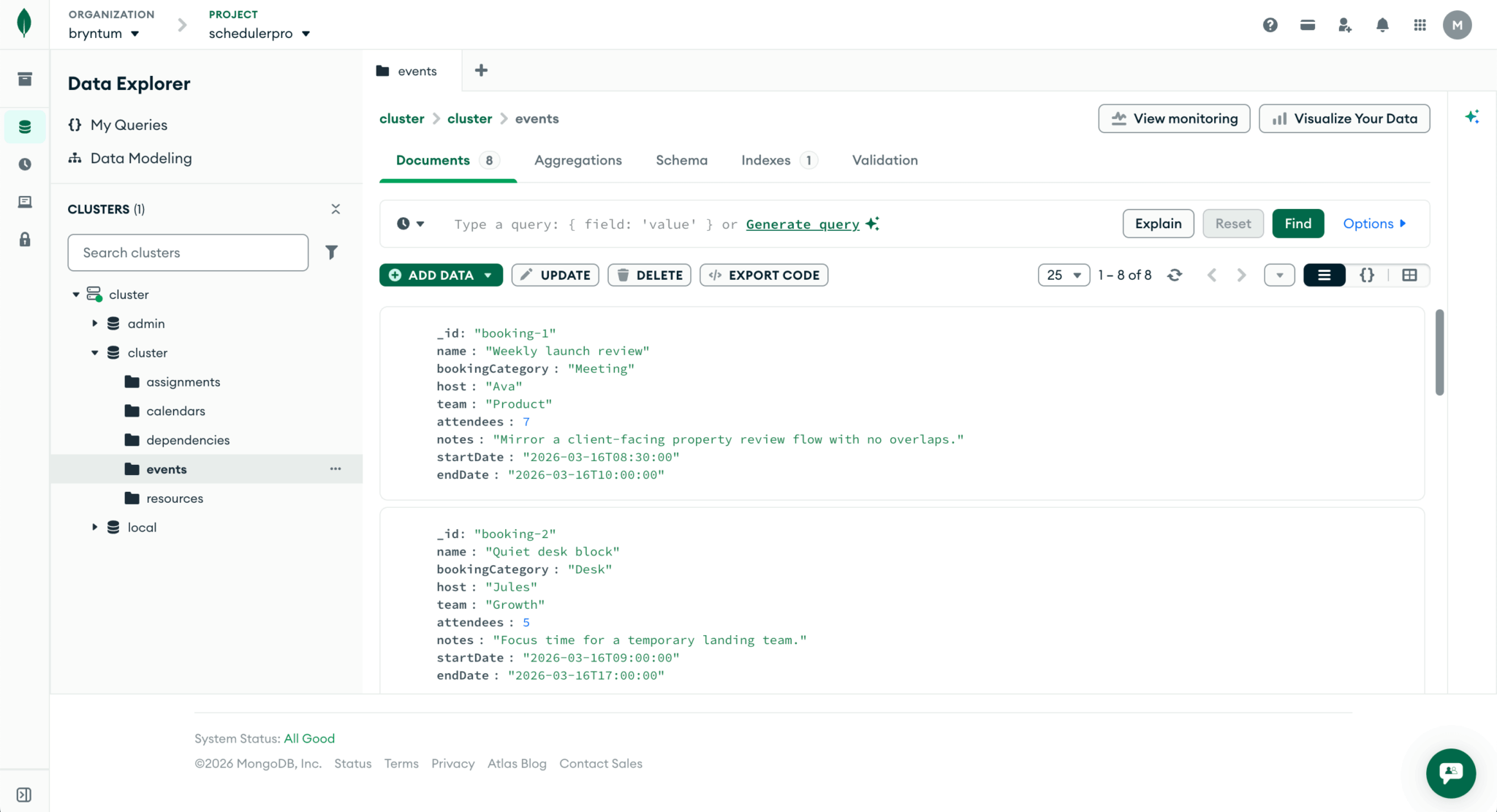
npm run seedYou can see the created collections and documents in your MongoDB Atlas dashboard. In the left navigation menu, under Database, select Clusters. Click on the Browse Collections to open the Data Explorer:
Creating the load and sync routes
Now let’s create the load and sync routes that will load data into the Bryntum Scheduler Pro and save data changes to the MongoDB Atlas database.
Create a scheduler.ts file in the server/src/routes folder. Add the following imports, router factory, and the /load request route:
import { type Request, type Response, Router } from 'express';
import type { Db } from 'mongodb';
import {
    COLLECTIONS,
    applyStoreChanges,
    collectStoreRows,
    createIdMaps,
    normalizeAssignmentFields,
    normalizeDependencyFields,
    normalizeEventFields,
    type GenericRecord,
    type SyncRequestBody,
    type SyncResponseBody
} from '../lib/schedulerCrud.js';

type GetDb = () => Db;

export function createSchedulerRouter(getDb: GetDb): Router {
    const router = Router();

    router.get('/load', async(_req: Request, res: Response) => {
        try {
            const database = getDb();
            const [resources, events, assignments, calendars, dependencies] = await Promise.all([
                database.collection<GenericRecord>(COLLECTIONS.resources).find({}).sort({ neighborhood : 1, floor : 1, name : 1 }).toArray(),
                database.collection<GenericRecord>(COLLECTIONS.events).find({}).sort({ startDate : 1 }).toArray(),
                database.collection<GenericRecord>(COLLECTIONS.assignments).find({}).toArray(),
                database.collection<GenericRecord>(COLLECTIONS.calendars).find({}).toArray(),
                database.collection<GenericRecord>(COLLECTIONS.dependencies).find({}).toArray()
            ]);

            res.json({
                success      : true,
                resources    : { rows : collectStoreRows(resources) },
                events       : { rows : collectStoreRows(events).map(normalizeEventFields) },
                assignments  : { rows : collectStoreRows(assignments) },
                calendars    : { rows : collectStoreRows(calendars) },
                dependencies : { rows : collectStoreRows(dependencies) }
            });
        }
        catch (error) {
            console.error(error);

            res.status(500).json({
                success : false,
                message : 'Could not load workspace scheduler data'
            });
        }
    });
The /load route queries all five MongoDB collections in parallel and returns them in the structure that Bryntum’s ProjectModel expects. Resources are sorted by neighborhood, floor, and name so the grid rows appear in a logical order.
Add the /sync request route below the /load route:
    router.post('/sync', async(req: Request, res: Response) => {
        const {
            requestId,
            resources,
            events,
            assignments,
            calendars,
            dependencies
        } = req.body as SyncRequestBody;

        const idMaps = createIdMaps();

        try {
            const database = getDb();
            const response: SyncResponseBody = {
                success   : true,
                requestId : requestId || null
            };

            if (resources) {
                const rows = await applyStoreChanges({
                    collection : database.collection<GenericRecord>(COLLECTIONS.resources),
                    changes    : resources,
                    idMap      : idMaps.resources
                });

                if (rows.length) {
                    response.resources = { rows };
                }
            }

            if (events) {
                const rows = await applyStoreChanges({
                    collection       : database.collection<GenericRecord>(COLLECTIONS.events),
                    changes          : events,
                    idMap            : idMaps.events,
                    normalizeAdded   : normalizeEventFields,
                    normalizeUpdated : normalizeEventFields
                });

                if (rows.length) {
                    response.events = { rows };
                }
            }

            if (assignments) {
                const rows = await applyStoreChanges({
                    collection : database.collection<GenericRecord>(COLLECTIONS.assignments),
                    changes    : assignments,
                    idMap      : idMaps.assignments,
                    normalizeAdded(record) {
                        return normalizeAssignmentFields(record, idMaps);
                    },
                    normalizeUpdated(record) {
                        return normalizeAssignmentFields(record, idMaps);
                    }
                });

                if (rows.length) {
                    response.assignments = { rows };
                }
            }

            if (calendars) {
                const rows = await applyStoreChanges({
                    collection : database.collection<GenericRecord>(COLLECTIONS.calendars),
                    changes    : calendars,
                    idMap      : idMaps.calendars
                });

                if (rows.length) {
                    response.calendars = { rows };
                }
            }

            if (dependencies) {
                const rows = await applyStoreChanges({
                    collection : database.collection<GenericRecord>(COLLECTIONS.dependencies),
                    changes    : dependencies,
                    idMap      : idMaps.dependencies,
                    normalizeAdded(record) {
                        return normalizeDependencyFields(record, idMaps);
                    },
                    normalizeUpdated(record) {
                        return normalizeDependencyFields(record, idMaps);
                    }
                });

                if (rows.length) {
                    response.dependencies = { rows };
                }
            }

            res.json(response);
        }
        catch (error) {
            console.error(error);

            res.status(500).json({
                success   : false,
                requestId : requestId || null,
                message   : 'Could not sync workspace scheduler data'
            } satisfies SyncResponseBody);
        }
    });

    return router;
}
The /sync route processes each store in order: resources and events first, then assignments and dependencies. This order matters because assignments reference event and resource IDs, so those ID maps need to be populated before the assignment normalizer runs. For added rows, the response includes the database-assigned IDs so the Bryntum Scheduler Pro can replace its temporary phantom IDs with the database IDs.
Creating the Express server entry point
Create a server.ts in the server/src folder and add the following code to it:
import express from 'express';
import { type Db } from 'mongodb';
import cors from './lib/cors.js';
import { loadEnv } from './lib/loadEnv.js';
import { createMongoClient } from './lib/mongo.js';
import { createSchedulerRouter } from './routes/scheduler.js';

loadEnv();

const PORT = Number(process.env.PORT || 1339);
const FRONTEND_URL = process.env.FRONTEND_URL || 'http://localhost:5173';
const MONGODB_URI = process.env.MONGODB_URI || 'mongodb://127.0.0.1:27017';
const MONGODB_DB = process.env.MONGODB_DB || 'workspace_scheduler2';

const app = express();
app.use(cors({
    origin : FRONTEND_URL
}));
app.use(express.json({ limit : '2mb' }));

const client = createMongoClient(MONGODB_URI);
let db: Db | undefined;

function getDb(): Db {
    if (!db) {
        throw new Error('Database connection is not ready yet');
    }

    return db;
}

app.use('/api', createSchedulerRouter(getDb));

async function start(): Promise<void> {
    await client.connect();
    db = client.db(MONGODB_DB);
    console.log(`MongoDB ready for database "${MONGODB_DB}"`);

    app.listen(PORT, () => {
        console.log(`Workspace Scheduler server running on http://localhost:${PORT}`);
    });
}

start().catch((error) => {
    console.error('Failed to start server:', error);
    process.exit(1);
});
This server loads the environment variables, connects to MongoDB, and mounts the scheduler routes under /api.
Creating the Vite client app
Generate the Vite vanilla TypeScript client app using the following command:
npm create vite@latest client -- --template vanilla-tsSelect Install with npm and start now in the CLI options.
Replace the "scripts" object in the client/package.json with the following scripts:
"scripts": {
  "dev": "vite",
  "build": "tsc -p tsconfig.json && vite build"
}
Replace the configuration in client/tsconfig.json with the following code:
{
  "extends": "../tsconfig.base.json",
  "compilerOptions": {
    "module": "ESNext",
    "moduleResolution": "Bundler",
    "lib": ["ES2022", "DOM", "DOM.Iterable"],
    "types": ["vite/client"],
    "noEmit": true
  },
  "include": ["src/**/*.ts", "vite.config.ts"]
}
This config uses the Vite bundler module resolution strategy and does not emit JavaScript during the TypeScript check.
Create a vite.config.ts file in the client folder and add the following lines of code to it:
import { defineConfig } from 'vite';

export default defineConfig({
    server : {
        port  : 5173,
        proxy : {
            '/api' : 'http://localhost:1339'
        }
    },
    build : {
        outDir : 'dist'
    }
});
This config proxies /api requests to the Express server running on port 1339, so the client can use relative API URLs during local development.
Replace client/index.html with the following code:
<!doctype html>
<html lang="en">
<head>
    <meta charset="UTF-8" />
    <link rel="icon" type="image/svg+xml" href="/favicon.svg" />
    <meta name="viewport" content="width=device-width, initial-scale=1.0" />
    <title>Workspace Scheduler</title>
</head>
<body>
    <main id="app">
        <div id="scheduler" class="scheduler-host"></div>
        <div id="utilization" class="utilization-host"></div>
    </main>
    <script type="module" src="/src/main.ts"></script>
</body>
</html>
This HTML creates two mount points: one for the Scheduler Pro, and one for the linked resource utilization view.
Delete the Vite starter files that we do not use:
rm -r client/public/icons.svg client/src/assets client/src/counter.tsInstalling the Bryntum Scheduler Pro
If you’re using the free trial, install the public Bryntum trial package:
npm install @bryntum/schedulerpro@npm:@bryntum/schedulerpro-trial --workspace=clientIf you have a Bryntum license, refer to our npm Repository Guide and install the licensed package:
npm install @bryntum/schedulerpro --workspace=clientConfiguring the Bryntum Scheduler Pro
Create a schedulerProConfig.ts file in the client/src folder. Add the following imports, custom BookingModel, color map, filter dropdown options, and options objects:
import {
    DateHelper,
    EventModel,
    ProjectModel,
    StringHelper,
    type ProjectModelConfig,
    type ResourceUtilizationConfig,
    type SchedulerEventModel,
    type SchedulerProConfig
} from '@bryntum/schedulerpro';

class BookingModel extends EventModel {
    static override fields = [
        { name : 'bookingCategory', type : 'string' },
        { name : 'host', type : 'string' },
        { name : 'team', type : 'string' },
        { name : 'attendees', type : 'number' },
        { name : 'notes', type : 'string' }
    ];
}

const bookingColors: Record<string, string> = {
    Meeting   : '#ea6d4f',
    Desk      : '#267b8a',
    Coworking : '#d69a27'
};

export const workspaceTypeOptions = [
    { value : 'all', text : 'All types' },
    { value : 'Meeting room', text : 'Meeting room' },
    { value : 'Desk bank', text : 'Desk bank' },
    { value : 'Coworking lounge', text : 'Coworking lounge' }
] as const;

export const neighborhoodOptions = [
    { value : 'all', text : 'All neighborhoods' },
    { value : 'Docklands', text : 'Docklands' },
    { value : 'Atrium North', text : 'Atrium North' },
    { value : 'Harbor Wing', text : 'Harbor Wing' }
] as const;

export const filterState = {
    workspaceType : 'all',
    neighborhood  : 'all'
};
The BookingModel adds custom fields to the Bryntum EventModel. The bookingColors map gives each booking category a distinct color on the timeline.
Add the project configuration and instantiation:
export const projectConfig: Partial<ProjectModelConfig> = {
    eventModelClass : BookingModel,
    calendar        : 'workspace-hours',
    transport : {
        load : {
            url : '/api/load'
        },
        sync : {
            url : '/api/sync'
        }
    },
    autoLoad         : true,
    autoSync         : true,
    validateResponse : true
};

export const project = new ProjectModel(projectConfig);
The projectConfig transport property configures the load and sync URLs that the Bryntum Scheduler Pro Crud Manager uses. These URLs are the Express API endpoints that we created. Because autoLoad and autoSync are both enabled, the scheduler fetches data on page load and posts changes back to the API whenever data is modified in the scheduler.
Add the following scheduler configuration:
export const schedulerConfig: Partial<SchedulerProConfig> = {
    appendTo   : 'scheduler',
    project,
    startDate  : '2026-03-16T07:00:00',
    endDate    : '2026-03-18T20:00:00',
    viewPreset : 'hourAndDay',
    rowHeight  : 62,
    barMargin  : 7,
    multiEventSelect : true,
    columns          : [
        {
            type  : 'resourceInfo',
            text  : 'Workspace',
            field : 'name',
            width : 240
        },
        {
            text  : 'Type',
            field : 'workspaceType',
            width : 145
        },
        {
            text  : 'Neighborhood',
            field : 'neighborhood',
            width : 150
        },
        {
            text  : 'Floor',
            field : 'floor',
            width : 90
        },
        {
            text   : 'Capacity',
            field  : 'capacity',
            width  : 100,
            align  : 'center',
            editor : false
        }
    ],
    features : {
        dependencies : true,
        eventMenu    : true,
        taskEdit     : {
            editorConfig : {
                title : 'Reservation',
                width : '36em'
            },
            items : {
                generalTab : {
                    title : 'Booking details',
                    items : {
                        resourcesField : {
                            label : 'Workspace'
                        },
                        bookingCategory : {
                            type     : 'combo',
                            name     : 'bookingCategory',
                            label    : 'Booking type',
                            editable : false,
                            items    : ['Meeting', 'Desk', 'Coworking'],
                            weight   : 210
                        },
                        host : {
                            type   : 'text',
                            name   : 'host',
                            label  : 'Host',
                            weight : 220
                        },
                        team : {
                            type   : 'text',
                            name   : 'team',
                            label  : 'Team',
                            weight : 230
                        },
                        attendees : {
                            type   : 'number',
                            name   : 'attendees',
                            label  : 'Attendees',
                            min    : 1,
                            weight : 240
                        },
                        notes : {
                            type   : 'text',
                            name   : 'notes',
                            label  : 'Notes',
                            weight : 250
                        }
                    }
                }
            }
        },
    },
    eventRenderer({ eventRecord, renderData }) {
        renderData.eventColor = bookingColors[eventRecord.get('bookingCategory')] || '#1d5b52';

        return {
            children : [
                {
                    className : 'booking-title',
                    text      : eventRecord.name
                },
                {
                    className : 'booking-meta',
                    text      : `${eventRecord.get('host') || 'TBD'} | ${eventRecord.get('attendees') || 0} seats`
                }
            ]
        };
    }
};
Here, we configure the timeline settings, task editor, and event renderer.
The columns array defines the locked grid on the left side of the scheduler. The taskEdit feature customizes the reservation editor popup with the booking-specific fields. The eventRenderer sets the event bar color based on booking category and shows the host name and seat count inside each bar.
Add the utilization panel configuration at the end of the file:
export const utilizationConfig: Partial<ResourceUtilizationConfig> = {
    appendTo    : 'utilization',
    project,
    hideHeaders : true,
    rowHeight   : 44,
    showBarTip  : true,
    showBarText : true,
    features    : {
        nonWorkingTime : false
    },
    columns : [
        {
            type  : 'tree',
            text  : 'Resource / booking',
            field : 'name',
            flex  : 1
        }
    ]
};
This configures the resource utilization widget that we’ll display below the scheduler. It shares the same project instance as the scheduler, so both views stay in sync. The tree column lets you expand each resource to see its individual bookings. The showBarTip and showBarText options display the utilization percentage on the bars so you can spot overallocated workspaces at a glance.
Replace the styles in the client/src/style.css file with the following:
@import url('https://fonts.googleapis.com/css2?family=Poppins:wght@400;500;600;700&display=swap');
@import '@bryntum/schedulerpro/fontawesome/css/fontawesome.css';
@import '@bryntum/schedulerpro/fontawesome/css/solid.css';
@import '@bryntum/schedulerpro/schedulerpro.css';
@import '@bryntum/schedulerpro/svalbard-light.css';

* {
    margin: 0;
}

body {
    font-family: 'Poppins', 'Segoe UI', Arial, sans-serif;
}

#app {
    display        : flex;
    flex-direction : column;
    height         : 100vh;
    font-size      : 14px;
}

#scheduler {
    flex : 3;
}

#utilization {
    flex       : 2;
    border-top : 2px solid #e0e0e0;
}
This stylesheet imports the Bryntum Scheduler Pro structural CSS, the Svalbard theme, and gives the page a two-panel layout, with the scheduler above the utilization view. Bryntum provides five themes with light and dark variants.
Replace the code in client/src/main.ts with the following:
import {
    Combo,
    ResourceUtilization,
    SchedulerPro,
} from '@bryntum/schedulerpro';
import './style.css';
import {
    filterState,
    neighborhoodOptions,
    project,
    schedulerConfig,
    utilizationConfig,
    workspaceTypeOptions
} from './schedulerProConfig';

const scheduler = new SchedulerPro({
    ...schedulerConfig,
    tbar : [
        {
            type         : 'combo',
            ref          : 'workspaceTypeFilter',
            width        : 190,
            editable     : false,
            value        : filterState.workspaceType,
            valueField   : 'value',
            displayField : 'text',
            items        : workspaceTypeOptions,
            placeholder  : 'Workspace type',
            listeners    : {
                change({ value }: { value: string }) {
                    filterState.workspaceType = value || 'all';
                    applyResourceFilters();
                }
            }
        },
        {
            type         : 'combo',
            ref          : 'neighborhoodFilter',
            width        : 205,
            editable     : false,
            value        : filterState.neighborhood,
            valueField   : 'value',
            displayField : 'text',
            items        : neighborhoodOptions,
            placeholder  : 'Neighborhood',
            listeners    : {
                change({ value }: { value: string }) {
                    filterState.neighborhood = value || 'all';
                    applyResourceFilters();
                }
            }
        },
        {
            type     : 'button',
            icon     : 'b-icon-undo',
            text     : 'Reset filters',
            onAction : () => {
                filterState.workspaceType = 'all';
                filterState.neighborhood = 'all';
                (scheduler.widgetMap.workspaceTypeFilter as Combo).value = 'all';
                (scheduler.widgetMap.neighborhoodFilter as Combo).value = 'all';
                applyResourceFilters();
            }
        },
        {
            type     : 'button',
            icon     : 'b-icon-search-plus',
            text     : 'Zoom in',
            onAction : () => scheduler.zoomIn()
        },
        {
            type     : 'button',
            icon     : 'b-icon-search-minus',
            text     : 'Zoom out',
            onAction : () => scheduler.zoomOut()
        }
    ]
});
This instantiates a Scheduler Pro instance, passes in the schedulerConfig, and adds a toolbar with filter dropdowns and zoom buttons. The two combo dropdowns filter the resource grid by workspace type and neighborhood. The reset button clears both filters, and the zoom buttons let you adjust the timeline scale.
Create the partnered utilization view and the filter function below the scheduler:
new ResourceUtilization({
    ...utilizationConfig,
    partner : scheduler
});

function applyResourceFilters(): void {
    const selectedType = filterState.workspaceType;
    const selectedNeighborhood = filterState.neighborhood;

    scheduler.resourceStore.filter({
        filters : (resource: Record<string, unknown>) => {
            const matchesType = selectedType === 'all' || resource.workspaceType === selectedType;
            const matchesNeighborhood = selectedNeighborhood === 'all' || resource.neighborhood === selectedNeighborhood;

            return matchesType && matchesNeighborhood;
        },
        replace : true
    });
}

project.on({
    load() {
        applyResourceFilters();
    }
});
The partner property links the utilization panel to the scheduler so they share the same time axis and scroll position. The applyResourceFilters function runs a combined filter on the resource store whenever a dropdown changes. The project.on('load') listener reapplies the filters after the initial data load completes.
Running the application
Run the client and server concurrently using the following command:
npm run devOpen http://localhost:5173. You’ll see the Bryntum Scheduler Pro populated with the example data:
You now have a Bryntum Scheduler Pro workspace booking CRUD app powered by MongoDB Atlas. The linked resource utilization view lets you spot overallocated resources.
Next steps
Now that you have a working Bryntum Scheduler Pro app with MongoDB, explore the additional features you can add on the examples page, such as:
Check out the Bryntum AI feature that lets users interact with scheduling data using natural language through a chat panel.
Both Bryntum and MongoDB have MCP servers to assist with agentic workflows:
- The Bryntum MCP server returns API references, configuration options, working source code examples, and migration guides for specific Bryntum versions.
- The MongoDB MCP server helps with code generation, database optimization, and data exploration.
Build it with Bryntum Scheduler Pro
Start a free trial, explore live demos, or read the docs.
Related posts