Integrate Interactive Scheduling, Calendar, and Project Management Tools with Microsoft Products
We strive to keep posts updated, but code samples may sometimes be outdated. Humans, see the Bryntum documentation; agents, https://mcp.bryntum.com for the latest info.
Bryntum components integrate with your tech stack, including Microsoft products.
We have guides that demonstrate how to use Bryntum components with Microsoft products, including:
- Outlook Calendar
- Teams
- Planner
- Project
- Power Apps
- Power BI
- SharePoint
- Dynamics 365
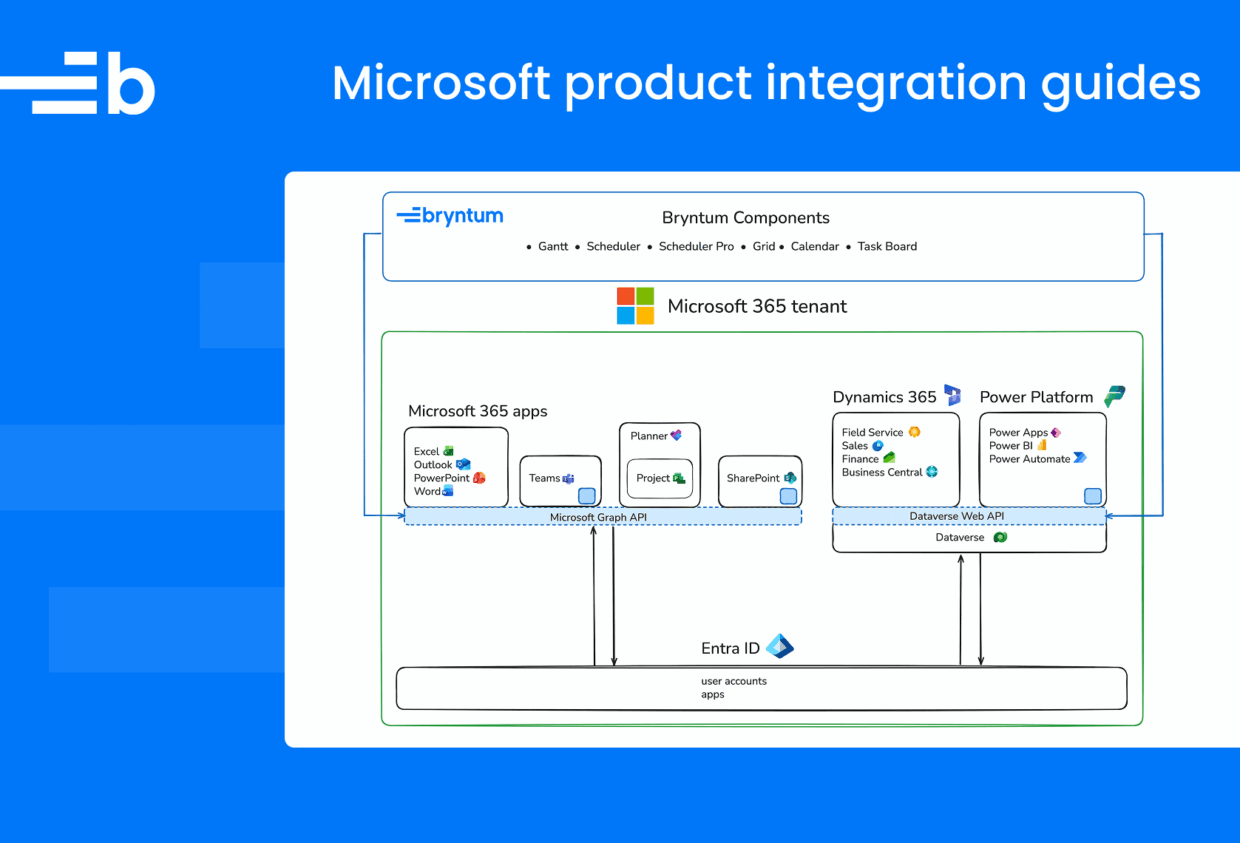
The following diagram depicts the relationships between the Microsoft products and the Bryntum components they integrate with:
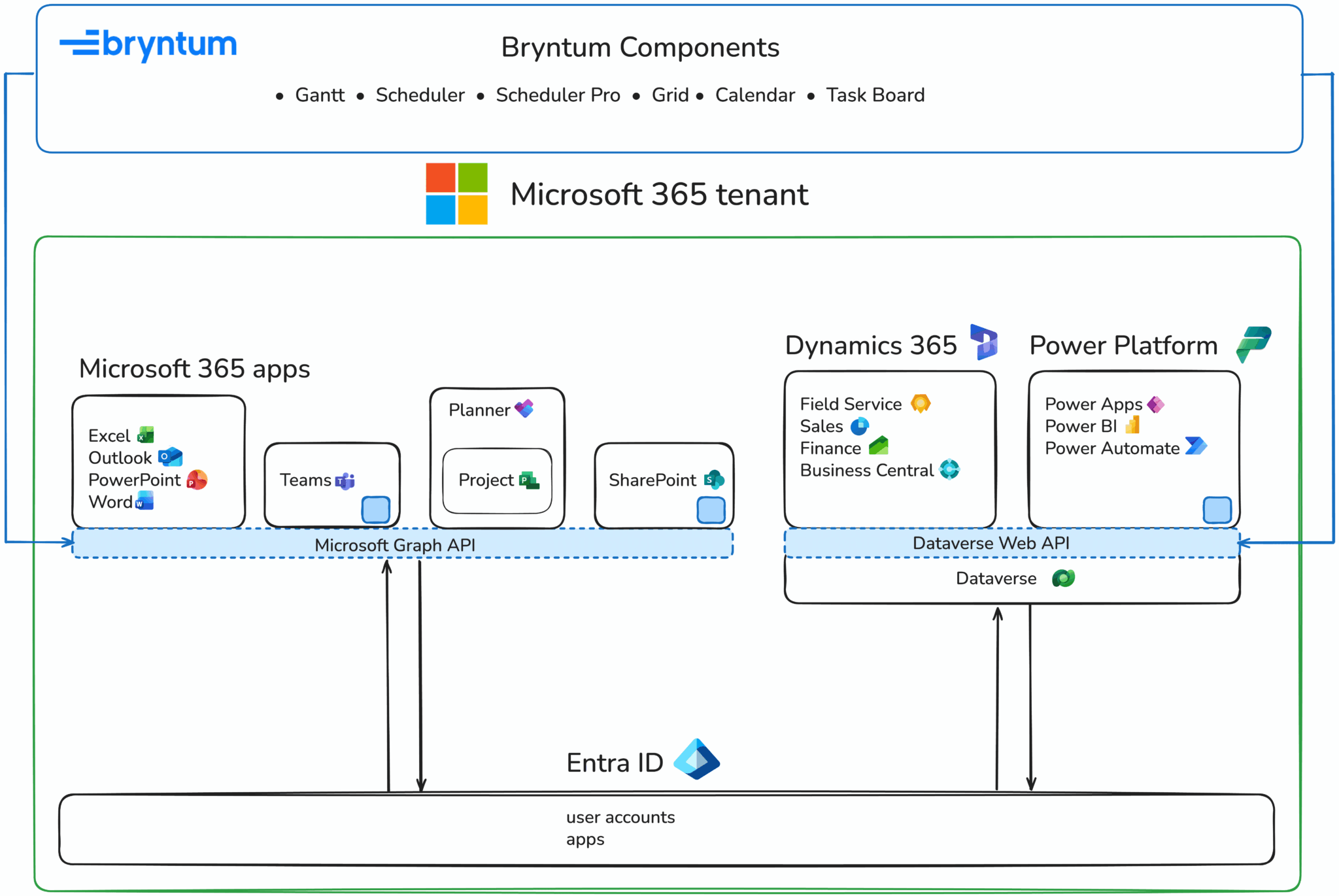
- The blue boxes represent Bryntum components embedded in Microsoft products.
- The blue arrows indicate where Bryntum connects to Microsoft products using APIs.
- The black arrows indicate how Microsoft products connect to Microsoft Entra ID, which handles authentication.
Accessing Microsoft products
Our guides show you how to access Microsoft products using free trials, so you don’t have to purchase a license or subscription. However, many of the guides require a Microsoft tenant with admin access. A Microsoft tenant is an instance of Microsoft 365 services and your organization’s data that is stored at a specific location. A tenant is a Microsoft 365 E3 or E5 instance, which comes with Microsoft 365 apps. There is also a Microsoft Entra tenant for user accounts and groups.
You can get a tenant by signing up for the Microsoft 365 Developer Program, which simplifies gaining access to Microsoft products. If you don’t qualify for the developer program, you can sign up for a Microsoft 365 Business Premium trial to get a tenant.
Many of the example integrations use the Microsoft Graph API to read and write data, with Microsoft Entra ID handling authentication. Some integrations use the Dataverse Web API for Power Platform and Dynamics 365 apps. The following sections contain links to guides explaining how to integrate Bryntum with specific Microsoft products.
Integrating Bryntum with Outlook
The following two guides demonstrate how to integrate Microsoft Outlook Calendar and Bryntum Calendar:
- The React version shows you how to connect and sync a React Bryntum Calendar to a Microsoft Outlook Calendar.
- The simpler version shows you how to connect and sync vanilla JavaScript Bryntum Calendar to a Microsoft Outlook Calendar.
Creating Bryntum Power Apps components
Microsoft Power Apps is a collection of apps, services, and connectors, and a data platform for building custom apps without writing code. The underlying data platform is Microsoft Dataverse. You can connect to different data sources, such as Excel, Microsoft SQL Server, SharePoint, Microsoft 365, and Dynamics 365.
Power Apps component framework enables developers to create custom Power Apps components using HTML, CSS, JavaScript, and Power Apps APIs.
We have two guides demonstrating how to create custom Bryntum Power Apps components:
- How to build a React Gantt chart in Microsoft Power Apps using Bryntum, Power Apps component framework, and Dataverse
- Building a Bryntum Scheduler with React and Microsoft Power Apps component framework
Integrating Bryntum with Planner and Project
Microsoft Planner is a project management tool that allows you to create and manage projects and tasks. It has grid, board, schedule, and timeline (Gantt) views. There’s also Planner in Teams.
Microsoft’s project management offerings can be confusing:
- Initially, Microsoft Project for the web was a browser-based project management tool, while Microsoft Planner was a separate, lightweight task management tool.
- In August 2025, Microsoft retired Project for the web and merged its features into Microsoft Planner. All plans created in Project for the web remain accessible in Planner with no migration required.
- The desktop application, Microsoft Project, remains a separate product. Our Microsoft Project guide uses the Project Schedule API, which still works for projects created in Planner.
We have two guides demonstrating how to integrate Bryntum with Planner and Project:
- How to connect and sync Bryntum Calendar to Microsoft Planner
- How to connect and sync Bryntum Gantt to Microsoft Project
Creating a Bryntum SharePoint app
Microsoft SharePoint is a content and collaboration platform for creating websites and sharing documents.
The following guides demonstrate how to integrate Bryntum with SharePoint using the SharePoint Framework (SPFx):
- Integrating Bryntum Gantt with Microsoft SharePoint
- Using Bryntum Gantt in a SharePoint SPFx Fabric Web Part
- Using Bryntum Scheduler Pro in a SharePoint SPFx Fabric Web Part
- Using Bryntum Scheduler in a SharePoint SPFx Fabric Web Part
- Using Bryntum Task Board in a SharePoint SPFx Fabric Web Part
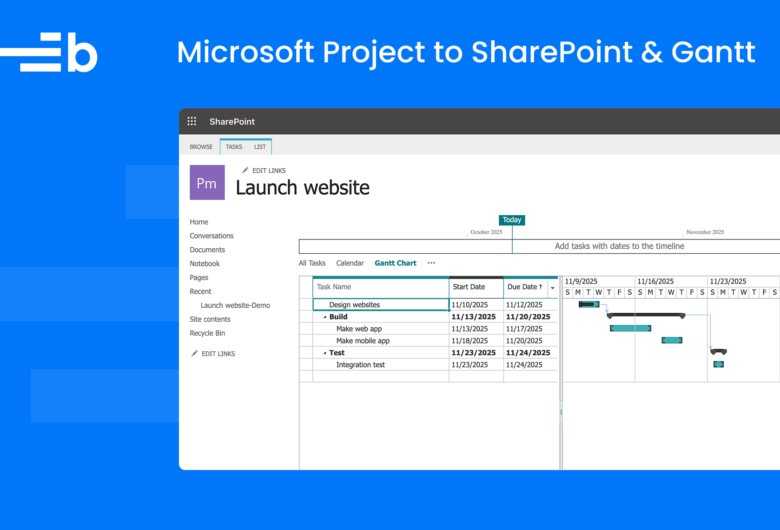
We also have a guide showing how to migrate from Microsoft Project to Microsoft SharePoint and Bryntum Gantt.
Creating a Bryntum Power BI visual
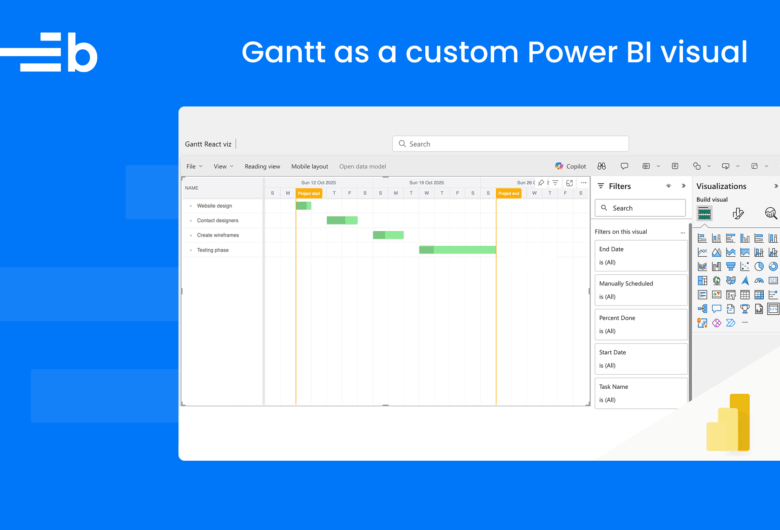
Power BI is a business intelligence platform for creating interactive reports and dashboards. You can create your own custom visuals, as explained in our guide, Using a React Bryntum Gantt as a custom Power BI visual.
Using Bryntum with Microsoft Teams and the Microsoft 365 Agents Toolkit
Microsoft Teams is a team collaboration platform.
Our guide, How to connect and sync Bryntum Scheduler to Microsoft Teams, demonstrates how you can use Microsoft Graph to display Microsoft Teams shifts in Bryntum Scheduler and sync changes back to Microsoft Teams.
We also have a Gantt chart guide that demonstrates how to build a Teams Tab app using the Microsoft 365 Agents Toolkit (previously known as Teams Toolkit), a VS Code extension for building Microsoft Teams, Outlook, and Microsoft 365 Copilot apps.
Microsoft Dynamics 365 apps
Microsoft Dynamics 365 is a suite of business applications that includes:
- Dynamics 365 Field Service
- Dynamics 365 Sales
- Dynamics 365 Customer Service
- Dynamics 365 Marketing
- Dynamics 365 Supply Chain Management
- Dynamics 365 Finance
- Dynamics 365 Business Central
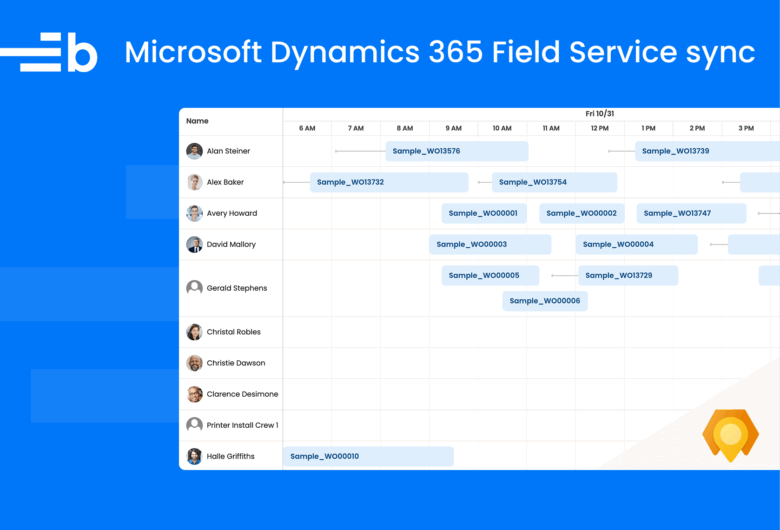
Our guide, How to connect Bryntum Scheduler Pro to a Microsoft Dynamics 365 Field Service project, shows you how to use the Microsoft Dataverse Web API to get and modify data in a Dynamics 365 Field Service app.
Converting from Excel to Bryntum
Microsoft Excel is commonly used to create project management tools, like schedulers and Gantt charts. We have two guides demonstrating how to migrate from Excel to Bryntum products:
- Migrating from an Excel Schedule to a Bryntum Scheduler
- Migrating from an Excel Gantt chart to a Bryntum Gantt chart
Our guide to migrating from Microsoft Project to Microsoft SharePoint and Bryntum Gantt also includes a step in which you export Microsoft Planner plan data to an Excel file, which you then convert to Bryntum Gantt-compatible JSON data.
Using Bryntum with the Microsoft Authentication Library (MSAL)
The Microsoft Authentication Library for JavaScript (MSAL.js) handles authentication using Microsoft Entra ID for single-page applications and enables your app to get access tokens for Microsoft Cloud services (such as Microsoft Graph). The React version of the library, msal-react, is for React apps.
We have multiple guides that demonstrate how to use MSAL.js and msal-react to authenticate users and get access tokens for the Microsoft Graph API, the Microsoft Dynamics 365 Project Schedule API, and the Microsoft Dataverse Web API:
- How to connect and sync a React Bryntum Calendar to a Microsoft Outlook Calendar
- How to connect and sync Bryntum Calendar to a Microsoft Outlook Calendar
- How to connect and sync Bryntum Calendar to Microsoft Planner
- How to connect and sync Bryntum Gantt to Microsoft Project
- How to connect and sync Bryntum Scheduler to Microsoft Teams
- How to connect Bryntum Scheduler Pro to a Microsoft Dynamics 365 Field Service project
Using Bryntum with Microsoft Entra ID
Microsoft Entra ID is an identity and access management service for authenticating users.
Many of our guides use Microsoft Entra ID to authenticate users and get access tokens for the Microsoft Graph API, the Microsoft Dynamics 365 Project Schedule API, and the Microsoft Dataverse Web API:
- How to connect and sync Bryntum Calendar to Microsoft Planner
- How to connect and sync a React Bryntum Calendar to a Microsoft Outlook Calendar
- How to connect and sync Bryntum Calendar to a Microsoft Outlook Calendar
- How to connect and sync Bryntum Scheduler to Microsoft Teams
- How to build a Gantt chart into Microsoft Teams with Bryntum
- How to connect Bryntum Scheduler Pro to a Microsoft Dynamics 365 Field Service project
Using Bryntum with the Microsoft Graph
Microsoft Graph has a single endpoint: Graph (https://graph.microsoft.com), that gives you access to Microsoft 365, Windows 10, and Enterprise Mobility + Security data.
A few of our guides use this API to access Microsoft 365 data using the Microsoft Graph JavaScript client library:
- How to connect and sync Bryntum Calendar to Microsoft Planner
- How to connect and sync a React Bryntum Calendar to a Microsoft Outlook Calendar
- How to connect and sync Bryntum Calendar to a Microsoft Outlook Calendar
- How to connect and sync Bryntum Scheduler to Microsoft Teams
- How to build a Gantt chart into Microsoft Teams with Bryntum
Using Bryntum with Dataverse
Microsoft Dataverse is the cloud data platform for the Microsoft Power Platform and Dynamics 365 apps. The Dataverse Web API provides methods for performing CRUD operations on the Dataverse database tables.
Four of our guides use Dataverse and the Dataverse Web API:
- How to build a React Gantt chart in Microsoft Power Apps using Bryntum, Power Apps component framework, and Dataverse
- Building a Bryntum Scheduler with React and Microsoft Power Apps component framework
- How to connect and sync Bryntum Gantt to Microsoft Project
- How to connect Bryntum Scheduler Pro to a Microsoft Dynamics 365 Field Service project
What’s next
We’re continuously expanding our integration guides. Coming soon, we have guides on integrating Bryntum Scheduler with TanStack Table and Mapbox, styling the Bryntum DateRangeField widget, and migrating from Handsontable to Bryntum Grid.
To request an integration guide for a Bryntum product and another technology, fill out our contact form.
Try Bryntum components
Fast, framework-agnostic UI components for scheduling and project management.
Related posts