
How to connect and sync Bryntum Scheduler to Microsoft Teams
We strive to keep posts updated, but code samples may sometimes be outdated. Humans, see the Bryntum documentation; agents, https://mcp.bryntum.com for the latest info.
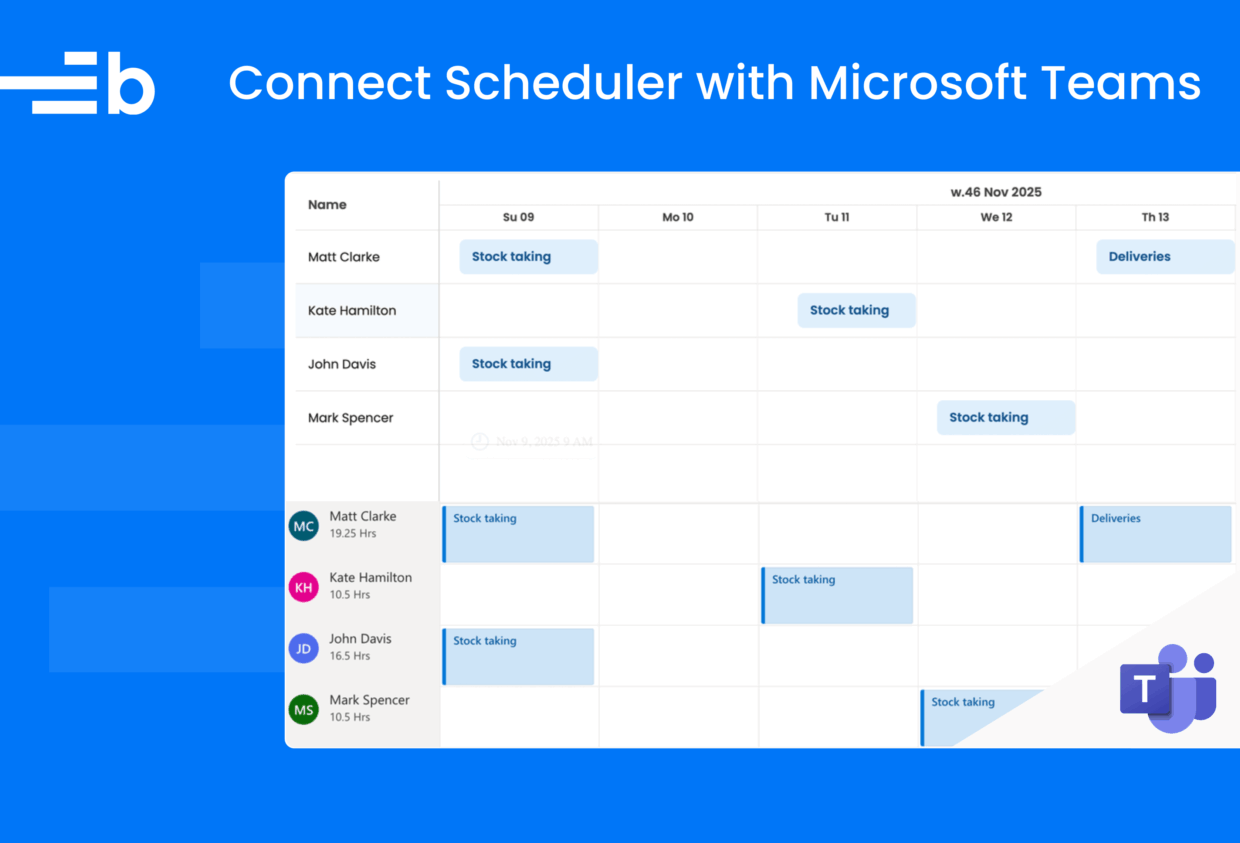
Bryntum Scheduler is a modern, high-performance scheduling UI component built with pure JavaScript. It can easily be used with React, Vue, or Angular. In this tutorial, we’ll connect and sync Bryntum Scheduler to Microsoft Teams. We’ll do the following:
- Create a JavaScript app that a user can log into using their Microsoft 365 account.
- Use Microsoft Graph to get the user’s Microsoft Teams shifts.
- Display the Microsoft Teams shifts in Bryntum Scheduler.
- Sync event changes in Bryntum Scheduler with the user’s Microsoft Teams.
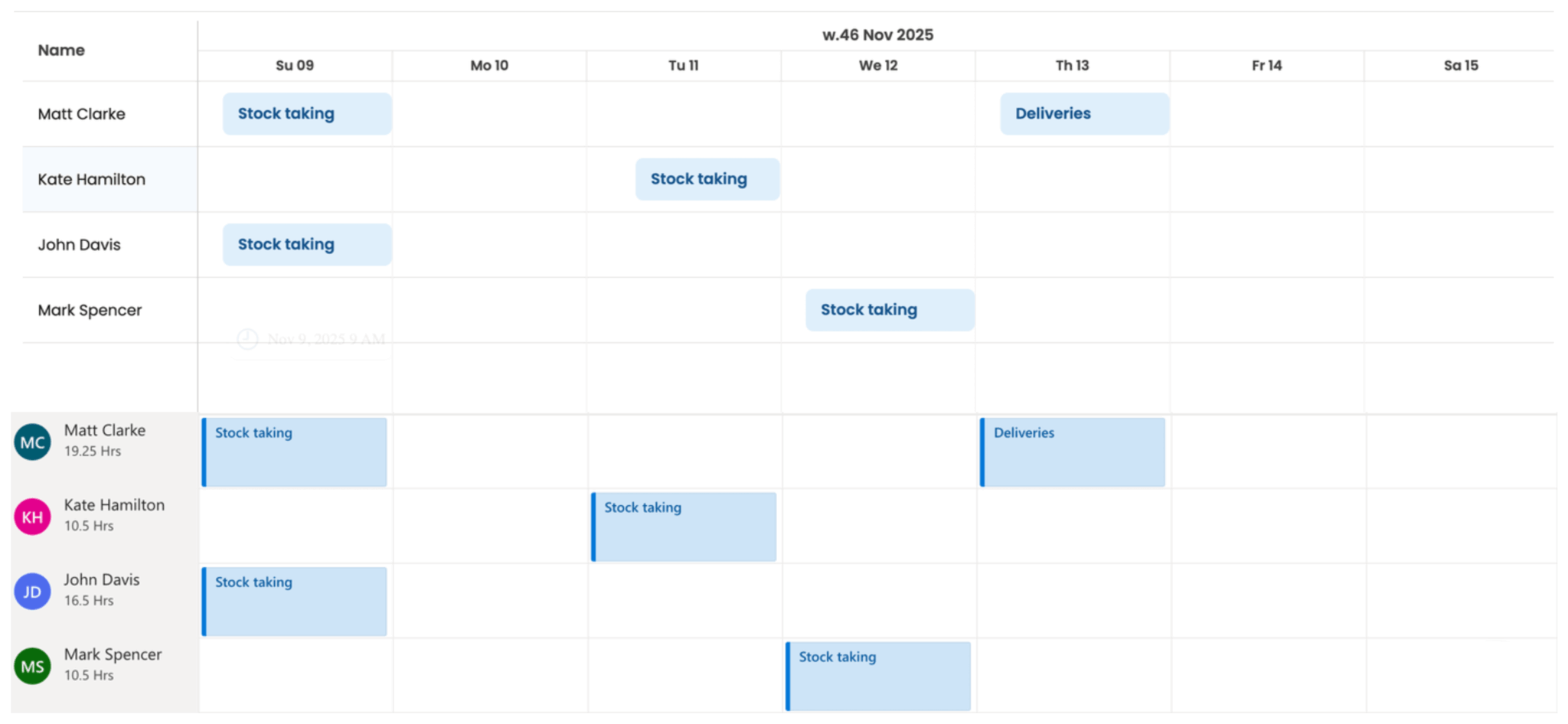
You can find the code for the completed app in the completed-app branch of the starter GitHub repository.
Getting started
Clone the starter GitHub repository. The starter repository uses Vite, which is a development server and JavaScript bundler. You’ll need Node.js version 20.19+ for Vite to work.
Now install the Vite dev dependency by running the following command:
npm installRun the local dev server using npm run dev and you’ll see a blank page.
Let’s create our Bryntum Scheduler now.
Creating a scheduler using Bryntum
We’ll install the Bryntum Scheduler component using npm. Follow step one of the Bryntum Scheduler setup guide to log into the Bryntum registry component.
Now follow step four of the Bryntum Scheduler setup guide to install Bryntum Scheduler.
Let’s import the Bryntum Scheduler component and give it some basic configuration. In the main.js file add the following lines:
import { Scheduler } from "@bryntum/scheduler/scheduler.module.js";

// get the current date
const today = new Date();

// get the day of the week
const day = today.getDay();

// get the date of the previous Sunday
const previousSunday = new Date(today);
previousSunday.setDate(today.getDate() - day);

// get the date of the following Saturday
const nextSaturday = new Date(today);
nextSaturday.setDate(today.getDate() + (6 - day));

const scheduler = new Scheduler({
    appendTo : "scheduler",
    startDate : previousSunday,
    endDate   : nextSaturday,
    viewPreset  : 'dayAndWeek',
    workingTime : {
        fromHour : 9,
        toHour   : 17
    },
    resources : [
        { id : 1, name : 'Dan Stevenson' },
        { id : 2, name : 'Talisha Babin' }
    ],

    events : [
        { resourceId : 1, startDate : previousSunday, endDate : nextSaturday },
        { resourceId : 2, startDate : previousSunday, endDate : nextSaturday }
    ],

    columns : [
        { text : 'Name', field : 'name', width : 160 }
    ]
});
Add the following imports to the top of the style.css file:
@import "@bryntum/scheduler/fontawesome/css/fontawesome.css";
@import "@bryntum/scheduler/fontawesome/css/solid.css";
@import "@bryntum/scheduler/scheduler.css";
@import "@bryntum/scheduler/svalbard-light.css";
Here, we import the Bryntum Scheduler and the CSS for the Svalbard light theme, which is one of the four available themes with light and dark variants. You can also create custom themes. The structural CSS and themes have separate imports. You can read more about styling the scheduler here. We create a new Bryntum Scheduler instance and pass a configuration object into it. We add the scheduler to the DOM as a child of the <div> element with an id of "scheduler".
The scheduler can be set up to display specific dates on opening; here we set the startDate to the previous Sunday and endDate to the following Saturday in order to reflect the dates in the Microsoft Teams UI.
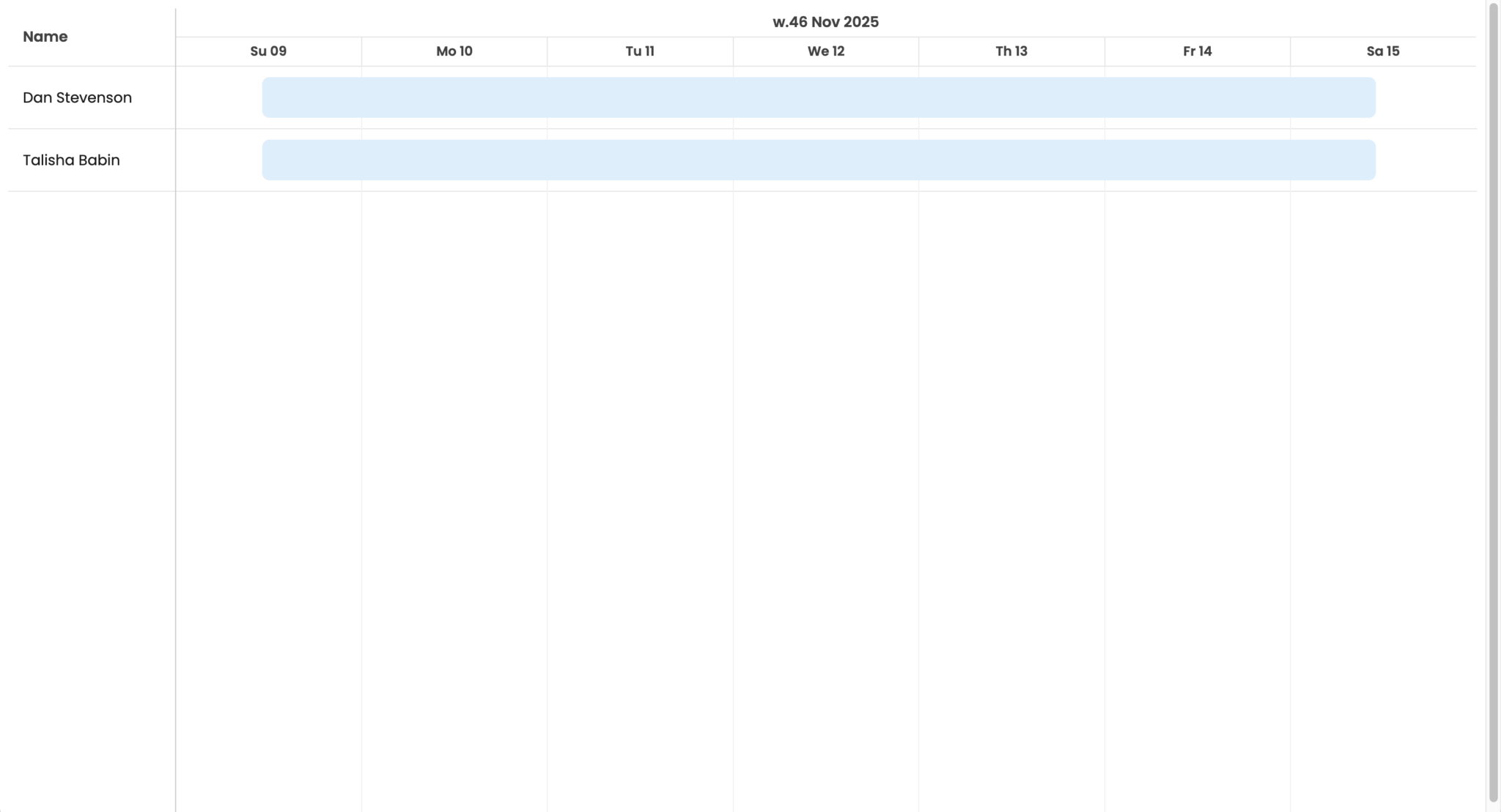
We pass in data inline to populate the scheduler resources and events stores for simplicity. You can learn more about working with data in the Bryntum docs. We have a resource for two individuals. Within the scheduler, there’s an example "shift" event for each individual that runs for a week. If you run your dev server now, you’ll see the events in Bryntum Scheduler:
Now let’s learn how to retrieve a list of team shifts from a user’s Microsoft Teams using Microsoft Graph.
Getting access to Microsoft Graph
We’re going to register a Microsoft 365 application by creating an application registration in Microsoft Entra ID, which is a cloud identity and access management (IAM) solution. We’ll do this so that a user can sign in to our app using their Microsoft 365 account. This grants our app access to the data the user gives the app permission to access. A user signs in using OAuth, which sends an access token to our app to be stored in session storage. We’ll then use the token to make authorized requests for Microsoft Teams data using Microsoft Graph. Microsoft Graph is a single endpoint REST API that enables you to access data from Microsoft 365 applications.
To use Microsoft Graph, you need global administrator access to a Microsoft 365 tenant. If you don’t have global administrator access, join the Microsoft 365 Developer Program with your Microsoft account. If you don’t qualify for the Microsoft 365 developer program, you can sign up for a Microsoft 365 Business Premium trial to get a Microsoft 365 tenant.
Creating a Microsoft Entra app
Let’s create a Microsoft Entra app in the Microsoft Entra admin center to get access to Microsoft Graph:
- Sign in to Microsoft Entra using your Microsoft 365 Developer Program or Microsoft 365 email address.
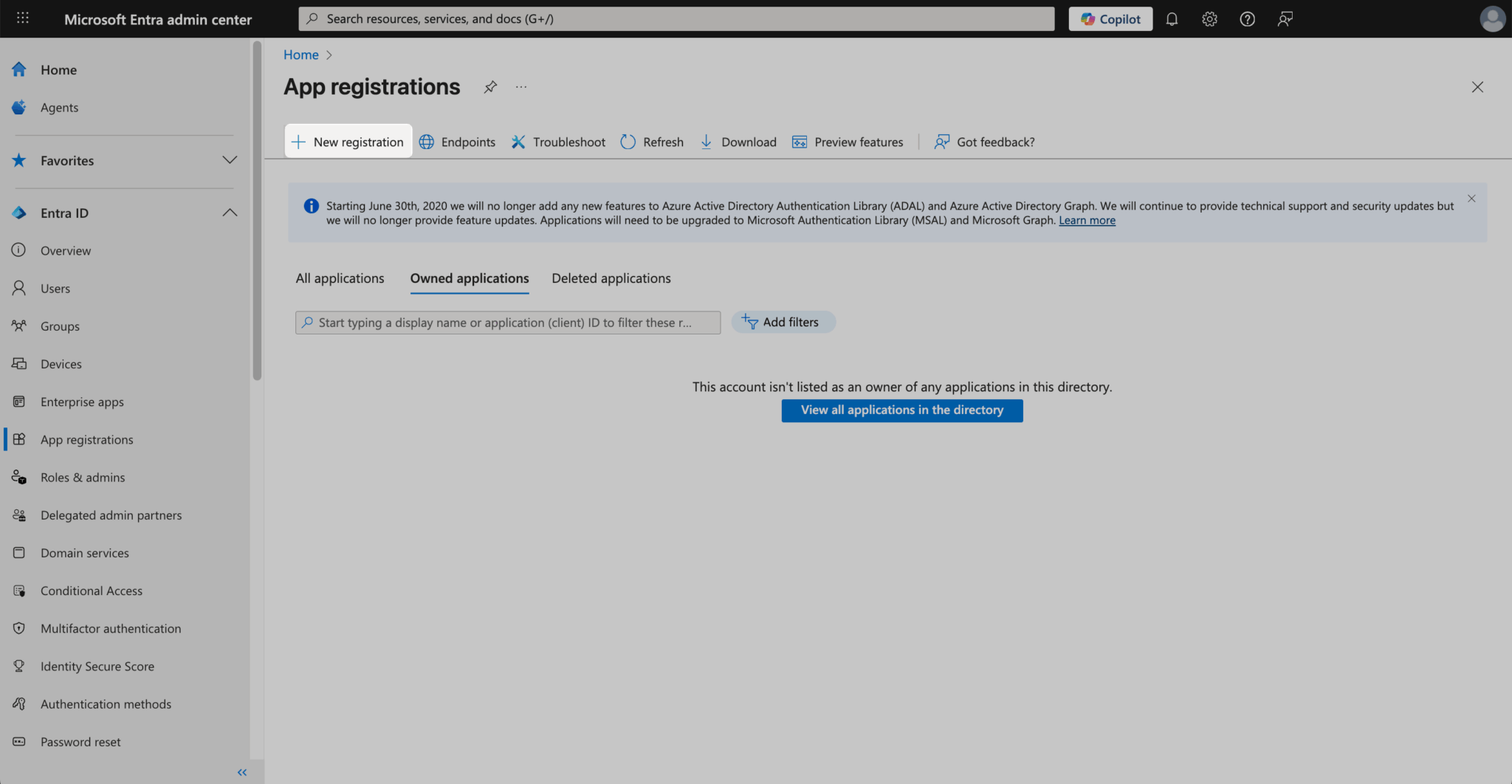
- In the left-hand navigation menu, select Applications and then App registrations.
- Click the New registration button to create a new app registration.
- Name your app.
- Under Supported account types, select the Single tenant option.
- Set the Redirect URI to
http://localhost:5173and select Single-page application (SPA). - Check that you agree with the Microsoft identity platform for developers Terms of Use and then click the Register button.
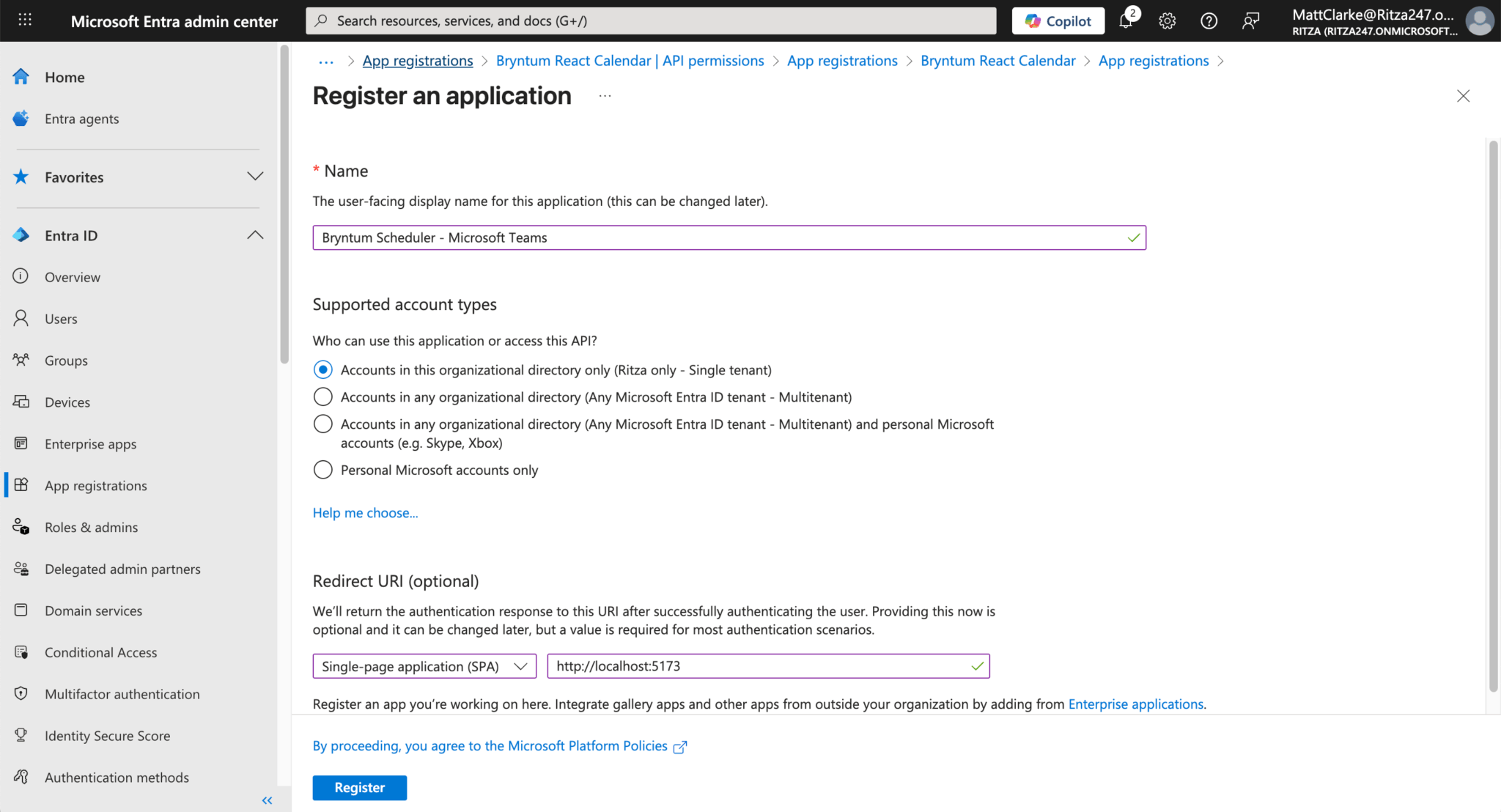
After registering your application, take note of the Application (client) ID and Directory (tenant) ID, which you’ll use for authentication in the web app.
Now we can create a JavaScript web app that can get user data using the Microsoft Graph API. The next step is to set up authentication within our web app.
Setting up Microsoft 365 authentication in the JavaScript app
To get data using the Microsoft Graph REST API, our app needs to prove that we’re the owners of the app that we just created in Microsoft Entra. Your application will get an access token from Microsoft Entra and include it in each request to Microsoft Graph. After this is set up, users will be able to sign in to your app using their Microsoft 365 account. This means that you won’t have to implement authentication in your app or maintain users’ credentials.
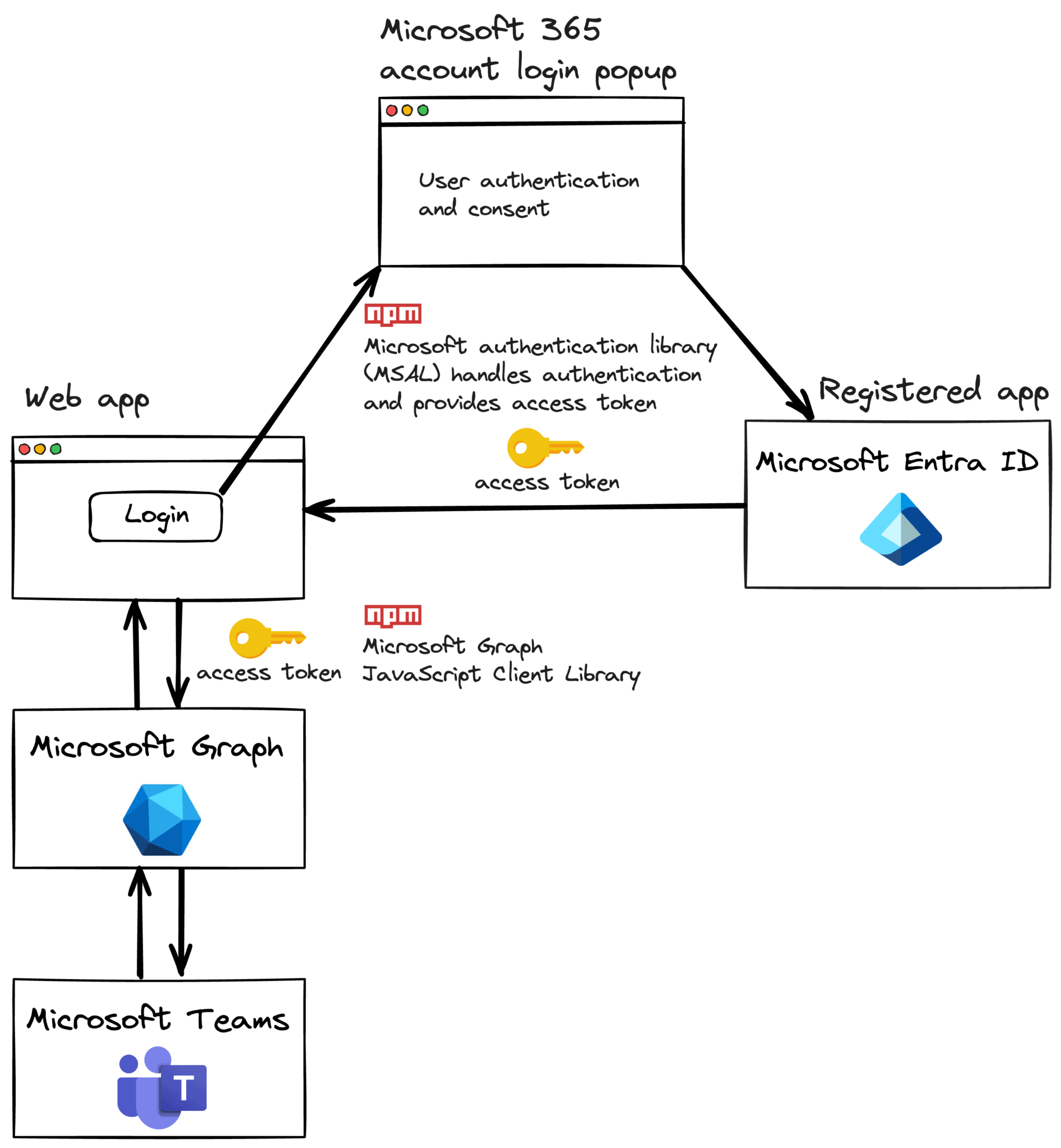
First we’ll create the variables and functions we need for authentication and retrieving team shifts from Microsoft Teams. Then we’ll add the Microsoft Authentication Library and Microsoft Graph SDK, which we’ll need for authentication and using Microsoft Graph.
Install the Microsoft Authentication Library for JavaScript and the Microsoft Graph JavaScript client library:
npm install @microsoft/microsoft-graph-client @azure/msal-browserCreate a file called auth.js in your project’s root directory and add the following code:
const msalConfig = {
    auth : {
        clientId    : import.meta.env.VITE_MICROSOFT_ENTRA_APP_ID,
        authority   : `https://login.microsoftonline.com/${import.meta.env.VITE_MICROSOFT_ENTRA_DIRECTORY_ID}`,
        redirectUri : 'http://localhost:5173'
    }
};
Create a .env file in the root directory of your project and add the following environment variable:
VITE_MICROSOFT_ENTRA_APP_ID=<your-client-ID-here>
VITE_MICROSOFT_ENTRA_DIRECTORY_ID=<your-directory-ID-here>
Add the Application (client) ID and Directory (tenant) ID of your Entra ID application.
The following code will check permissions, create a Microsoft Authentication Library client, log a user in, and get the authentication token. Add it to the bottom of the auth.js file.
const msalRequest = { scopes : [] };
function ensureScope(scope) {
    if (
        !msalRequest.scopes.some((s) => s.toLowerCase() === scope.toLowerCase())
    ) {
        msalRequest.scopes.push(scope);
    }
}

// Initialize MSAL client
const msalClient = await msal.PublicClientApplication.createPublicClientApplication(msalConfig);

// Log the user in
async function signIn() {
    const authResult = await msalClient.loginPopup(msalRequest);
    sessionStorage.setItem('msalAccount', authResult.account.username);
}

async function getToken() {
    const account = sessionStorage.getItem('msalAccount');
    if (!account) {
        throw new Error(
            'User info cleared from session. Please sign out and sign in again.'
        );
    }
    try {
    // First, attempt to get the token silently
        const silentRequest = {
            scopes  : msalRequest.scopes,
            account : msalClient.getAccountByUsername(account)
        };

        const silentResult = await msalClient.acquireTokenSilent(silentRequest);
        return silentResult.accessToken;
    }
    catch (silentError) {
    // If silent requests fails with InteractionRequiredAuthError,
    // attempt to get the token interactively
        if (silentError instanceof msal.InteractionRequiredAuthError) {
            const interactiveResult = await msalClient.acquireTokenPopup(msalRequest);
            return interactiveResult.accessToken;
        }
        else {
            throw silentError;
        }
    }
}

export { signIn, getToken, ensureScope };
Add the following import to the top of the auth.js file:
import * as msal from '@azure/msal-browser';The msalRequest variable stores the current Microsoft Authentication Library request. It initially contains an empty array of scopes. The list of permissions granted to your app is part of the access token. These are the scopes of the OAuth standard. When your app requests an access token from Entra ID, it needs to include a list of scopes. Each operation in Microsoft Graph has its own list of scopes. The list of the permissions required for each operation is available in the Microsoft Graph permissions reference.
Using Microsoft Graph to access a user’s Teams shifts
Create a file called graph.js in the project’s root directory and add the following code:
import { getToken, ensureScope } from './auth.js';
import { Client } from '@microsoft/microsoft-graph-client';

const userTimeZone = Intl.DateTimeFormat().resolvedOptions().timeZone;

// Create an authentication provider
const authProvider = {
    getAccessToken : async() => {
        // Call getToken in auth.js
        return await getToken();
    }
};

// Initialize the Graph client
const graphClient = Client.initWithMiddleware({ authProvider });

async function getMembers() {
    ensureScope('TeamMember.Read.All');
    return await graphClient
        .api(`/teams/${import.meta.env.VITE_MICROSOFT_TEAMS_ID}/members`)
        .get();
}

async function getAllShifts() {
    ensureScope('Schedule.Read.All');
    return await graphClient
        .api(`/teams/${import.meta.env.VITE_MICROSOFT_TEAMS_ID}/schedule/shifts`)
        .header('Prefer', `outlook.timezone="${userTimeZone}"`)
        .get();
}

export { getMembers, getAllShifts };
We get the access token using the getToken method in the auth.js file. We then use the Microsoft Graph SDK to create a Microsoft Graph client that will handle Microsoft Graph API requests.
The getMembers function retrieves the team members from the team specified by a team ID. Find your team ID by navigating to your Microsoft Teams and copying the link from your team.
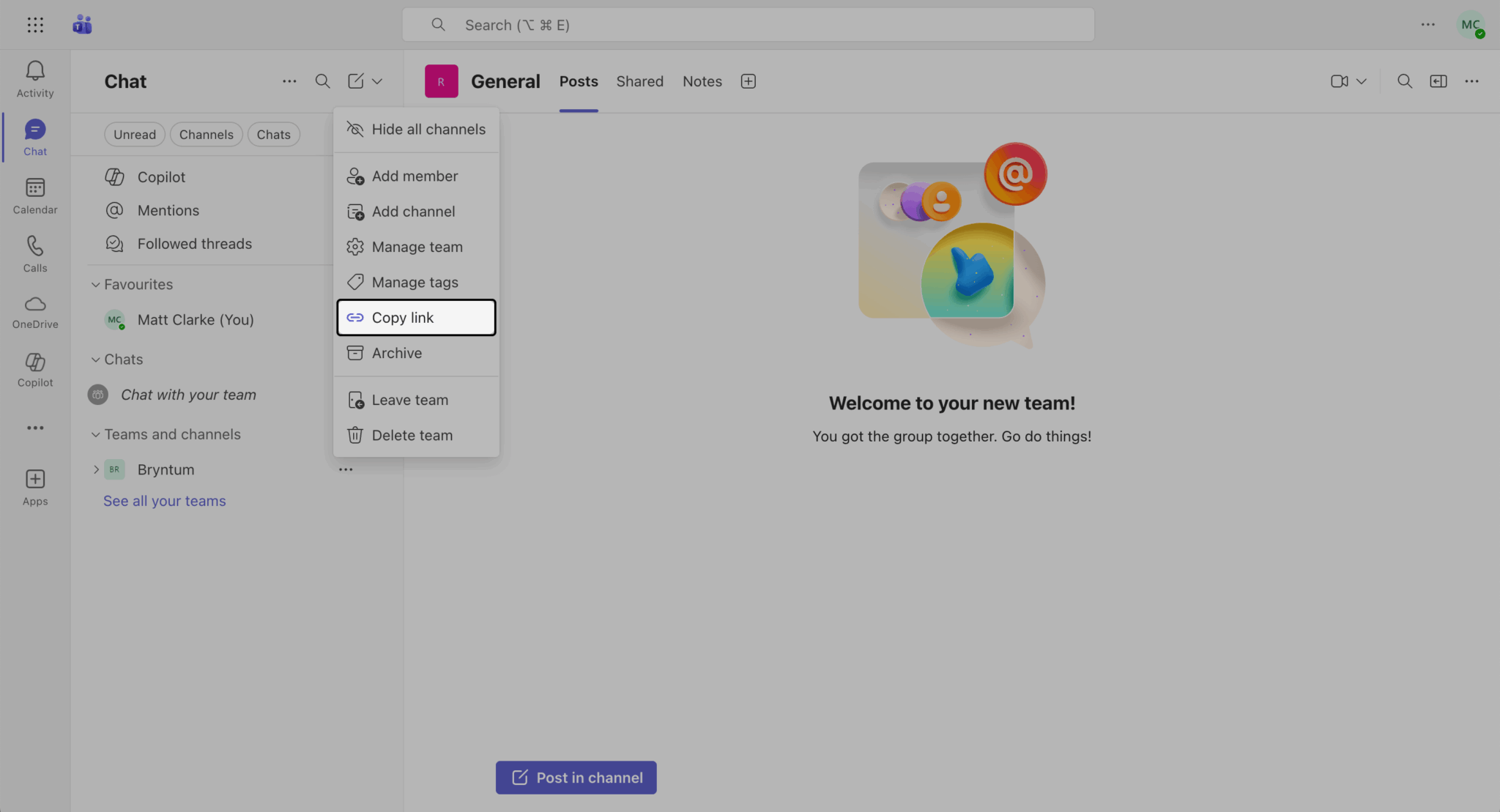
The team ID can be found in the link URL groupid parameter.
Save the team ID in the .env file as follows:
VITE_MICROSOFT_TEAMS_ID=<your-team-id>The getAllShifts function receives all the shifts within the team specified by the same ID.
We use the ensureScope function to specify the permissions needed to access the team shifts data. We then call the "/teams/" endpoint using the graphClient API method to get the data from Microsoft Graph. The header method allows us to set our preferred time zone. Teams shifts dates are stored using UTC. We need to set the time zone for the returned Teams shifts start and end dates. This is done so that the correct event times are displayed in our Bryntum Scheduler.
Now let’s add the user’s Teams shifts to our Bryntum Scheduler.
Adding Microsoft Teams shifts to Bryntum Scheduler
Let’s add the Microsoft 365 sign-in link to the page. In the index.html file, replace the child elements of the <body> HTML element with the following elements:
  <main id="main-container" role="main" class="container">
    <div id="content" style="display: none">
      <div id="scheduler"></div>
    </div>
    <a id="signin" href="#">
      <img
        src="./images/ms-symbollockup_signin_light.png"
        alt="Sign in with Microsoft"
      />
    </a>
  </main>
  <script type = "module" src = "main.js"></script>
Initially, our app will display the sign-in link only. When a user signs in, Bryntum Scheduler will be displayed.
In the main.js file, add the following lines to store the “Sign in with Microsoft” link element object in a variable:
const signInButton = document.getElementById("signin");Add the following imports to the top of the file:
import { getAllShifts, getMembers } from './graph';
import { signIn } from './auth';
Now add the following function at the bottom of the file:
async function displayUI() {
    await signIn();

    // Hide login button and initial UI
    const signInButton = document.getElementById('signin');
    signInButton.style = 'display: none';
    const content = document.getElementById('content');
    content.style = 'display: block';

    const events = await getAllShifts();
    const members = await getMembers();

    // Prepare resources array
    const resources = members.value.map((member) => ({
        id       : member.userId,
        name     : member.displayName,
        hasEvent : 'Unassigned'
    }));

    // Prepare shifts array and update resources
    const shifts = events.value.map((event) => {
        // Update corresponding resource's hasEvent status
        const resource = resources.find(r => r.id === event.userId);
        if (resource) {
            resource.hasEvent = 'Assigned';
            resource.shiftId = event.id;
        }

        return {
            resourceId : event.userId,
            name       : event.sharedShift.displayName,
            startDate  : event.sharedShift.startDateTime,
            endDate    : event.sharedShift.endDateTime,
            eventColor : event.sharedShift.theme,
            shiftId    : event.id,
            iconCls    : ''
        };
    });

    // Load all data at once using loadData (this happens before rendering animations)
    scheduler.resourceStore.data = resources;
    scheduler.eventStore.data = shifts;
}

signInButton.addEventListener('click', displayUI);

export { displayUI };
The displayUI function calls the signIn function in auth.js to sign the user in. Once the user is signed in, the sign-in link is hidden and Bryntum Scheduler is displayed. We use the getAllShifts function in the graph.js file to get the team shifts. We then use the retrieved Teams shifts to create events for Bryntum Scheduler and add them to the scheduler.eventStore store.
Each Teams shift has a unique id and when creating the shifts in Bryntum Scheduler we add this id in order to identify the corresponding shifts later on.
Similarly we use the getMembers function to get the team members and populate the scheduler.resourceStore with the team members.
We no longer need the inline data we created in the initial setup of our Scheduler, so remove these lines of code from the scheduler we defined in main.js.
    resources : [
        { id : 1, name : 'Dan Stevenson' },
        { id : 2, name : 'Talisha Babin' }
    ],

    events : [
        { resourceId : 1, startDate : previousSunday, endDate : nextSaturday },
        { resourceId : 2, startDate : previousSunday, endDate : nextSaturday }
    ],
Now sign in to Microsoft Teams using the admin email address from your Microsoft 365 Developer Program account and create some events for the following week, then click the “Share with team” button to share your shifts:
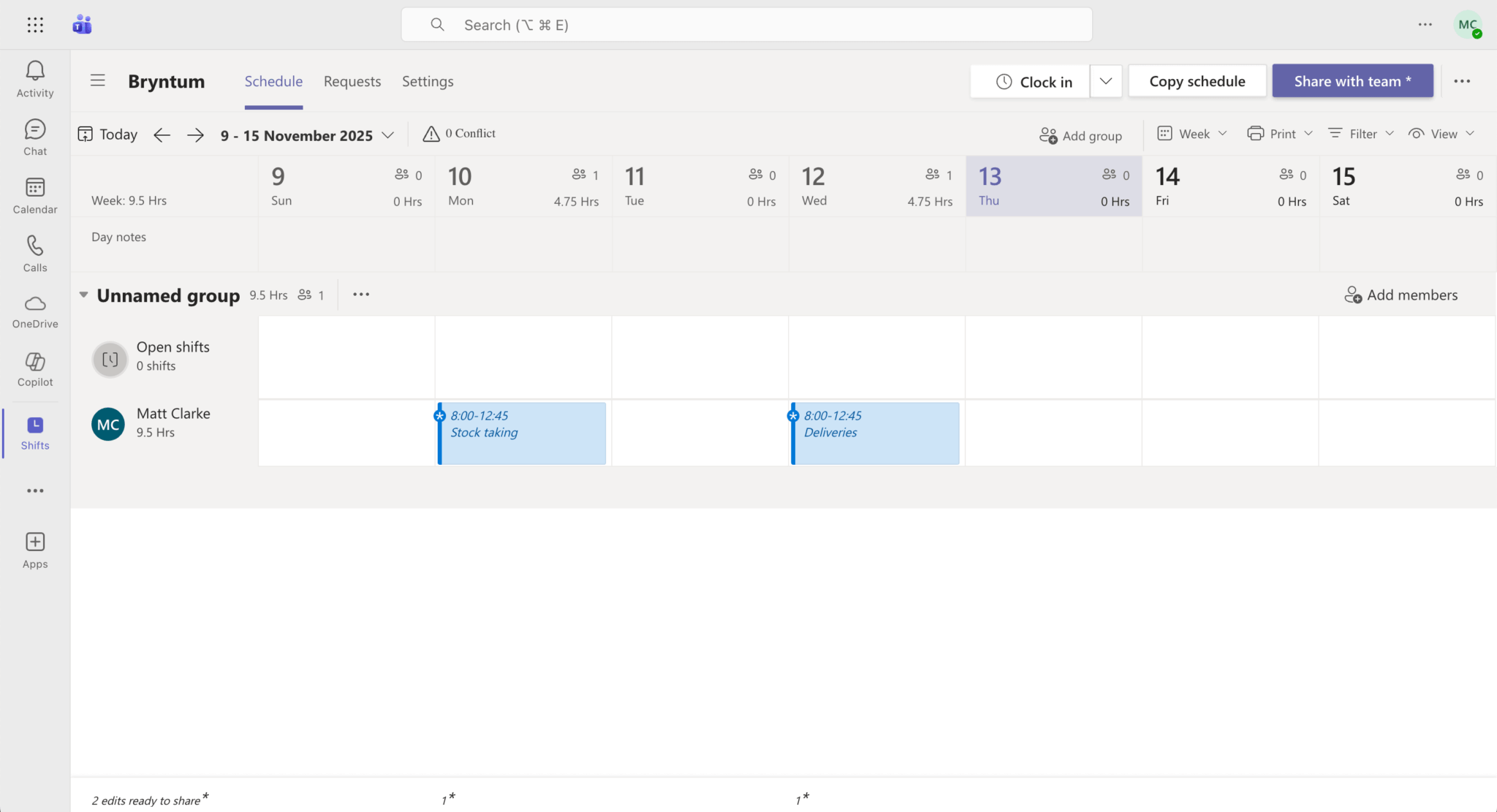
Run your dev server using npm run dev and you’ll see the sign-in link:
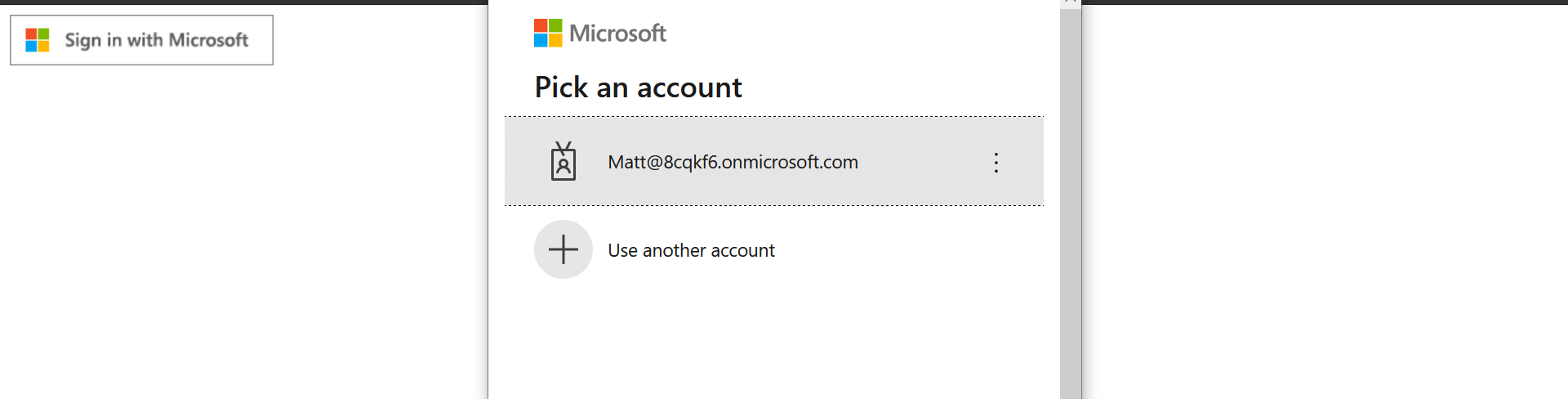
Sign in with the same admin email address that you used to log into Microsoft Teams:
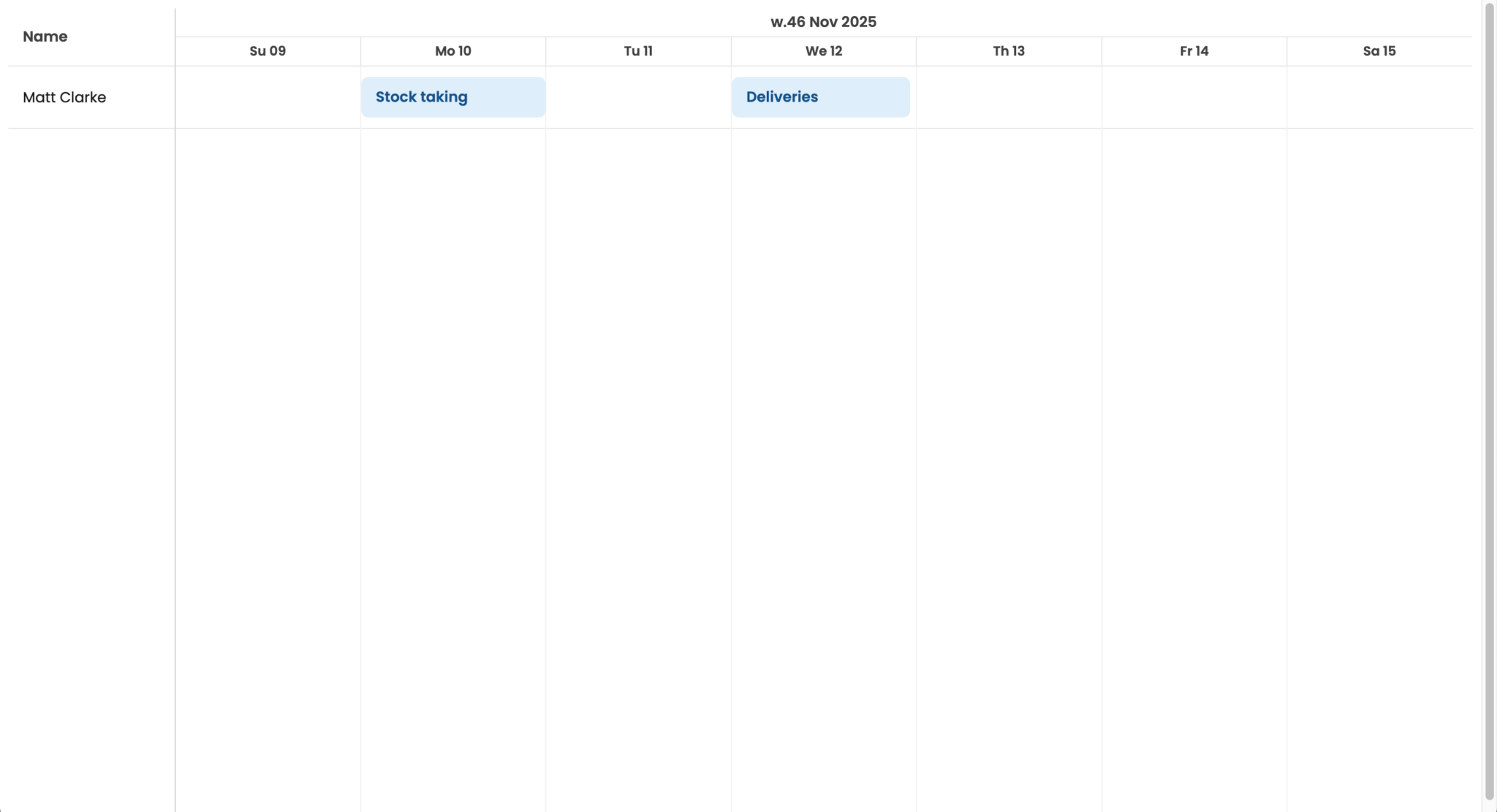
You’ll now see your Teams Shifts in your Bryntum Scheduler:
Next, we’ll sync Teams with the scheduler by implementing CRUD functionality in our Bryntum Scheduler. Updates to Bryntum Scheduler will update the shifts in Microsoft Teams.
Implementing CRUD
Now that we have connected our scheduler to the Graph API, we’ll implement the rest of the CRUD functionality by taking advantage of Microsoft Graph’s post, patch, and delete methods, passing a query string where relevant.
Create events
In the graph.js file, add the following lines of code:
async function createShift(name, start, end, userId, color) {
    ensureScope('Schedule.ReadWrite.All');
    return await graphClient
        .api(`/teams/${import.meta.env.VITE_MICROSOFT_TEAMS_ID}/schedule/shifts`)
        .post({
            'userId'      : userId,
            'sharedShift' : {
                'displayName'   : name,
                'startDateTime' : start,
                'endDateTime'   : end,
                'theme'         : color
            }
        });
}
Export the function:
export { createShift };Here we create a function that will create a Teams shift with a user ID, name, start date, and end date collected from Bryntum Scheduler. The function is passed the appropriate scope and the new shift data is defined.
Update events
In the graph.js file, add the following function:
async function updateShift(id, userId, name, start, end, color) {
    ensureScope('Schedule.ReadWrite.All');
    return await graphClient
        .api(`/teams/${import.meta.env.VITE_MICROSOFT_TEAMS_ID}/schedule/shifts/${id}`)
        .put({
            'userId'      : userId,
            'sharedShift' : {
                'displayName'   : name,
                'startDateTime' : start,
                'endDateTime'   : end,
                'theme'         : color
            }
        });
}
Export the function:
export { updateShift };The updateShift function will identify the appropriate Teams shift by id, and then it will use the new user ID, name, start date, and end date from Bryntum Scheduler to update the event. The function is passed the appropriate scope, and the new shift data is defined.
Delete events
In the graph.js file, add the following function:
async function deleteShift(id) {
    ensureScope('Schedule.ReadWrite.All');
    return await graphClient
        .api(`/teams/${import.meta.env.VITE_MICROSOFT_TEAMS_ID}/schedule/shifts/${id}`)
        .delete();
}
Export the function:
export { deleteShift };The deleteShift function will identify the appropriate Teams shift by id, and delete the event.
Listening for event data changes in Bryntum Scheduler
Next, we’ll set the listeners for our Bryntum Scheduler so that it will know when the user updates the scheduler events.
Replace the definition of scheduler in the main.js file with the following code:
const scheduler = new Scheduler({
    appendTo    : 'scheduler',
    startDate   : previousSunday,
    endDate     : nextSaturday,
    viewPreset  : 'dayAndWeek',
    workingTime : {
        fromHour : 9,
        toHour   : 17
    },
    listeners : {
        dataChange : function(event) {
            updateMicrosoft(event);
        } },
    columns : [
        { text : 'Name', field : 'name', width : 160 }
    ]
});
Here we set a listener on our Bryntum Scheduler to listen for any changes to the scheduler’s data store. This will fire an event called "update" whenever a scheduler event is created or updated, and an event called "remove" whenever an event is deleted.
The event that’s retrieved from the dataChange listener will also carry event data about the specific scheduler event that has been altered. We’ll use the event data to identify which event is being altered and what’s being changed.
Next we’ll create a function called updateMicrosoft that will update Teams when the appropriate "update" or "delete" event is fired.
Add the following code below the definition of scheduler in the main.js file:
async function updateMicrosoft(event) {
    if (event.action == 'update') {
        if ('name' in event.changes || 'startDate' in event.changes || 'endDate' in event.changes || 'resourceId' in event.changes || 'eventColor' in event.changes) {
            if ('resourceId' in event.changes){
                if (!('oldValue' in event.changes.resourceId)){
                    return;
                }
            }
            if (Object.keys(event.record.data).indexOf('shiftId') == -1 && Object.keys(event.changes).indexOf('name') !== -1){
                const newShift = createShift(event.record.name, event.record.startDate, event.record.endDate, event.record.resourceId, event.record.eventColor);
                newShift.then(value => {
                    event.record.data['shiftId'] = value.id;
                });
                scheduler.resourceStore.forEach((resource) => {
                    if (resource.id == event.record.resourceId) {
                        resource.hasEvent = 'Assigned';
                    }
                });
            }
            else {
                if (Object.keys(event.changes).indexOf('resource') !== -1){
                    return;
                }
                updateShift(event.record.shiftId, event.record.resourceId, event.record.name, event.record.startDate, event.record.endDate, event.record.eventColor);
            }
        }
    }
    else if (event.action == 'remove' && 'name' in event.records[0].data){
        deleteShift(event.records[0].data.shiftId);
    }
}
Import the CRUD functions from the graph.js file:
import { createShift, deleteShift, updateShift } from './graph';Here we create a function that is called on all changes to the data store of Bryntum Scheduler. The function then calls one of the Microsoft Graph CRUD functions that we defined.
On "update", we check whether the update change is valid for our changes to Teams. If the update concerns the name, startDate, endDate, resourceId, or eventColor, we exclude it when an event is generated in the scheduler, as this event won’t have the data necessary for creating a Teams shift.
We then check whether the event being updated has a shiftId:
- If not, it’s because this is a new event and a corresponding shift needs to be created. We create the shift with
createShiftand assign the shift’sidto the corresponding Bryntum event. - If the event already has a
shiftId, it’s because there’s already a corresponding shift in Teams and this shift needs to be updated.
Finally, if the dataChange event is a "remove" event, we delete the matching Teams event using the deleteShift function.
Now try to create, update, delete, and edit an event in Bryntum Scheduler. You’ll see the changes reflected in Teams.
Next steps
This tutorial gives you a starting point for creating Bryntum Scheduler using vanilla JavaScript and syncing it with Microsoft Teams. There are many ways that you can improve Bryntum Scheduler. For example, you can add features such as resource grouping. Take a look at our demos page to see demos of the available features.